

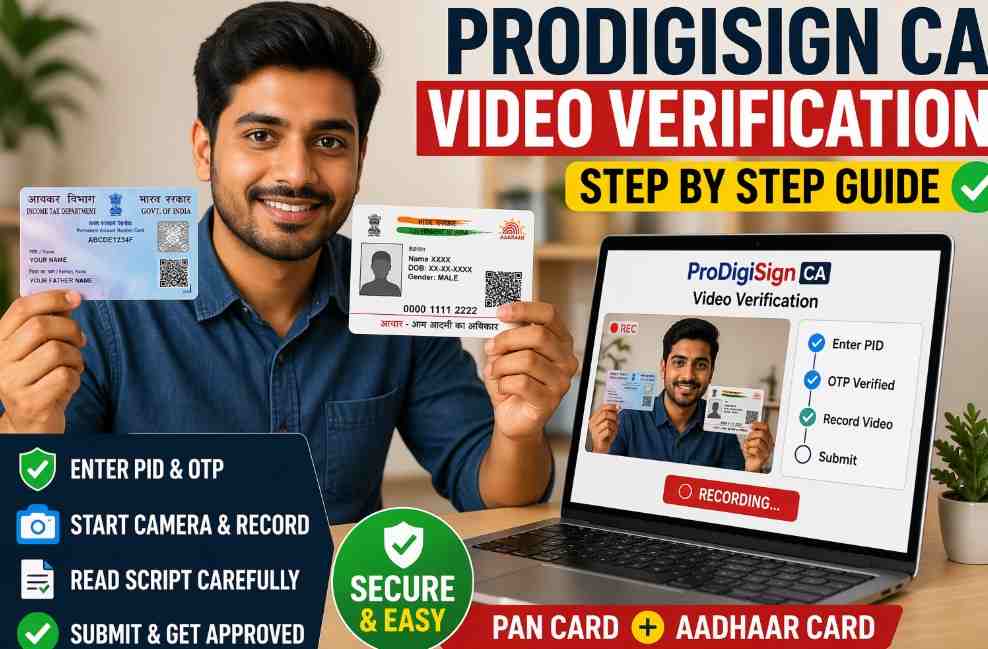
ProDigiSign Video Verification Guide – Pending, Approved, Rejected Reasons & Complete Solution
Introduction
In the world of Digital Signature Certificates (DSC), security is paramount. If you have recently applied for a certificate through ProDigiSign, completing the video verification (Video KYC) is the final—and often most misunderstood—hurdle before your certificate is issued.
Whether you are a first-time applicant or a professional renewing your credentials, you might be wondering:
- How do I ensure my video is approved on the first try?
- What exactly do I need to say in the recording?
- Why did my previous attempt get rejected?
This guide provides a deep dive into the ProDigiSign video verification process, offering step-by-step instructions and “pro-tips” to help you secure your DSC without the frustration of repeated rejections.
What is ProDigiSign Video Verification?
Video verification is a mandatory identity confirmation protocol regulated by the Controller of Certifying Authorities (CCA). It serves as a digital “face-to-face” meeting to ensure that the DSC is being issued to the rightful owner.
The process is designed to verify four key elements:
- Visual Identity: Matching your live appearance with your submitted ID documents.
- Voice Authentication: Confirming you are a sentient individual.
- Intent: Ensuring you have voluntarily applied for the certificate.
- Liveness: Preventing the use of static photos or deepfake videos to bypass security.
This is a mandatory step for all Class 3 DSCs, including those for MCA, GST, Income Tax, Trademark, and DGFT filings.
Pre-Verification Checklist: Don’t Start Without These!
To avoid technical failures mid-recording, ensure you have the following ready:
- ✅ Your PID Number: This is your Application ID sent to your registered email/mobile.
- ✅ Original Documents: Keep your original PAN Card and Aadhaar in hand. Digital copies or photocopies are usually rejected.
- ✅ Stable Environment: A quiet room with zero background noise and bright, natural light facing you.
- ✅ System Permissions: Ensure your browser (Chrome is recommended) has permission to access your Camera and Microphone.
- ✅ Strong Connection: A stable 4G/5G or Wi-Fi connection is required to upload the high-definition video file.
How to Complete ProDigiSign Video Verification (Step-by-Step)
Step 1: Access the Portal
Open the video verification link provided in your SMS or email. If you are using a mobile device, ensure you are using a modern browser like Google Chrome or Safari.
Video link – https://apply.prodigisign.pro/DscRegistration/UserTrackDSCStatus
Step 2: Authenticate Your Application
Enter your PID Number and your registered mobile number. You will receive an OTP (One-Time Password); enter this to access the recording interface.
Step 3: Test Your Hardware
The system will ask to “Allow” camera and microphone access. Perform a quick check: Can you see yourself clearly? Is the audio bar moving when you speak?
Step 4: Record Your Video
Click on “Record Video.” Position your face within the frame. Once the countdown ends, start speaking.
- The Script: Read the script displayed on the screen exactly as it appears.
- Example: “My name is Samarth. I have applied for a ProDigiSign DSC. My code is 123.”
Step 5: Show Your Documents (Crucial)
If the script asks you to show your ID, hold your Original PAN Card close to the camera for 3–5 seconds. Ensure the camera focuses on the text and photo on the card.
Step 6: Review and Submit
Play back your recording. If the audio is clear and your face is visible, click “Submit.” Your video will now be sent to the ProDigiSign verification desk.
Common Reasons for Rejection & How to Avoid Them
| Rejection Reason | How to Fix It |
| Blurry/Dark Video | Move to a window for natural light. Ensure the camera lens is clean. |
| Script Omission | Do not summarize. Read every word on the screen slowly and clearly. |
| Audio Clipping | Speak at a normal volume. Don’t record in a room with a loud fan or AC. |
| Document Not Readable | Hold the card steady. Give the camera a moment to auto-focus before moving it. |
| Presence of Others | Ensure no one else is in the frame or prompting you from behind the camera. |
| Expired Link | If your link has expired, contact your DSC provider to regenerate a new one. |
What to Do if the Link Isn’t Working?
If the web browser link fails to load due to compatibility issues, download the official ProDigiSign Mobile App for a smoother experience:
- Android: Available on Play Store
- iPhone: Available on App Store
Next Steps After Approval
Once your video is approved (usually within 5–15 minutes during business hours), your DSC will be issued. You can then proceed to:
- Download the certificate to your FIPS-certified USB Token.
- Install the necessary Token Drivers.
- Register the DSC on your target portal (GST, MCA, etc.).
Need Expert Assistance?
Navigating technical errors and video rejections can be time-consuming. At Digital Signature Spot, we provide end-to-end support to ensure your DSC journey is seamless.
We help with:
- ✔️ New DSC Applications & Rapid Approvals.
- ✔️ Professional Troubleshooting for Video KYC.
- ✔️ Remote USB Token Setup & Driver Installation.
- ✔️ Specialized DSC for Trademark, DGFT, and Tenders.
📞 Call / WhatsApp for Instant Support: +91-7579984381
🌐 Official Portal: Digital Signature Spot
Frequently Asked Questions (FAQ)
Q: Can I use a photocopy of my PAN card in the video?
A: No. The verification team requires the original physical card to prevent fraud. Photocopies or digital images on another phone will lead to rejection.
Q: How many attempts do I get for video verification?
A: Generally, you can re-try if your video is rejected. However, frequent rejections may lead to your application being flagged for manual review.
Q: Is video verification mandatory for DSC renewal?
A: Yes. Even for renewals, a fresh video KYC is required to confirm that the identity of the certificate holder remains valid.
About the Author:
Samarth is the founder of Digital Signature Spot and a technical consultant with over 10 years of experience in the digital signature industry. He has helped thousands of professionals and businesses resolve complex portal errors and security compliance issues across India.


About author
















Add comment