

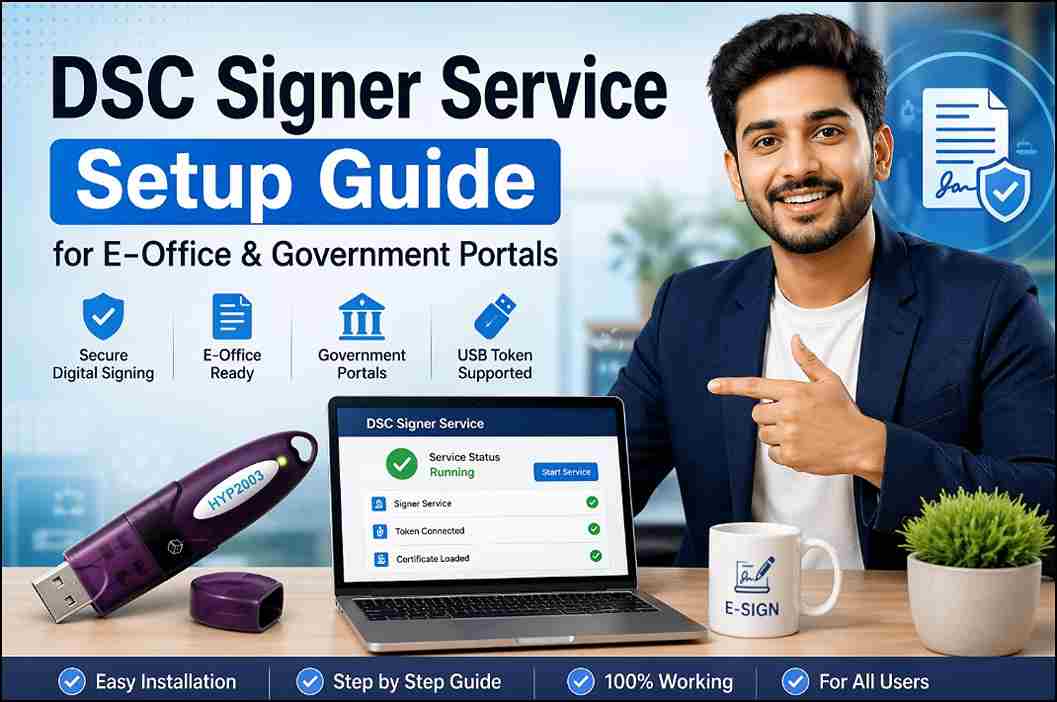
DSC Signer Service Setup Guide for E-Office & Government Portals (Complete Troubleshooting + Installation)
DSC Signer Service Setup Guide for E-Office & Government Portals : If your Digital Signature Certificate (DSC) is not working on E-Office, government portals, or internal filing systems, the issue is often related to missing Java, signer service not running, token driver errors, or browser certificate settings.
This guide explains the complete DSC Signer Service setup process in a simple step-by-step format so you can install, configure, and register your DSC successfully.
What is DSC Signer Service?
DSC Signer Service is a local application used to connect your USB token-based Digital Signature Certificate with websites that require secure digital signing.
It helps the browser detect your token and allows:
- Document signing
- Application submission
- E-file approvals
- Secure login with DSC
- Government portal authentication
Without this service, the website may fail to detect your certificate.
Complete DSC Setup Process
Step 1: Install Java
Many signer utilities need Java support.
Download Java for e-Tendering Website
How to Install:
- Open Java setup file
- Run installer as Administrator
- Click Install
- Wait until installation completes
- Restart system if required
If Java is Already Installed
Still update to the latest compatible version if DSC is not working.
Step 2: Install DSC Signer Service
Now install the signer utility.
Download DSC Signer Service
Direct source page:
https://sonbhadra.nic.in/eoffice-training-videos-software
This government page hosts eOffice training software/resources including signer utility references.
Steps:
- Open the Signer Service setup file
- Double-click to run
- Choose installation folder
- Click Next
- Accept License Agreement
- Finish installation
Once completed, a desktop shortcut is usually created.
Step 3: Start DSC Signer Service
After installation:
- Double-click signer desktop icon
- Wait few seconds
- Service should start successfully
If service does not start:
- Run as Administrator
- Disable antivirus temporarily
- Reinstall signer tool
Step 4: Fix Browser Security Certificate Issue
Sometimes Chrome blocks localhost signer connection.
Solution:
Open this in browser:
https://127.0.0.1:55101/check/isLive
If warning appears:
- Click Advanced
- Click Proceed
- Allow certificate exception
Then service connection becomes active.
Step 5: Enable Localhost Access in Chrome
Type in browser:
chrome://flags/#allow-insecure-localhost
Then:
- Enable the option
- Restart browser
This helps Chrome trust local signer certificate.
Step 6: Install USB Token Driver
Insert your DSC token.
If auto-install starts:
- Allow setup
- Complete installation
- Click Finish
- Restart computer
If auto-install does not start:
- Open token drive manually
- Run setup.exe
- Install driver manually
Step 7: Register DSC on Portal
Login to your portal and go to DSC registration area.
Typical path:
- Settings
- DSC
- Register Certificate
Then:
- Wait for certificate list
- Select your DSC
- Click Register
- Enter Token PIN
- Submit
If successful, confirmation message appears.
Common DSC Errors & Fixes
1. Certificate Not Showing
Fix:
- Insert token properly
- Install token driver
- Restart signer service
- Try another USB port
2. Sign Button Not Working
Fix:
- Run signer service
- Allow browser popup
- Clear browser cache
- Use supported browser
3. Wrong PIN Error
Fix:
Use correct token password. Too many wrong attempts may lock token.
4. Token Detected But No Certificate
Fix:
Certificate may be expired or corrupted.
Best Browser for DSC Use
Recommended:
- Google Chrome
- Microsoft Edge
Avoid outdated browsers.
Expert Tips for Smooth DSC Usage
- Always use updated token driver
- Start signer before login
- Keep Java updated
- Use genuine USB token
- Restart browser after installation
Why DSC Stops Working Suddenly?
Usually because of:
- Browser update
- Windows update
- Expired certificate
- Driver corruption
- Signer service stopped
Need New DSC or Support?
If your DSC expired, token damaged, or setup not working, get instant help.
Digital Signature Spot
📞 WhatsApp: 7579984381
Final Words
DSC setup problems are common, but most issues are solved by installing Java, signer service, token driver, and allowing localhost certificate access.
Follow the above steps carefully and your digital signature should work smoothly on E-Office and other portals.


About author















Add comment