

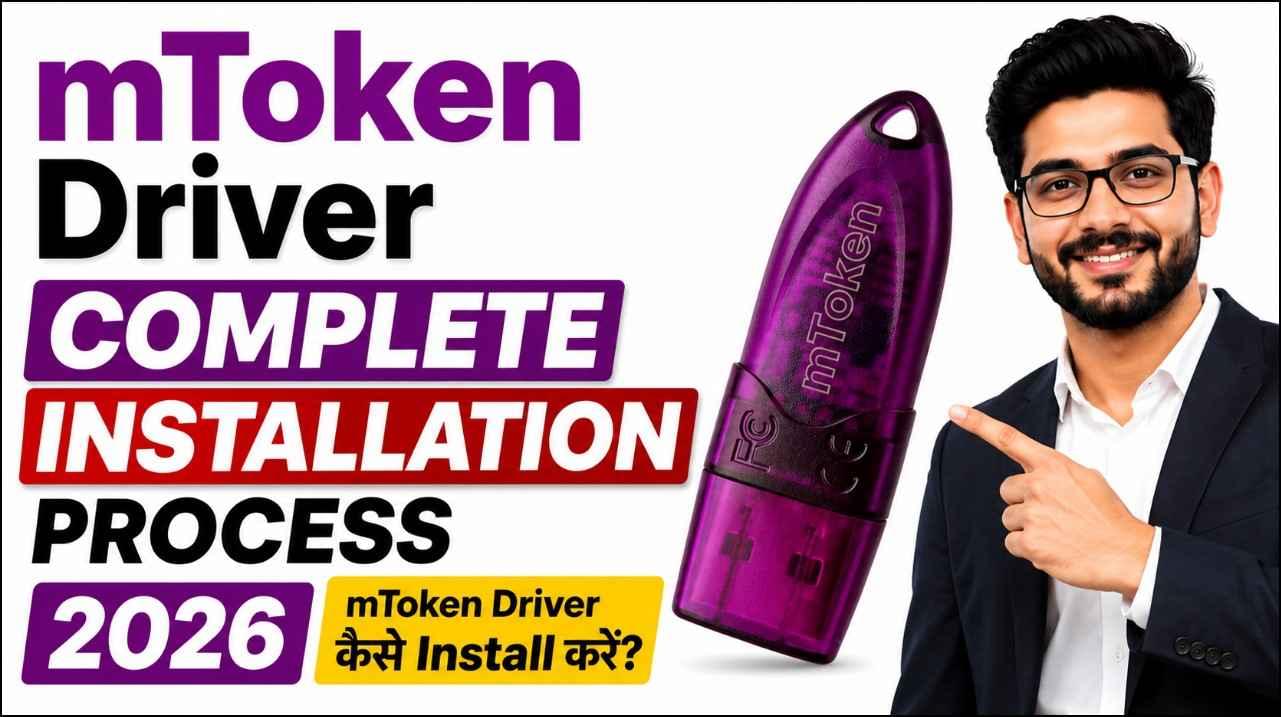
mToken Driver Installation Process 2026 | How to Install mToken Driver On Windows
mToken Driver Installation :Installing the mToken Driver is the first step before using your Digital Signature Certificate (DSC) for eTender, GeM, MCA, DGFT, GST, ICEGATE, Income Tax, Trademark, and other government portals.
If your computer does not have the correct driver installed, the USB token may not be detected, your DSC may not appear in the browser, or digital signing may fail.
In this guide, you’ll learn the complete mToken Driver installation process for 2026 with easy step-by-step instructions.
What is mToken Driver?
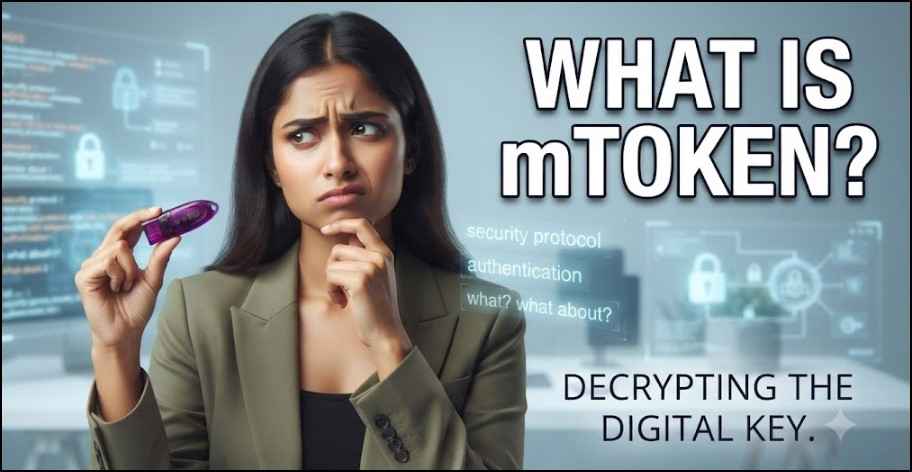
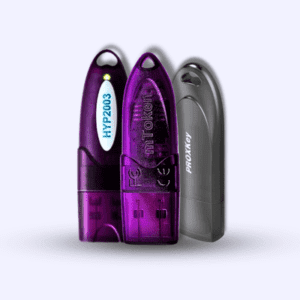
The mToken Driver is software that allows your Windows computer to communicate with the mToken USB Token.
Without the driver:
- The USB token will not be detected.
- Your Digital Signature Certificate (DSC) cannot be accessed.
- Government portals will not recognize your token.
- Digital signing will fail.
Installing the correct driver ensures smooth communication between your USB Token and Windows.
System Requirements
Before installing the driver, make sure your computer meets these requirements.
- Windows 11
- Windows 10
- Windows 8 / 8.1
- Windows 7 (64-bit preferred)
- Administrator access
- Internet connection (recommended)
Watch the Complete Video Tutorial
Prefer watching the installation process instead of reading? We’ve created a detailed step-by-step video that shows exactly how to install the mToken Driver, select the correct Private CSP option, and verify that your Digital Signature Certificate (DSC) is working properly.
Whether you’re a beginner or installing the driver for the first time, this video will help you complete the setup without any confusion.
🎥 Watch the Complete mToken Driver Installation Video Below
What You’ll Learn in This Video
- How to install the latest mToken Driver
- How to open the CryptoID setup
- Selecting the correct Private CSP
- How to verify that your DSC is detected
- Common installation mistakes to avoid
- Troubleshooting tips if the token is not detected
Download mToken Driver
Always download the latest version of the driver from a trusted source.
👉 Download Here:
How to Install mToken Driver (Step-by-Step) mToken Driver Installation
Step 1: Download the Driver
Download the latest mToken Driver according to your Windows version.
Step 2: Close All Browsers
Before installation, close:
- Google Chrome
- Microsoft Edge
- Mozilla Firefox
- Adobe Reader (if open)
Step 3: Run the Installer
Locate the downloaded file.
Right-click it and select:
Run as Administrator
Step 4: Accept the License
Click
Next → Install
Wait for the installation to complete.
Step 5: Restart Your Computer
Although not always required, restarting Windows is recommended.
Step 6: Connect Your mToken
Insert the USB Token into your computer.
Windows should detect it automatically.
Step 7: Verify Installation
Open the Token Management Utility.
If your certificates appear successfully, the installation is complete.
Common Problems After Installation
Sometimes users still experience issues after installing the driver.
Here are the most common problems.
1. USB Token Not Detected
Possible reasons:
- Faulty USB port
- Driver not installed properly
- Windows security restrictions
Solution:
- Reinstall the driver.
- Try another USB port.
- Restart the PC.
2. DSC Not Showing
Possible reasons:
- Driver installation incomplete
- Certificate not imported correctly
- Token not connected
Solution:
- Reconnect the token.
- Restart the browser.
- Verify certificates in the Token Utility.
3. Driver Installation Failed
Possible reasons:
- Antivirus blocked installation.
- Previous driver conflict.
- Missing administrator permission.
Solution:
- Uninstall the old driver.
- Restart Windows.
- Install again as Administrator.
4. Browser Cannot Detect Token
Some government portals require additional components such as:
- emSigner
- Java
- WebSocket utilities
Install the required utility according to the portal you’re using.
Supported Government Portals
After successful installation, your mToken can be used with:
- GeM Portal
- CPP Portal
- MCA Portal
- DGFT
- ICEGATE
- GST Portal
- Income Tax Portal
- EPFO
- Trademark Portal
- Patent Portal
- State eTender Portals
- Railways Tender Portal
- PWD Tender Websites
Tips for Better Performance
- Always install the latest driver.
- Keep Windows updated.
- Remove old token drivers before installing a new one.
- Do not remove the token while signing documents.
- Use genuine USB Tokens only.
Frequently Asked Questions (FAQs)
Is the mToken Driver free?
Yes. The driver is completely free to download and install.
Does the mToken Driver work on Windows 11?
Yes. The latest driver supports Windows 11, Windows 10, Windows 8, and Windows 7.
Can I use the same driver for all DSC certificates?
Yes. If your Digital Signature Certificate is stored inside the mToken USB Token, the same driver works regardless of the Certifying Authority (CA).
Do I need internet while installing?
No. However, downloading the latest driver requires an internet connection.
Why is my USB Token not detected?
Usually because of:
- Missing driver
- Corrupted installation
- Faulty USB port
- Outdated Windows
Conclusion
Installing the mToken Driver correctly is essential for using your Digital Signature Certificate (DSC) on government portals and eTender websites. By following the steps above, you can install the driver in just a few minutes and avoid common installation issues.
If you face any problems during installation, make sure you’re using the latest driver version and install it with administrator privileges.
Need a Digital Signature Certificate (DSC)?
We provide genuine Class 3 Digital Signature Certificates (DSC) for Individuals and Organizations across India.
✅ Class 3 DSC
✅ USB Tokens
✅ PAN India Service
✅ Fast Approval
✅ Technical Support
📞 Call / WhatsApp: 7579984381
🌐 Website: https://digitalsignaturespot.com


About author


Add comment