
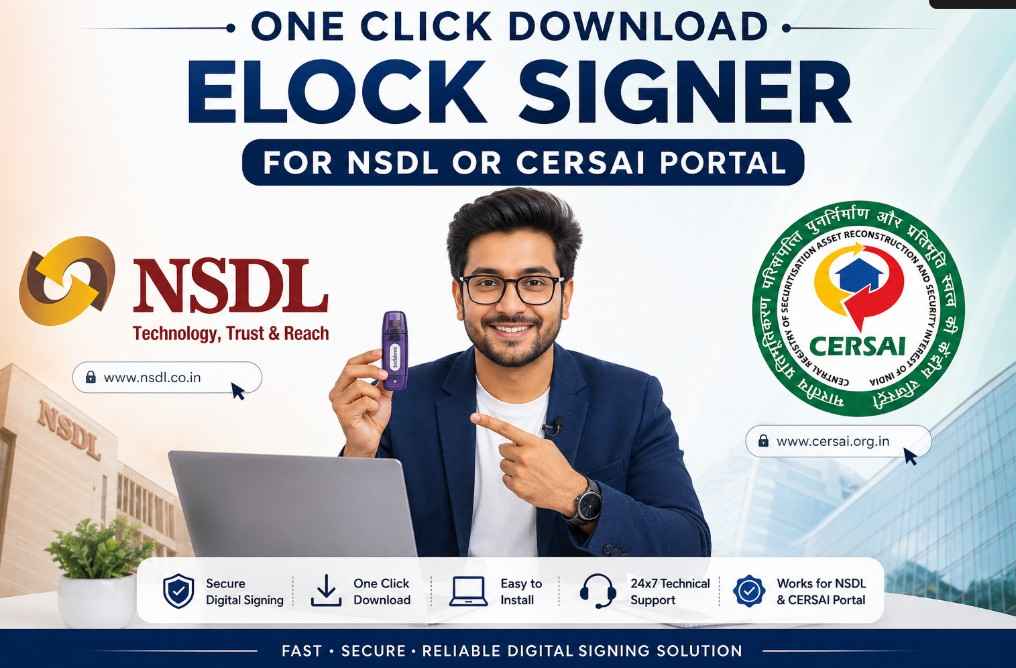
One Click Download ELock Signer for NSDL or CERSAI Portal (Latest Version)
One Click Download ELock Signer for NSDL or CERSAI Portal: If you’re searching for the latest ELock Signer Download for the NSDL or CERSAI portal, you’ve come to the right place.
ELock Signer is a desktop utility that allows users to digitally sign documents using a Class 3 Digital Signature Certificate (DSC) stored in a USB token. Without this software, many government and financial portals cannot detect your digital signature.
In this guide, you’ll learn how to download, install, and use ELock Signer, along with solutions to the most common installation and signing errors.
One Click ELock Signer Download | One Click Download ELock Signer for NSDL or CERSAI Portal
Download the latest ELock Signer for NSDL and CERSAI using the link below.
👉 Download ELock Signer
https://digitalsignaturespot.com/wp-content/uploads/2026/07/ElockClientCersai.zip
Important: After downloading, extract the ZIP file and run the installer as Administrator for a smooth installation.
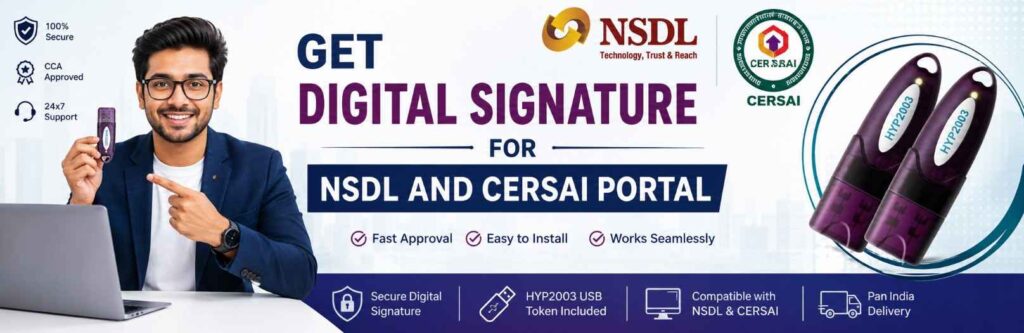
What is ELock Signer?
ELock Signer is a desktop application that securely connects your USB Token with government and financial portals, enabling digital signing of documents using your Class 3 DSC.
It verifies your Digital Signature Certificate before allowing documents to be signed electronically.
ELock Signer is commonly used with:
- NSDL Portal
- CERSAI Portal
- Banking Applications
- Financial Institutions
- Government e-Filing Systems
- Secure Document Signing Platforms
System Requirements
Before installing ELock Signer, make sure your computer meets these requirements.
- Windows 10 or Windows 11
- Administrator access
- Active Internet Connection
- Latest USB Token Driver Installed
- Valid Class 3 Digital Signature Certificate
- Google Chrome or Microsoft Edge
- USB Token Connected to the Computer
How to Install ELock Signer
Step 1
Download the ZIP file using the link above.
Step 2
Extract the downloaded ZIP folder.
Step 3
Open the extracted folder.
Step 4
Right-click the installer.
Select Run as Administrator.
Step 5
Complete the installation process.
Step 6
Restart your computer.
Step 7
Insert your USB Token.
Step 8
Open the NSDL or CERSAI portal and begin signing documents.
How to Use ELock Signer
- Connect your USB Token.
- Open the NSDL or CERSAI Portal.
- Click the Sign button.
- ELock Signer will launch automatically.
- Select your Digital Signature Certificate.
- Enter the Token Password.
- Click Sign.
Your document will be digitally signed successfully.
Common ELock Signer Errors and Solutions
ELock Signer Not Detected
If the portal cannot detect the signer:
- Restart your browser.
- Restart your computer.
- Reinstall ELock Signer.
- Install the latest USB Token Driver.
- Ensure the signer is running in the background.
No Certificate Found
Possible reasons include:
- USB Token not detected.
- Driver not installed.
- DSC expired.
- Incorrect USB Token Password.
- Token locked after multiple incorrect attempts.
Solution
Reconnect the USB Token, reinstall the driver if required, and verify that your DSC is still valid.
Failed to Connect to Signer
This usually occurs when the signer service is not running correctly.
Solution
- Close the browser.
- Restart ELock Signer.
- Restart your computer.
- Open the portal again.
- Reinstall the latest version if necessary.
Browser Cannot Detect ELock Signer
If Chrome or Edge cannot detect the signer:
- Update your browser.
- Allow pop-ups.
- Disable antivirus temporarily if it’s blocking the signer.
- Restart the browser after installation.
ELock Signer Not Working on CERSAI Portal?
If ELock Signer isn’t opening on the CERSAI Portal, try the following:
- Clear browser cache.
- Restart the system.
- Reconnect the USB Token.
- Verify that the DSC has not expired.
- Reinstall ELock Signer.
- Install the latest USB Token Driver.
Most signing issues are resolved after reinstalling both the signer and the token driver.
ELock Signer Not Working on NSDL Portal?
If you’re facing signing issues on the NSDL Portal:
- Install the latest ELock Signer.
- Run the application as Administrator.
- Update your browser.
- Restart the computer.
- Verify that your USB Token is detected.
- Check that your Class 3 DSC is valid.
Supported USB Tokens
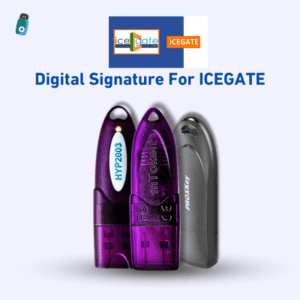
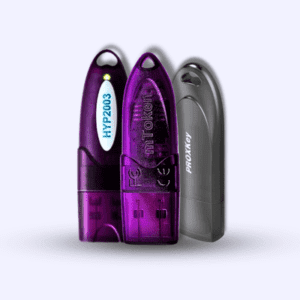
ELock Signer supports most CCA-approved USB Tokens, including:
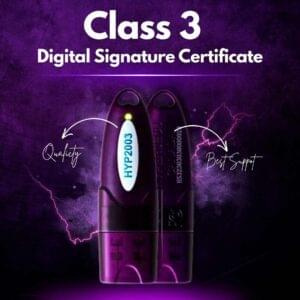
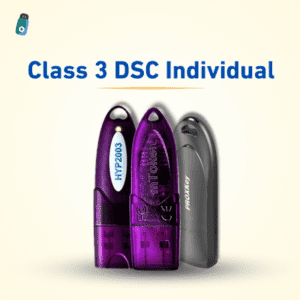
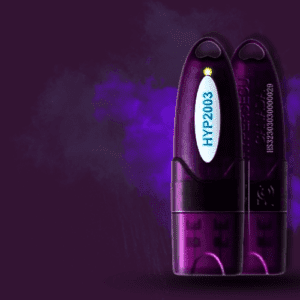
- HYP2003
- WatchData ProxKey
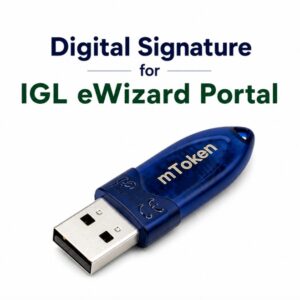
- mToken
- ePass2003
- Safenet Tokens (where supported)
Always install the latest driver for your USB Token before using ELock Signer.
Frequently Asked Questions
Is ELock Signer free?
Yes. The software is free to download and use.
Does ELock Signer work on Windows 11?
Yes. It supports both Windows 10 and Windows 11.
Which Digital Signature Certificate is required?
A valid Class 3 Digital Signature Certificate (DSC) is generally required for document signing on NSDL and CERSAI portals.
Which browsers are supported?
Google Chrome and Microsoft Edge are recommended.
Why is my certificate not showing?
Possible reasons include:
- USB Token Driver missing
- Expired DSC
- Token not connected
- Browser not detecting the signer
- Incorrect driver installation
Need Help Installing ELock Signer?
If you’re facing any issues such as:
- ELock Signer installation failed
- Certificate not showing
- USB Token not detected
- Signing failed
- Driver installation issues
- Browser compatibility problems
- Remote DSC setup
Our technical support team can help you remotely.
We provide:
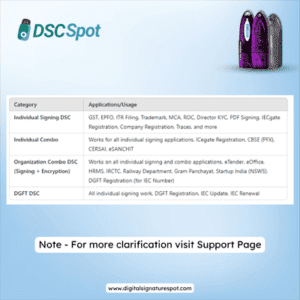
- Class 3 Digital Signature Certificates
- DSC Renewal
- USB Tokens
- Remote Installation Support
- NSDL Portal Support
- CERSAI Portal Support
- USB Token Driver Installation
- Complete DSC Troubleshooting
Why Choose Digital Signature Spot?
Digital Signature Spot has been helping businesses, professionals, Chartered Accountants, Company Secretaries, contractors, and government portal users with Digital Signature solutions for over 11 years.
Why customers trust us:
- 11+ Years of Industry Experience
- Genuine CCA-Approved Digital Signature Certificates
- Fast DSC Approval
- PAN India Service
- Remote Technical Support
- Affordable Pricing
- Quick Issue Resolution
- Dedicated Customer Assistance
Whether you’re applying for a new DSC, renewing an existing certificate, or resolving technical issues, our experienced team is here to help.
Here’s an SEO-friendly, EEAT-style Technical Support section you can paste directly into your WordPress blog.
Need Technical Support? We’re Here to Help!
If you’re experiencing issues while installing or using ELock Signer on the NSDL or CERSAI portal or any kind of Technical support about Digital signature certificate, our experienced technical support team is ready to assist you through secure remote support.
With 11+ years of experience in Digital Signature Certificate (DSC) services and government portal support, we’ve successfully resolved thousands of technical issues for professionals, businesses, Chartered Accountants, Company Secretaries, banks, and corporate users across India.
We Can Help You With:
- ELock Signer Installation & Configuration
- NSDL Portal Digital Signature Setup
- CERSAI Portal DSC Configuration
- USB Token Driver Installation
- DSC Certificate Not Showing
- Certificate Chain & Trust Errors
- Digital Signature Signing Errors
- Browser Compatibility Issues
- Token Password & Detection Problems
- Java & Middleware Installation
- Remote DSC Installation & Configuration
- Any Digital Signature Related Technical Issue
Remote Technical Support Available Across India
Our engineers will diagnose the issue remotely and guide you through the complete resolution process, helping you get back to work as quickly as possible.
Nominal service charges apply for remote technical support and issue resolution. Charges may vary depending on the complexity of the issue. You will always be informed of the applicable charges before any support session begins.
Contact Digital Signature Spot
📞 Call / WhatsApp: +91 7579984381
📧 Email: digitalsignaturespot@gmail.com
🌐 Website: https://digitalsignaturespot.com
Whether you’re facing a simple installation problem or a complex Digital Signature issue, our team is committed to providing fast, reliable, and professional technical support.
Conclusion
ELock Signer is an essential application for digitally signing documents on the NSDL and CERSAI portals. Installing the latest version, keeping your USB Token drivers updated, and using a valid Class 3 DSC will help ensure a smooth signing experience.
If you’re still experiencing installation errors, certificate detection problems, or signing failures, the Digital Signature Spot support team can assist you with quick remote troubleshooting so you can get back to work without delays.

About author



Add comment