

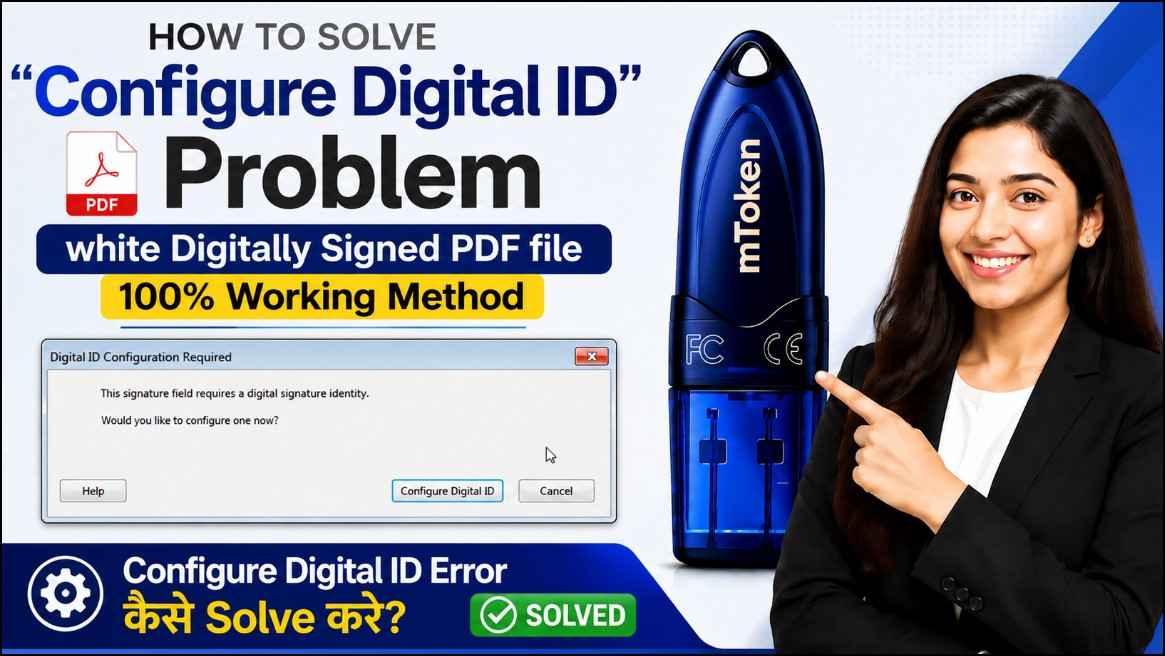
How to Fix “Configure Digital ID” Error While Signing PDF (100% Working Solution)
Are you getting the “Configure Digital ID” error while digitally signing a PDF in Adobe Acrobat?
Don’t worry—you are not alone.
This is one of the most common issues faced by users while signing PDF files using a USB Token-based Digital Signature Certificate (DSC). The good news is that, in most cases, the problem can be fixed within a few minutes simply by installing the correct USB Token Driver.
In this guide, I’ll explain why this error occurs, how to fix it step-by-step, and how to verify that your Digital Signature is working properly again.
Need USB Token Drivers?
Download the latest drivers for HYP2003, mToken, WD ProxKey, and other supported USB Tokens from:

Why Does the “Configure Digital ID” Error Appear?
When you click Digitally Sign in Adobe Acrobat, instead of displaying your Digital Signature Certificate, Adobe asks you to Configure Digital ID.
This usually indicates that Adobe cannot detect your USB Token or the Digital Certificate stored inside it. Adobe supports hardware security devices as digital ID sources, but the required drivers must be properly installed for the device to be recognized.
The most common reasons include:
- USB Token driver is not installed.
- Driver installation is corrupted.
- USB Token is not detected by Windows.
- Token middleware is missing.
- Adobe Acrobat cannot communicate with the USB Token.
The Most Common Cause
From our experience helping thousands of Digital Signature users across India, the number one reason behind this error is:
The USB Token Driver is either missing or installed incorrectly.
Without the correct driver, Windows detects only the hardware, while Adobe Acrobat cannot access the Digital Certificate stored inside the USB Token.
Watch the Complete Video Tutorial
Prefer watching instead of reading?
Watch our complete step-by-step YouTube tutorial where we demonstrate the entire process live.
📺 YouTube Video: How to Fix Configure Digital ID Error While Signing PDF
In this video, you’ll learn:
- How to fix the “Configure Digital ID” error
- How to install the USB Token Driver
- HYP2003 Driver Installation
- mToken Driver Installation
- WD ProxKey Driver Installation
- Adobe Acrobat PDF Signing Solution
- Common Digital Signature mistakes to avoid
📥 Download Required USB Token Drivers
Download the latest drivers before following the tutorial:
👉 https://digitalsignaturespot.com/downloads
💬 Need Help?
If you’re still facing the issue after following the video, contact our technical support team.
📞 Call / WhatsApp: +91 7579984381
🌐 Website: https://digitalsignaturespot.com
Step 1: Connect Your USB Token
Insert your USB Token into your computer.
Examples include:
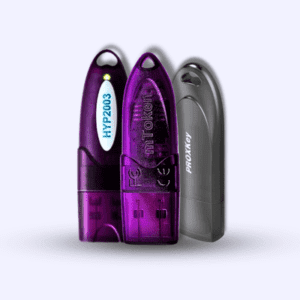
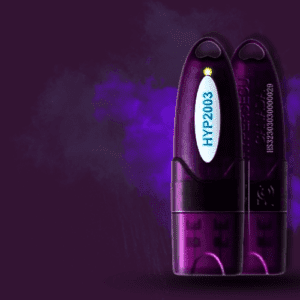
- HYP2003
- mToken
- WD ProxKey
If the driver is missing, Windows generally creates a new CD Drive containing the installation files supplied with the token.
Step 2: Open “This PC” (My Computer)
Open This PC on your Windows computer.
After inserting the USB Token, you should notice a newly created CD Drive.
Sometimes Windows also displays an AutoPlay popup.
If AutoPlay appears:
- Click Open Folder
If AutoPlay does not appear:
- Open This PC
- Right-click the Token CD Drive
- Click Open
Step 3: Install the USB Token Driver
Inside the CD Drive, locate the Driver Setup file.
Depending on your token, the setup name may vary.
Double-click the setup file and complete the installation.
If you don’t have the original installation CD, you can download the latest drivers from:
Supported Drivers include:
- HYP2003 Driver
- mToken Driver
- WD ProxKey Driver
Step 4: Restart If Required
Some drivers require a system restart after installation.
If prompted, restart your computer before proceeding.
Step 5: Verify the Digital Signature
Now reopen Adobe Acrobat.
Open the same PDF.
Click:
Certificates → Digitally Sign
If everything has been installed correctly, Adobe should now display your Digital Signature Certificate instead of asking you to configure a new Digital ID. Adobe documents this behavior for device-based digital IDs when the hardware token is correctly recognized.
Your PDF should now sign successfully.
How to Check Whether the Driver Is Installed Correctly
A properly installed driver will usually show the following behavior:
- USB Token is detected immediately after insertion.
- Token software opens without errors.
- Adobe Acrobat displays your DSC during signing.
- You are prompted to enter your Token PIN.
- PDF signing completes successfully.
If the Problem Still Exists
If you still receive the “Configure Digital ID” message after installing the driver, check the following:
- Remove and reconnect the USB Token.
- Restart Adobe Acrobat.
- Restart Windows.
- Install the latest version of the Token Driver.
- Try another USB port.
- Verify that your Digital Signature Certificate is actually stored inside the Token.
- Ensure the Token is functioning correctly on another computer.
Frequently Asked Questions (FAQ)
Why is Adobe asking me to Configure Digital ID?
Adobe cannot detect your Digital Signature Certificate because the USB Token driver is missing, corrupted, or the token is not recognized properly.
Is installing the USB Token Driver enough?
In most cases, yes.
Installing the correct driver resolves the issue immediately.
Where can I download USB Token Drivers?
You can download the latest drivers for popular USB Tokens from:
Digital Signature Spot Driver Downloads
Which USB Tokens are supported?
The download page includes drivers for:
- HYP2003
- mToken
- WD ProxKey
and other supported USB Tokens.
Final Thoughts
The Configure Digital ID error may seem confusing at first, but in most situations it is caused by a missing or incorrectly installed USB Token Driver.
Once the correct driver is installed, Adobe Acrobat can recognize your USB Token, detect the Digital Signature Certificate stored inside it, and allow you to sign PDF documents without any issues.
If you’re using a Digital Signature Certificate regularly for GST, MCA, Income Tax, Tender Portals, ICEGATE, DGFT, or other government applications, keeping your USB Token drivers updated can help prevent many common signing problems.
Need Help?
If you’re still facing the issue, leave a comment on our YouTube video or contact Digital Signature Spot for assistance.
Download USB Token Drivers:
digitalsignaturespot.com/downloads
About the Author
Samarth has over 11 years of experience in the Digital Signature Certificate (DSC) industry. He specializes in USB Token setup, PDF signing, Adobe Acrobat troubleshooting, eTender DSC configuration, MCA, GST, DGFT, ICEGATE, and other government portal integrations. Through Digital Signature Spot, he has helped thousands of users across India resolve DSC-related technical issues quickly and reliably.

About author











Add comment