

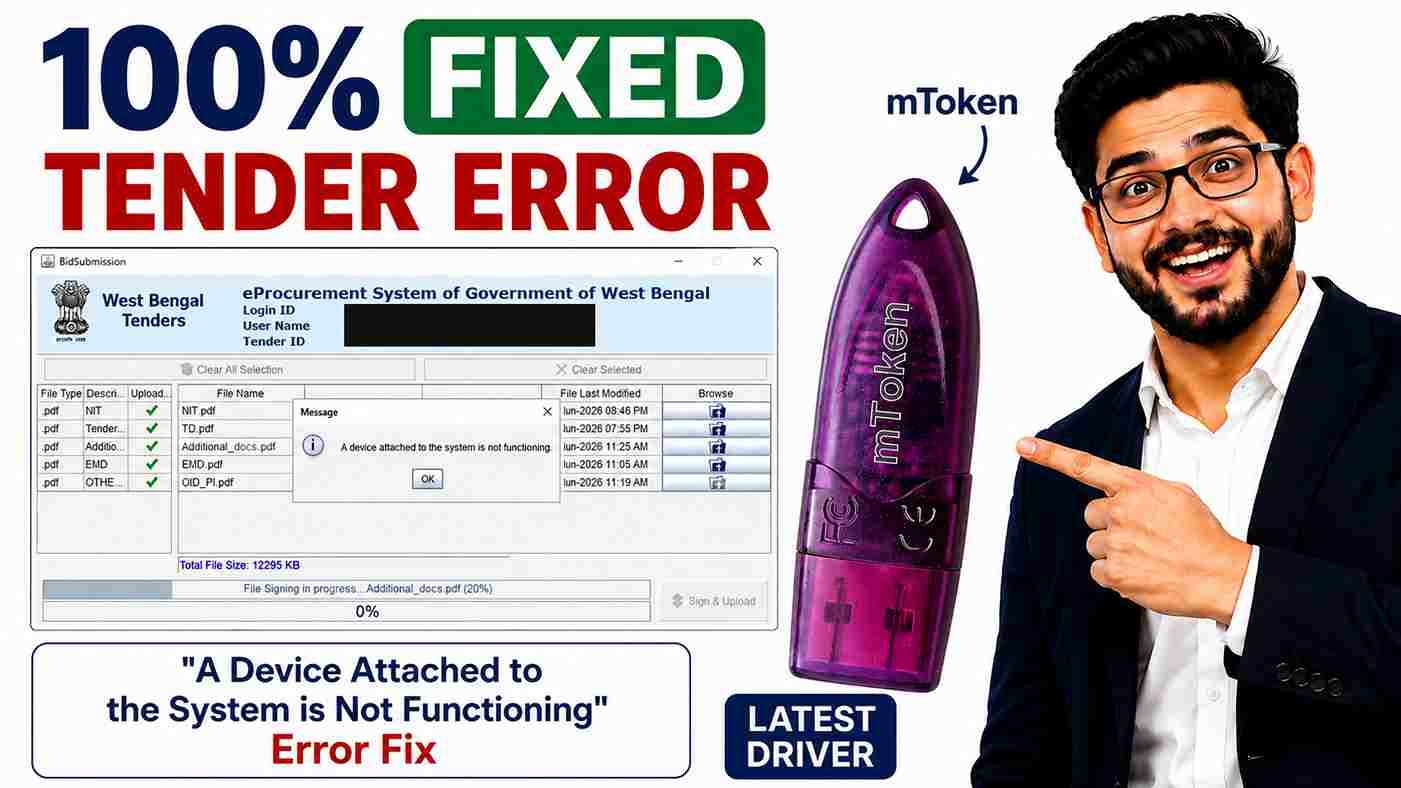
A Device Attached to the System is Not Functioning Error Fix (100% Working Solution)
If you’re getting the “A Device Attached to the System is Not Functioning” error while uploading documents on a Tender portal using an mToken USB Token, you’re not alone. Many users face this issue after downloading their Digital Signature Certificate (DSC) into the mToken.
The good news is that this problem is usually caused by an outdated or missing mToken CSP Driver, and it can be fixed in just a few minutes.
In this guide, I’ll explain the exact solution that has helped many of our customers.
What Does “A Device Attached to the System is Not Functioning” Mean?
This error usually appears while signing or uploading tender documents. Instead of completing the signing process, the portal displays the message:
“A Device Attached to the System is Not Functioning.”
The upload process stops, and your tender document cannot be submitted.
This issue is commonly reported on various government tender portals, including:
- West Bengal eProcurement
- GeM Portal
- NIC eTender
- CPP Portal
- State Tender Portals
- Other Government Procurement Websites
Why Does This Error Occur?
Based on our technical support experience, the most common reasons are:
- Outdated mToken CSP Driver
- Missing CSP Driver after Windows Update
- Corrupted mToken installation
- Driver compatibility issues
- Windows unable to communicate with the USB Token
If your USB Token is detected but signing fails, the driver is usually the main reason.
100% Working Solution
The easiest way to fix this problem is by installing the latest mToken CSP Driver.
Step 1: Download the Latest mToken CSP Driver
Download the latest driver from our website:
Step 2: Install the Driver
After downloading:
- Double-click the installer.
- Click Next.
- Click Next again.
- Click Install.
- Wait for the installation to complete.
- Restart your computer (Recommended).
The entire installation usually takes less than one minute.
Step 3: Reconnect Your USB Token
After restarting:
- Remove the mToken.
- Plug it back into another USB port (if possible).
- Wait a few seconds.
Step 4: Try Uploading the Documents Again
Open your Tender Portal.
Now:
- Select the document.
- Click Upload.
- Enter your Token Password.
This time, the signing progress should continue normally, and the error will disappear.
Download mToken Latest CSP Driver
Download the latest official mToken CSP Driver here:
👉 https://digitalsignaturespot.com/download-mtoken-csp-driver-for-tender-website/
Video Tutorial
Prefer watching instead of reading?
Watch our complete step-by-step YouTube guide below.
Title: “A Device Attached to the System is Not Functioning” Error Fix | Tender Upload Problem Solved in Hindi | mToken Latest Driver
Embed your YouTube video here after publishing.
How We Identified the Root Cause
At Digital Signature Spot, we provide Digital Signature Certificates and USB Token technical support every day.
Over the last few weeks, we received multiple support requests from customers facing exactly the same error.
After testing different systems, reinstalling drivers, and comparing multiple USB Tokens, we found that updating the mToken CSP Driver resolved the issue in almost every case.
This guide is based on practical troubleshooting rather than theory.
Supported Operating Systems
The latest mToken CSP Driver works with:
- Windows 11
- Windows 10
- Windows 8.1
- Windows 8
- Windows 7 (Supported versions)
Common Symptoms
If you are facing any of these problems, this solution may help:
- USB Token detected but signing fails
- Tender upload stops midway
- Token password accepted but nothing happens
- Document upload freezes
- Signing percentage does not move
- “A Device Attached to the System is Not Functioning”
Frequently Asked Questions (FAQs)
Is this issue only for mToken?
Yes. Recently, we have mostly observed this problem with mToken USB Tokens. Other tokens may have different causes.
Will reinstalling the driver delete my Digital Signature?
No.
Your Digital Signature remains safely stored inside the USB Token.
Do I need to download the DSC again?
No.
Simply installing the latest CSP Driver is enough in most cases.
Is this driver free?
Yes.
You can download it directly from our website.
Does this work for all Tender Portals?
Yes.
If the error is caused by an outdated CSP Driver, this solution works across most Government Tender websites.
Need Technical Support?
If the problem still exists after installing the latest driver, our technical team can help.
Website: https://digitalsignaturespot.com
WhatsApp: 7579984381
Technical support charges may apply.
About the Author

Samarth is the founder of Digital Signature Spot and has over 11 years of experience in Digital Signature Certificates (DSC), USB Tokens, Government Tender Portals, and Digital Signature troubleshooting.
He has helped thousands of customers resolve DSC-related issues across India through technical support, blogs, and YouTube tutorials.
Final Words
The “A Device Attached to the System is Not Functioning” error is usually caused by an outdated or missing mToken CSP Driver.
Installing the latest driver is the quickest and most effective solution.
If this guide helped you, consider sharing it with others who may be facing the same issue.

About author







Add comment