

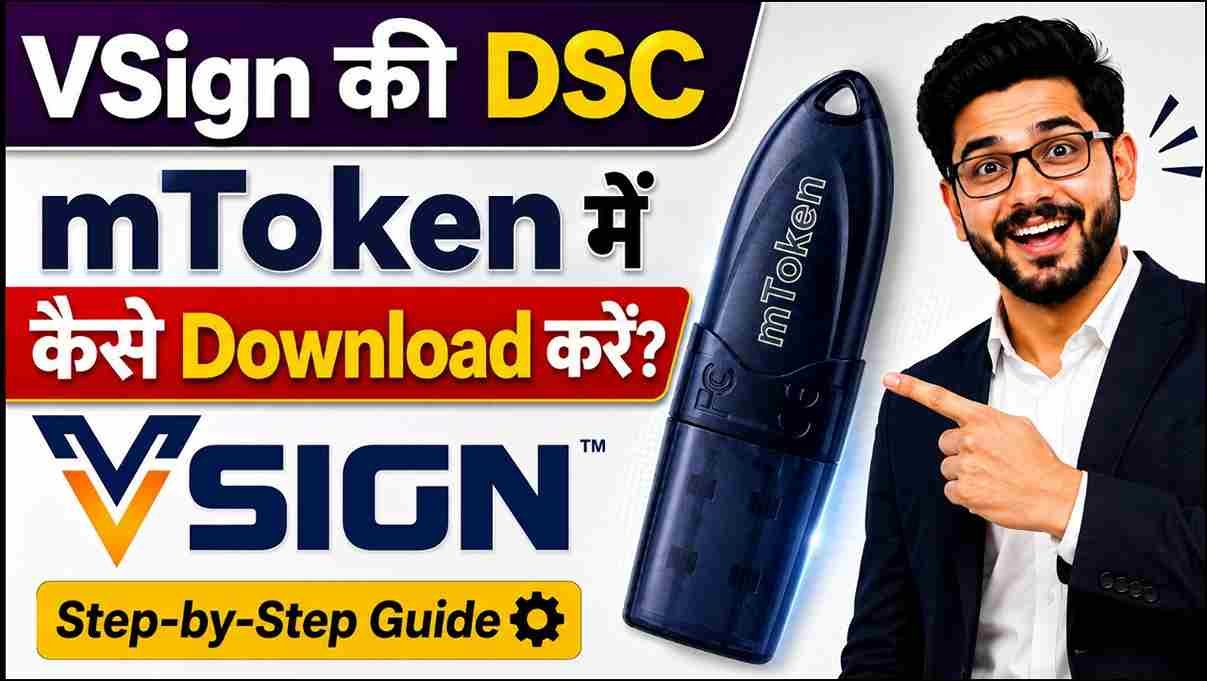
How to Download VSign DSC in mToken USB Token (2026) – Complete Step-by-Step Guide | VSign DSC Download in mToken
VSign DSC Download in mToken: Learn how to download your VSign Digital Signature Certificate (DSC) into an mToken USB Token using the latest VSign Utility. Step-by-step guide with driver downloads, troubleshooting tips, and expert support.VSign DSC Download in mToken
How to Download VSign DSC in mToken USB Token
If you’ve recently purchased a VSign Digital Signature Certificate (DSC) and want to download it into an mToken USB Token, this guide will walk you through the complete process.
Whether you’re installing a Class 3 DSC for Tender Portals, ICEGATE, DGFT, GST, MCA, Trademark, or other government portals, following the correct steps is essential to ensure a successful installation.
In this guide, you’ll learn:
- How to install the latest mToken Driver
- How to download and install the VSign Download Utility
- How to change your USB Token password
- How to download your DSC into the mToken USB Token
- Common errors and their solutions
- Where to get technical support if you face any issues
🎥 Watch the Complete Video Tutorial
Prefer watching instead of reading?
We’ve created a detailed step-by-step YouTube tutorial showing the complete process of downloading your VSign Digital Signature Certificate (DSC) into an mToken USB Token.
In this video, you’ll learn:
- ✅ How to install the latest mToken Driver
- ✅ How to download and install the VSign Utility
- ✅ How to change the default mToken password
- ✅ How to enter the Application ID and Passcode
- ✅ How to download your DSC into the USB Token
- ✅ Common errors and their solutions
- ✅ Expert tips for a successful DSC installation
🎬 Watch the Full Video Here:
If you find the video helpful, don’t forget to Like, Share, and Subscribe to our YouTube channel for more Digital Signature tutorials, troubleshooting guides, and the latest DSC updates.
Why Do You Need an mToken USB Token?
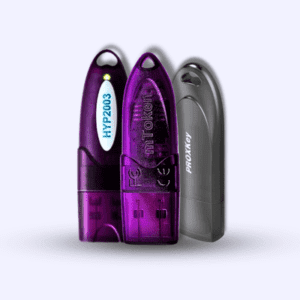
An mToken USB Token securely stores your Digital Signature Certificate and protects your private key from unauthorized access.
Most government portals in India require your DSC to be stored in a secure USB Token before you can use it for:
- eTender Portals
- ICEGATE
- DGFT
- MCA
- GST
- Trademark Registration
- Patent Filing
- Income Tax
- EPFO
- GeM Portal
- eProcurement Portals
Prerequisites Before Downloading VSign DSC
Before you begin, make sure you have the following:
✅ VSign Application ID
✅ Download Passcode / Password
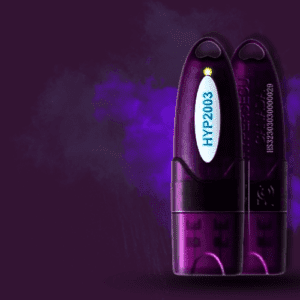
✅ Latest mToken USB Token
✅ Windows Computer
✅ Stable Internet Connection
✅ Latest mToken Driver
✅ Latest VSign Download Utility
Step 1 – Download the Latest mToken Driver
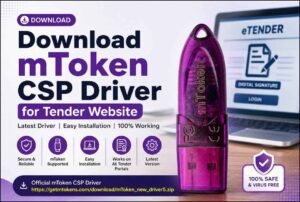
Before connecting your USB Token, install the latest mToken Driver on your computer.
Download the latest mToken Driver:
https://getmtokens.com/download/mToken_new_driver5.zip
After downloading:
- Extract the ZIP file.
- Run the installer as Administrator.
- Complete the installation.
- Restart your computer if prompted.
Now connect your mToken USB Token.
Step 2 – Change the Default mToken Password
When you insert the USB Token for the first time, Windows may display a prompt asking you to change the default password.
Click Yes.
Enter:
- Old Password
- New Password
- Confirm Password
Click OK.
If the password change window doesn’t appear, open the Crypto ID Utility manually and change the password there.
Tip: Always use a strong password and keep it safe. You’ll need it every time you digitally sign a document.
Step 3 – Download the Latest VSign Utility
Now download the latest VSign Download Utility from the official repository.
Official VSign Repository
https://vsign.in/repository.html
Download the latest available version and install it on your computer.
Once installation is complete, launch the utility.
Step 4 – Enter Your Application ID and Passcode
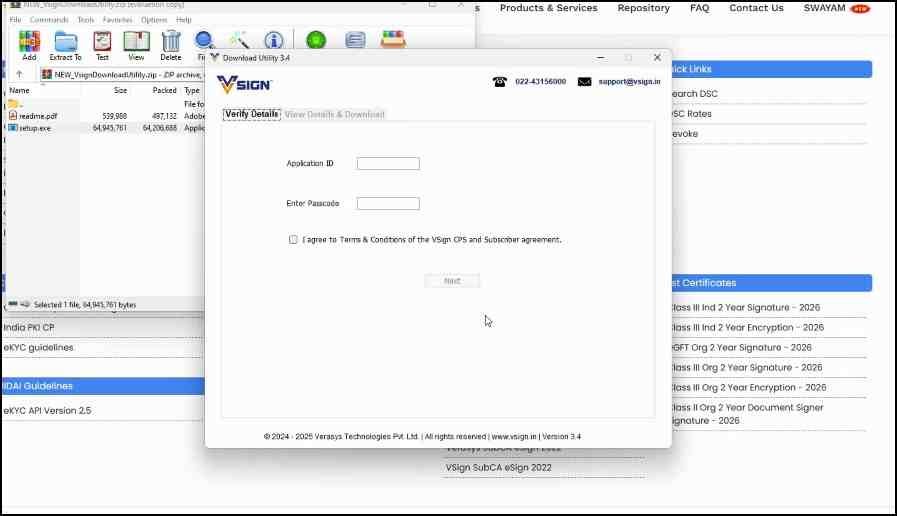
After opening the VSign Utility:
- Enter your Application ID.
- Enter your Download Passcode.
- Tick the confirmation checkbox.
- Click Next.
If you don’t know your Application ID or Passcode, contact your DSC provider before proceeding.
Need technical assistance?
📞 Call / WhatsApp: +91 7579984381
Step 5 – Download the DSC into Your mToken
If the mToken Driver is installed correctly, the utility will automatically detect your USB Token.
Next:
- Select your mToken.
- Enter your USB Token Password.
- Click Download in Token.
The certificate will usually download within 10–20 seconds.
Once completed, your Digital Signature Certificate is securely stored inside your mToken USB Token.
What If a Root Certificate Notification Appears?
Some systems display a Root Certificate notification after the download process.
Simply click No.
There is no need to delete any Root Certificates.
Congratulations!
Your VSign Digital Signature Certificate (DSC) has now been successfully downloaded into your mToken USB Token.
You can now use it for signing documents and accessing government portals securely.
Useful Downloads
Latest mToken Driver
https://getmtokens.com/download/mToken_new_driver5.zip
Latest VSign Utility
https://vsign.in/repository.html
Need Technical Support?
If you’re facing any issues with:
- DSC Download
- USB Token Detection
- Driver Installation
- Token Password
- AnyDesk Remote Support
- UltraViewer Remote Support
Contact our technical support team.
📞 Call / WhatsApp: +91 7579984381
Get a New Class 3 Digital Signature
Need a new or renewal Digital Signature Certificate?
Contact us today for fast approval, PAN India service, and expert technical support.
📞 WhatsApp: +91 7579984381
Frequently Asked Questions (FAQs)
1. How do I download a VSign DSC into an mToken USB Token?
Download and install the latest mToken Driver and VSign Download Utility. Open the utility, enter your Application ID and Passcode, select your mToken USB Token, enter the token password, and click Download in Token.
2. Where can I download the latest mToken Driver?
You can download the latest mToken Driver here:
https://getmtokens.com/download/mToken_new_driver5.zip
3. Where can I download the latest VSign Download Utility?
Download the latest VSign Utility from the official VSign Repository:
https://vsign.in/repository.html
4. What is an Application ID in VSign?
The Application ID is a unique identification number provided by VSign during your Digital Signature Certificate application process. It is required to download your DSC.
5. What should I do if I don’t know my Application ID or Passcode?
If you’ve lost your Application ID or Passcode, contact your DSC service provider or our support team for assistance.
📞 Call / WhatsApp: +91 7579984381
6. Why is my mToken USB Token not detected?
This usually happens when:
- The mToken Driver is not installed.
- The USB Token is not connected properly.
- You’re using an outdated driver.
- The USB port is not working correctly.
Install the latest driver and reconnect the token.
7. Can I use VSign DSC on Windows 11?
Yes. The latest mToken Driver and VSign Utility are fully compatible with Windows 10 and Windows 11.
8. How long does it take to download a VSign DSC?
The actual download process usually takes 10 to 20 seconds after entering the correct credentials.
9. What should I do if the download fails?
Make sure that:
- Your internet connection is stable.
- You have entered the correct Application ID and Passcode.
- The latest VSign Utility is installed.
- The mToken Driver is updated.
- Your USB Token password is correct.
10. Is it safe to store a Digital Signature Certificate in an mToken USB Token?
Yes. The mToken USB Token securely stores your private key and protects your Digital Signature Certificate from unauthorized access, making it suitable for government and business applications.
11. Which portals support VSign Digital Signature Certificates?
A VSign DSC can be used on various government and business portals, including:
- ICEGATE
- DGFT
- MCA
- GST Portal
- GeM
- Trademark
- Patent
- EPFO
- eTender Portals
- Income Tax Portal
12. Do you provide remote technical support for DSC installation?
Yes. We provide remote technical support through AnyDesk and UltraViewer for DSC download, USB Token setup, driver installation, and troubleshooting.
📞 Call / WhatsApp: +91 7579984381
यह एक EEAT (Experience, Expertise, Authoritativeness, Trustworthiness) के अनुसार लिखा गया About the Author सेक्शन है, जो आपके Digital Signature ब्लॉग के लिए उपयुक्त रहेगा।
About the Author
Samarth is the founder of Digital Signature Spot and has over 11 years of experience in the Digital Signature Certificate (DSC) industry. He specializes in Class 3 DSC issuance, USB Token setup, and technical support for government portals such as ICEGATE, DGFT, MCA, GST, Trademark, GeM, eTender, and EPFO.
Through Digital Signature Spot, Samarth has helped thousands of individuals, businesses, Chartered Accountants, Company Secretaries, advocates, and government contractors obtain, renew, and install Digital Signature Certificates with expert guidance and remote technical support.
His mission is to simplify Digital Signature technology by publishing practical tutorials, troubleshooting guides, and step-by-step solutions that help users resolve DSC-related issues quickly and securely.
Need help with your Digital Signature?
📞 Call / WhatsApp: +91 7579984381
🌐 Website: https://digitalsignaturespot.com

About author



Add comment