

BPCL Tender DSC Encrypt & Decrypt Explained | Complete Guide 2026 BPCL Tender DSC Encrypt and Decrypt
BPCL Tender DSC Encrypt and Decrypt Using a Digital Signature Certificate (DSC) on the BPCL e-Procurement portal is an important part of participating in online tenders. However, many bidders face confusion when they reach the Encrypt and Decrypt section during DSC registration.
Questions such as “Which certificate should I select?”, “Why is encryption not working?”, “How do I test my DSC?”, and “How can I confirm that encryption was successful?” are very common.
In this guide, we explain the BPCL Tender DSC Encrypt & Decrypt process step by step, along with common technical issues and practical troubleshooting tips.
According to the BPCL e-Procurement registration manual, after the signing certificate is successfully registered, the portal provides an Enter Text option where the bidder can enter text and click Encrypt, followed by selecting the appropriate Digital Signature.
Watch the Complete BPCL Tender DSC Encrypt & Decrypt Tutorial
Want to see the BPCL Tender DSC Encrypt & Decrypt process practically? Watch our step-by-step YouTube tutorial where we demonstrate how to register your Digital Signature Certificate, select the correct certificate, encrypt text, decrypt the encrypted data, and verify that the process is working successfully.
In this video, you will learn:
- How to register DSC on the BPCL e-Procurement portal
- How to select the correct Digital Signature Certificate
- How to use the Encrypt option
- How to generate encrypted text
- How to use the Decrypt option
- How to check whether encryption was successful
- Common DSC, USB token and certificate-related issues
Watch the Video
BPCL Tender DSC Encrypt & Decrypt | Complete Step-by-Step Guide 2026
Watch the complete tutorial on YouTube and follow the process directly on your computer.
Need a Digital Signature for BPCL Tender?
Call or WhatsApp us at 7579984381 for DSC assistance.
What Is DSC Encryption in BPCL Tender?
DSC encryption is the process of converting normal text into an encrypted form using digital certificate-based cryptographic operations.
On the BPCL e-Procurement portal, the encryption option is provided after the signing certificate registration process. The purpose of the test is to verify that the required certificate and encryption setup are working correctly.
A simple way to understand the process is:
Normal Text → Encrypt → Encrypted Text
And for decryption:
Encrypted Text → Decrypt → Original Text
What Is DSC Decryption?
Decryption is the reverse process of encryption. It converts encrypted information back into readable text.
When the correct certificate, token and portal configuration are available, the encrypted text can be processed through the Decrypt function and the original text can be displayed.
What Do You Need Before Starting BPCL DSC Encrypt & Decrypt? BPCL Tender DSC Encrypt and Decrypt
Before starting the process, make sure your system is properly prepared.
You should have:
- A valid Digital Signature Certificate
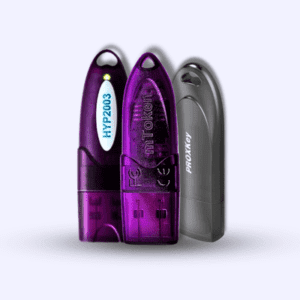
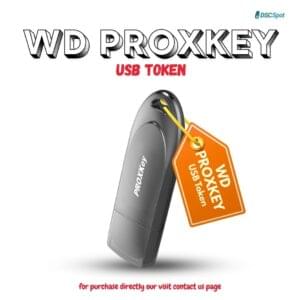
- A compatible USB DSC token
- The correct token driver or middleware
- Your DSC visible in the token utility
- Required BPCL e-Procurement components installed
- A supported browser configuration
- An active and valid certificate
A common mistake is assuming that simply connecting the USB token is enough. The token must also be detected correctly by the operating system and the required portal components.
How to Register DSC on BPCL Tender Portal
Start by opening the BPCL e-Procurement portal and accessing the Digital Certificate Registration section.
Connect your DSC token to the computer and select the appropriate certificate when prompted.
The BPCL registration manual indicates that after selecting the DSC and confirming it, the certificate-related information is captured and the bidder can click Save Details.
Once the signing certificate has been registered successfully, the encryption registration process can be performed from the same page.
How to Encrypt Text in BPCL Tender
Step 1: Enter Text
Locate the Enter Text field on the Digital Certificate Registration page.
Enter a simple test message such as:
BPCL Tender DSC Test 2026
Step 2: Click Encrypt
After entering the text, click the Encrypt button.
The BPCL registration manual specifically describes entering text and clicking Encrypt after successful signing certificate registration.
Step 3: Select the Appropriate Digital Signature
A certificate selection window may appear.
Select the appropriate Digital Signature Certificate and click OK.
Be careful when multiple certificates are installed on your computer. Selecting the wrong certificate can cause the operation to fail.
Step 4: Check the Result
When the process works correctly, the encrypted information should be generated in the relevant encrypted text area.
A successful result confirms that the encryption operation is working in your current setup.
How to Decrypt Text in BPCL Tender
The decryption process is equally important when testing your setup.
Step 1: Enter the Encrypted Text
Take the generated encrypted text and place it in the Encrypted Text field.
Step 2: Click Decrypt
Click the Decrypt button.
Step 3: Select the Required Certificate
If the certificate selection dialog appears, choose the appropriate certificate.
Step 4: Verify the Decrypted Text
After successful decryption, the original text should appear in the Decrypted Text field.
For example:
Original Text:BPCL Tender DSC Test 2026
Encrypted Text:
Generated by the portal
Decrypted Text:BPCL Tender DSC Test 2026
This gives you a practical confirmation that the process is working.
How to Fix BPCL Tender DSC Encryption Not Working
If clicking Encrypt does not produce the expected result, start with the basic setup rather than immediately changing the DSC.
Check the DSC Token Driver
Make sure the correct driver or middleware for your USB token is installed.
Open the token management utility and confirm that your certificate is visible.
Check Certificate Validity
Verify that your DSC is still valid.
Check details such as:
- Certificate validity
- Issuer
- Certificate serial number
- Certificate availability inside the token
An expired or improperly detected certificate can prevent the process from working correctly.
Select the Correct Certificate
If multiple DSCs are installed, carefully identify the certificate that should be used.
Certificate selection is particularly important when more than one certificate is available on the system.
Check the Browser and Required Components
BPCL e-Procurement relies on browser and client-side components for digital certificate operations.
If the browser does not communicate correctly with the token or required component, Encrypt or Decrypt may not work as expected.
Re-register the DSC
If the DSC was previously registered incorrectly, or the certificate has been replaced, review the registration and perform the registration process again where required.
Common BPCL Tender DSC Encrypt & Decrypt Problems
Encrypt Button Does Nothing
This can be related to token middleware, certificate detection, browser configuration or required portal components.
DSC Certificate Is Not Visible
Check whether the token is detected by the token utility and whether the certificate appears correctly.
If it does not appear there, the issue may be with the token driver or certificate itself rather than the BPCL portal.
Wrong Certificate Is Selected
This commonly happens when multiple certificates are available.
Always verify the certificate details before clicking OK.
Decrypt Does Not Return the Original Text
Check the encrypted data, certificate selection and overall certificate configuration.
A mismatch in the expected certificate or configuration can prevent successful decryption.
DSC Registration Does Not Complete
Review the certificate selection, required fields and the Save Details step. The BPCL registration manual specifically instructs users to save the certificate details after registration.
Practical BPCL DSC Encryption Test
Before submitting an important tender, it is a good idea to perform a simple test.
Use:
Enter Text:TEST12345
Then perform:
Encrypt → Encrypted Text Generated
After that:
Encrypted Text → Decrypt → TEST12345
If the same original text appears after decryption, your test setup is working correctly.
Testing before an actual tender submission can help identify certificate or token problems before they become time-sensitive.
What Should You Check Before a BPCL Tender Submission?
Before starting the final tender process, verify that:
- Your DSC is valid
- The USB token is detected
- The token driver is installed correctly
- The correct certificate is selected
- BPCL’s required components are working
- Encrypt operation works
- Decrypt operation works
- Your browser is properly configured
Doing these checks in advance can reduce the chance of last-minute DSC problems during tender submission.
BPCL Tender DSC Technical Support
If you continue to experience a technical issue on the BPCL e-Procurement portal, the official BPCL/C1 India support page advises users to make email the primary method of contact and include a screenshot of the error or issue along with contact details.
The official BPCL e-Procurement portal also provides current bidder support information and tender participation guidance.
YouTube Video: BPCL Tender DSC Encrypt & Decrypt
We have also created a practical YouTube tutorial covering the BPCL Tender DSC Encrypt & Decrypt process step by step.
In the video, you can follow:
- BPCL DSC registration
- Digital certificate selection
- Encrypt process
- Encrypted text generation
- Decrypt process
- Successful encryption verification
- Common DSC-related technical issues
Watch the Video
BPCL Tender में DSC Encrypt & Decrypt? ऐसे करें आसानी से | 2026
This video is especially useful if you are trying to complete DSC registration on the BPCL portal and want to follow the process directly on screen.
Frequently Asked Questions (FAQ)
Can I use my DSC for BPCL Tender Encryption?
The exact certificate requirement depends on the portal and tender workflow. Always follow the certificate requirements shown by the BPCL e-Procurement portal and the relevant tender instructions.
Is connecting the USB token enough for encryption?
No. The token driver or middleware, certificate detection and required portal components must also work correctly.
Why is my DSC not appearing on the BPCL portal?
First check whether the certificate is visible inside the USB token utility. Then verify the driver, middleware and browser configuration.
Why does BPCL Encrypt not generate any output?
Possible causes include incorrect certificate selection, token driver issues, browser configuration problems or missing portal components. Check each part of the setup systematically.
Why is BPCL Decrypt not working?
Check the encrypted data, certificate selection and certificate configuration. Also verify that the required token and portal components are functioning correctly.
Should I test Encrypt and Decrypt before submitting a tender?
Yes. Testing the process before an important submission is a sensible way to identify technical issues in advance.
Where can I contact BPCL Tender technical support?
The official BPCL/C1 India helpdesk page provides bidder support information and asks users to include an error screenshot and contact details when reporting an issue.
Conclusion
The BPCL Tender DSC Encrypt & Decrypt process can seem complicated at first, but once your DSC, USB token, drivers and portal components are properly configured, the process becomes straightforward.
The basic workflow is:
Connect DSC → Register Certificate → Save Details → Enter Text → Encrypt → Generate Encrypted Text → Decrypt → Verify Original Text
Performing this test before an actual tender submission can help you identify DSC-related technical problems early.
For BPCL tender bidders, the most important point is not just having a valid DSC, but ensuring that the complete DSC environment is correctly configured and tested.
About the Author
Samarth – Digital Signature Spot
Samarth has more than 11 years of experience in the Digital Signature Certificate (DSC) industry, helping users with DSC registration, tender portals, USB token configuration, certificate-related issues and technical troubleshooting.
Digital Signature Spot provides Digital Signature Certificates, USB tokens and technical assistance for various government and business portals.
Website: https://digitalsignaturespot.com/
For DSC-related technical assistance, you can contact Digital Signature Spot. Nominal technical support charges may apply.

About author







Add comment