

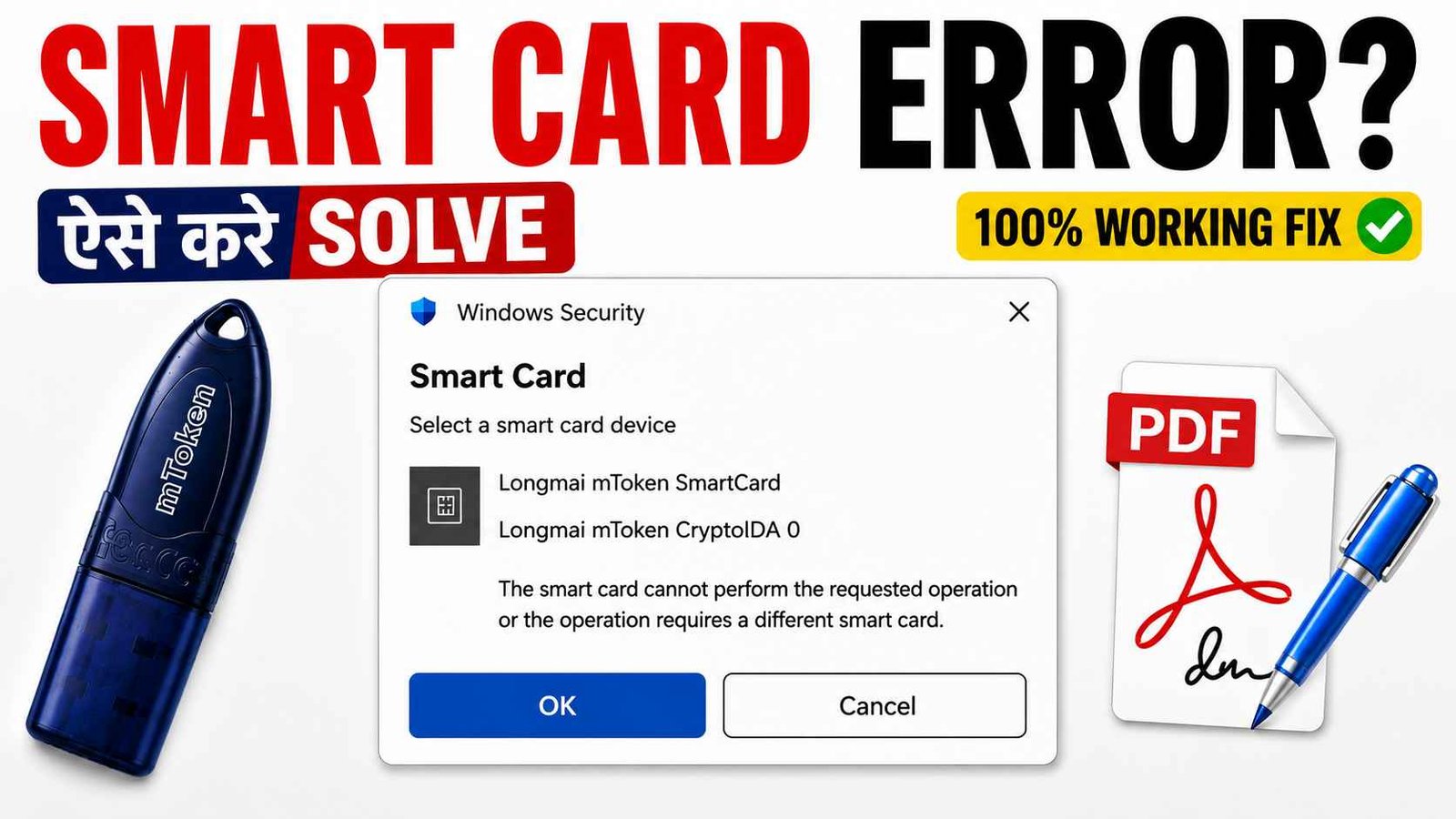
Smart Card Error While Signing PDF? How to Fix It (100% Working Guide)
Smart Card Error While Signing PDF? How to Fix It (100% Working Guide)
Table of Contents
- What is Smart Card Error?
- Why Does Smart Card Error Occur?
- Common Causes
- How to Fix Smart Card Error
- Download Latest USB Token Drivers
- Video Tutorial
- Frequently Asked Questions
- About the Author
What is Smart Card Error?
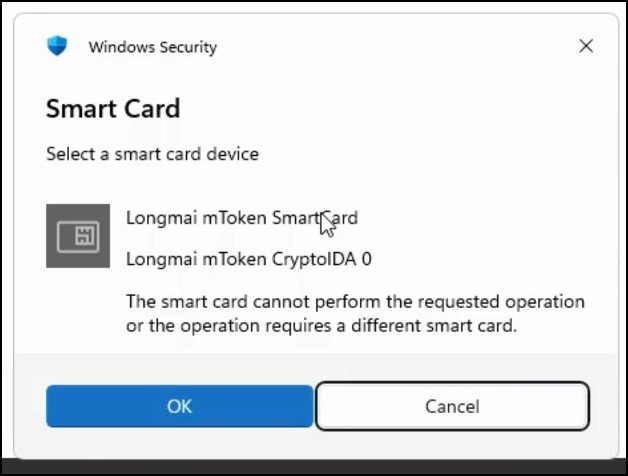
If you are trying to digitally sign a PDF using your Digital Signature Certificate (DSC) and Windows displays the following message:
“The smart card cannot perform the requested operation or the operation requires a different smart card.”
then your USB Token driver is usually outdated, corrupted, or incompatible with your current Windows version.
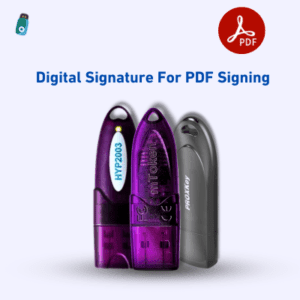
This issue is commonly seen while signing PDFs in:
- Adobe Acrobat Reader
- Adobe Acrobat Pro
- PDF Signing Applications
- Tender Documents
- GST Documents
- Government Portal PDFs
Why Does Smart Card Error Occur?
Based on our 11+ years of experience providing Digital Signature Certificates and USB Tokens across India, the Smart Card Error generally occurs due to one of the following reasons:
1. Outdated USB Token Driver
The most common reason.
2. Windows Update
Windows updates sometimes stop older drivers from working correctly.
3. Incorrect Middleware Installation
Installing multiple token drivers together can create conflicts.
4. Damaged Driver Installation
Files may become corrupted after system updates.
5. Old USB Token Software
Older versions may not support the latest Adobe Reader or Windows.
Symptoms of Smart Card Error
You may notice:
- Smart Card popup appears
- PDF does not sign
- Certificate is visible but signing fails
- Adobe Reader shows signing failure
- Windows Security Smart Card window opens repeatedly
How to Fix Smart Card Error (100% Working)
Follow these steps carefully.
Step 1 – Remove the Old Driver
Open
Control Panel → Programs
Uninstall your existing USB Token driver.
Restart your computer.
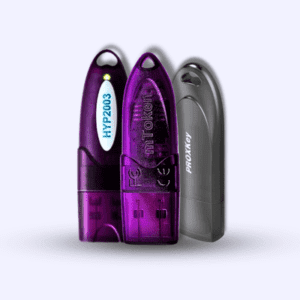
Step 2 – Download the Latest Driver
Use the latest driver according to your USB Token.
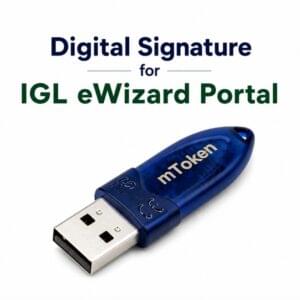
mToken
https://getmtokens.com/download/mToken_new_driver5.zip
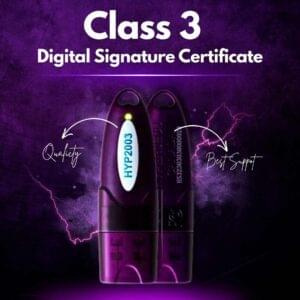
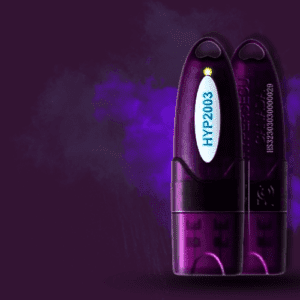
HYP2003
WD ProxKey
https://www.support.cryptoplanet.in/downloads.php
Step 3 – Install the Driver
Run the setup as Administrator.
Complete the installation.
Restart your computer again.
Step 4 – Connect Your USB Token
Insert your USB Token.
Wait for Windows to recognize it.
Step 5 – Sign the PDF Again
Open Adobe Acrobat Reader.
Try signing the PDF once more.
In most cases, the Smart Card Error disappears immediately.
Additional Tips
If the issue still exists:
- Restart Windows
- Use the latest Adobe Acrobat Reader
- Try another USB port
- Avoid installing multiple token drivers simultaneously
- Ensure your DSC is valid and not expired
USB Token Driver Download Links
| USB Token | Download |
|---|---|
| mToken | Latest Driver |
| HYP2003 | Latest Driver |
| WD ProxKey | Latest Driver |
🎥 Watch the Complete Video Tutorial
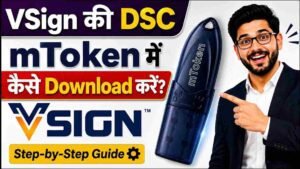
If you prefer a step-by-step visual guide, watch our YouTube video where we demonstrate the complete solution—from uninstalling the old USB Token driver to installing the latest driver and successfully signing a PDF without the Smart Card Error.
In this video you’ll learn:
- What causes the Smart Card Error
- How to uninstall the old USB Token driver
- Install the latest mToken, HYP2003, and WD ProxKey drivers
- Fix PDF Digital Signature issues in Adobe Acrobat Reader
- Common mistakes to avoid during installation
Need a Class 3 Digital Signature?
We provide:
- Class 3 DSC
- Tender DSC
- GST DSC
- ICEGATE DSC
- DGFT DSC
- Trademark DSC
- Patent DSC
- Organization DSC
📞 WhatsApp: 7579984381
Frequently Asked Questions
Why am I getting Smart Card Error while signing PDF?
Usually because your USB Token driver is outdated or incompatible with Windows.
Does reinstalling the driver fix the issue?
Yes. In most cases, installing the latest driver completely resolves the Smart Card Error.
Which USB Tokens are covered in this guide?
- mToken
- HYP2003
- WD ProxKey
Can Adobe Reader cause this issue?
Generally no. The USB Token driver is usually responsible, although using the latest version of Adobe Reader is recommended.
Will this method work on Windows 11?
Yes. It works on both Windows 10 and Windows 11 with the latest compatible drivers.
Is my DSC damaged?
Not necessarily. The problem is usually related to the USB Token middleware or driver rather than the Digital Signature Certificate itself.
About the Author
Samarth
Samarth is the founder of Digital Signature Spot and has over 11 years of hands-on experience in the Digital Signature Certificate (DSC) industry. He has helped thousands of individuals, businesses, chartered accountants, government contractors, and organizations resolve Digital Signature, USB Token, and PDF signing issues.
His expertise includes:
- USB Token Troubleshooting
- DSC Installation & Renewal
- Adobe PDF Signing Issues
- Government Portal DSC Configuration
- eTender, GST, ICEGATE, DGFT, Trademark & Patent DSC Support
Through Digital Signature Spot, Samarth shares practical guides, troubleshooting tutorials, and the latest DSC updates to help users solve technical problems quickly and confidently.
Conclusion
The Smart Card Error is one of the most common issues encountered while digitally signing PDFs, but it is also one of the easiest to resolve. In most cases, simply removing the outdated USB Token driver and installing the latest compatible version restores normal functionality.
If you continue to face issues after following this guide, feel free to contact us. Our team will be happy to assist you with USB Token setup, driver installation, or Digital Signature Certificate support.


About author






Add comment