

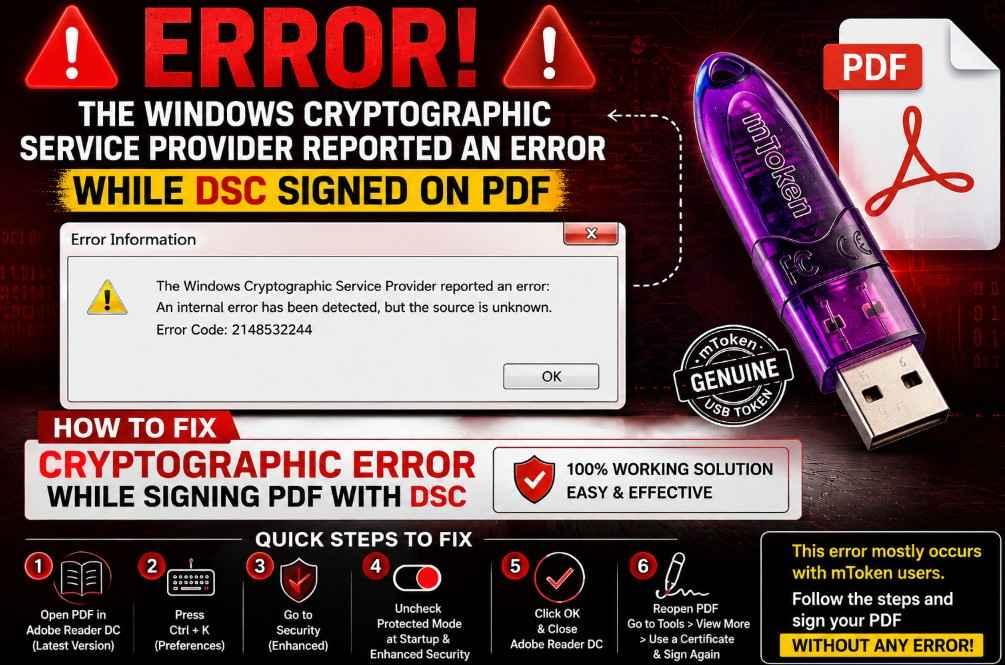
100% Fixed DSC Error: The Windows Cryptographic Service Provider Reported an Error While DSC Signed on PDF
If you are getting the error “The Windows Cryptographic Service Provider Reported an Error” while signing a PDF with your Digital Signature Certificate (DSC), don’t worry. This is a common issue faced by many DSC users, especially those using an mToken USB Token.
In most cases, the error appears due to Adobe Acrobat Reader DC security settings that prevent the digital signature process from accessing the cryptographic provider correctly.
This guide will show you the exact steps to fix the cryptographic error while signing PDF documents using a Digital Signature Certificate.
What Is the “The Windows Cryptographic Service Provider Reported an Error” Message?
This error usually appears when you try to digitally sign a PDF document using a DSC stored in an mToken USB Token.
The error may look similar to:
- The Windows Cryptographic Service Provider Reported an Error
- Cryptographic Error While Signing PDF
- Error During PDF Digital Signature Process
In most situations, the DSC is valid and working properly, but Adobe Reader’s security settings block the signing operation.
Why Does This Cryptographic Error Occur?
The issue is commonly caused by:
- Adobe Reader DC Protected Mode
- Enhanced Security settings in Adobe Reader
- Security restrictions preventing communication with the USB Token
- Compatibility issues between Adobe Reader and mToken drivers
This problem is most frequently reported by users of mToken USB Tokens.
How to Solve Cryptographic Error While Signing PDF with Digital Signature
Follow the steps below carefully.
Step 1: Open the PDF File in Adobe Acrobat Reader DC
Open the PDF document using Adobe Acrobat Reader DC.
For best results, always use the latest version of Adobe Acrobat Reader.
Step 2: Open Adobe Preferences
Press:
Ctrl + K
This will open the Adobe Reader Preferences window.
Step 3: Go to Security (Enhanced)
From the left-side menu, click:
Security (Enhanced)
You will see multiple security options.
Step 4: Disable Protected Mode and Enhanced Security
Uncheck the following options:
✅ Enable Protected Mode at Startup
✅ Enable Enhanced Security
Make sure both options are unchecked.
After disabling them, click the OK button at the bottom of the window to save the changes.
Step 5: Close Adobe Reader Completely
After saving the settings:
- Close the PDF file.
- Close Adobe Acrobat Reader DC completely.
- Ensure no PDF file remains open on your computer or laptop.
This step is important because Adobe must restart with the updated security settings.
Step 6: Reopen the PDF and Sign Again
Now reopen your PDF document.
Go to:
Tools → View More → Use a Certificate
Select your Digital Signature Certificate and digitally sign the PDF again.
In most cases, the cryptographic error while signing PDF documents will no longer appear.
Additional Tips
Before signing the PDF again, make sure:
- Your USB Token is properly connected.
- The mToken driver is installed correctly.
- The DSC certificate is valid and not expired.
- Adobe Reader is updated to the latest version.
- No other PDF signing software is running in the background.
Frequently Asked Questions (FAQs)
What causes the cryptographic error while signing PDF documents?
The error is usually caused by Adobe Reader security settings such as Protected Mode and Enhanced Security, which restrict communication with the DSC USB Token.
Does this error occur only with mToken users?
While it can occur with other USB Tokens, it is most commonly reported by mToken users.
Is my Digital Signature Certificate damaged?
No. In most cases, the DSC is completely fine. The issue is related to Adobe Reader security settings.
Can I enable Protected Mode again after signing?
Yes, but if the error returns during future signing attempts, you may need to disable it again.
Which Adobe Reader version should I use?
It is recommended to use the latest version of Adobe Acrobat Reader DC for better compatibility and security.
Conclusion
If you encounter The Windows Cryptographic Service Provider Reported an Error While DSC Signed on PDF, the issue is often related to Adobe Reader’s security configuration rather than your Digital Signature Certificate.
By disabling Protected Mode at Startup and Enhanced Security in Adobe Acrobat Reader DC, most users can successfully resolve the problem and digitally sign their PDF documents without any errors.
If you are still facing issues while signing PDFs with your DSC, you can contact our technical support team for assistance.


About author



















Add comment