


How To Safely Delete A Dsc Certificate From Your Usb Token — Complete Step-by-Step Guide
If you are using a Digital Signature Certificate (DSC) for government portals like MCA, GST, ICEGATE, or IREPS, there may come a time when you need to delete your existing DSC from your USB token.
Maybe your certificate has expired, you’re planning to renew your DSC, you downloaded it in the wrong token, or you have multiple DSCs in one token and want to remove one of them.
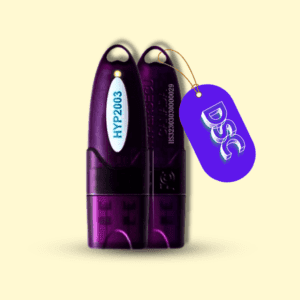
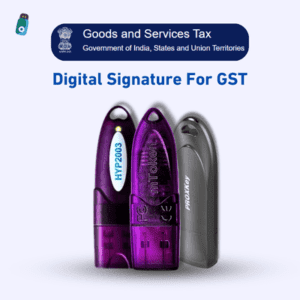
Whatever the reason, this guide will show you, step by step, how to safely delete a DSC certificate from your USB token — including HYP2003 / HyperPKI, Watchdata ProxKey, and mToken / CryptoID.
Let’s begin. 👇

🔍 When Do You Need to Delete a Digital Signature from USB Token?
There are several valid reasons for deleting a DSC from your USB token:
- Your certificate has expired and needs renewal.
- You want to re-download or renew your digital signature.
- You accidentally downloaded the wrong DSC into your token.
- Your token has multiple DSCs and you want to delete one of them.
- You want to free up space in your token.
- Your organization changed and you need to replace an old DSC with a new one.
⚠️ Important Notes Before Deleting DSC from USB Token
Before you delete your digital signature certificate, please read these important precautions:
- There’s no undo option.
Once deleted, the certificate cannot be restored. You’ll need to apply for a new DSC if it’s removed by mistake. - Always log in first.
Most tokens require you to enter your password (PIN) before performing any operation like deletion. - Select the correct certificate.
If your token contains multiple DSCs, be sure to select the one you actually want to delete. Deleting without selecting may remove all certificates. - Don’t click Delete before Login.
Some token utilities delete everything if the user hasn’t logged in. Always log in first. - Use the correct Token Manager Software.
Each token has its own driver or utility software.
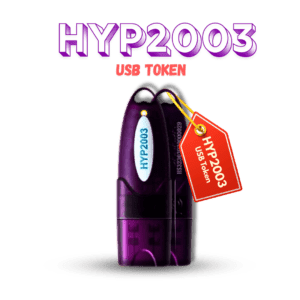
Examples:- HYP2003 ➜ HyperPKI_HYP2003 Token Manager
- ProxKey ➜ WD ProxKey Token Manager
- mToken ➜ CryptoID Certificate Utility
💻 Step-by-Step: How To Safely Delete A Dsc Certificate From Your Usb Token

Let’s now go through the process for each commonly used USB token brand.
🧩 1. How to Delete DSC from HYP2003 / HyperPKI Token
Follow these steps:
- Insert your HYP2003 USB token into your computer or laptop.
- If you haven’t installed the driver yet, install HyperPKI_HYP2003 Token Manager.
- Open the HyperPKI_HYP2003 Token Manager software.
- Click on Login, and enter your USB token password (PIN).
- In the list, single-click on the certificate name you want to delete (it will turn blue).
- Now click on the Delete button.
- Enter your token password again to confirm deletion.
✅ Done! Your selected DSC is now deleted from your HYP2003 USB token.
⚠️ Caution:
- Don’t click “Delete” without selecting the certificate.
- Don’t press “Delete” before login — it can remove all certificates.
🔑 2. How to Delete DSC from Watchdata ProxKey Token
Steps:
- Insert the ProxKey token into your computer.
- Install the WD ProxKey Token Driver (you can get it from the official download page).
- Open the ProxKey Token Manager software.
- Go to the Certificate tab or section.
- Select the certificate you want to remove.
- Click on Delete.
- Enter your token password when prompted.
After entering the password, your selected certificate will be deleted.
You will usually see a confirmation message like:
“Delete Certificate Success”.
🔒 3. How to Delete DSC from mToken / CryptoID Token
Steps:
- Insert your mToken into your PC.
- Install the CryptoID Certificate Utility driver (from your vendor’s download page).
- Open the CryptoID utility.
- Click on the User tab and enter your mToken password to log in.
- Select the certificate you want to delete.
- Click on the Delete button.
- Confirm the deletion by entering your password again.
That’s it! Your unwanted or expired certificate is now removed from your mToken.
🧠 Common Problems and Solutions (Troubleshooting)
| Error / Problem | Possible Cause | Solution |
|---|---|---|
| “Smart card not found” | Token driver not installed or token not detected | Reinstall the token driver or reconnect to another USB port. |
| Certificate list is blank | You haven’t logged in or selected the user properly | Login first, then refresh the certificate list. |
| “Delete failed” or “Permission denied” | Wrong PIN or locked token | Enter the correct password, or reset/unlock the token via vendor support. |
| Can’t download new DSC | Old certificate still exists in token | Delete the old or expired certificate, then try downloading again. |
🪶 Quick Summary of Steps
- Plug in your USB token
- Install or open the token management software
- Log in using your PIN/password
- Select the certificate you want to delete
- Click on the Delete button
- Confirm with your password
- Verify that the certificate has been removed
💬 Frequently Asked Questions (FAQs)
Q1. Can I restore a DSC after deleting it from the token?
No. Once deleted, a digital signature certificate cannot be restored. You will have to apply for a new DSC from your provider.
Q2. Can I delete one DSC and keep the other in the same token?
Yes, if your token supports multiple certificates. Just make sure to carefully select the one you want to delete before clicking the delete button.
Q3. What happens if I delete the wrong certificate?
If you delete the wrong certificate, you will no longer be able to sign or use it. You’ll need to get a new DSC issued.
Q4. Can I format my USB token completely?
Some tokens support formatting via the token utility or vendor software. But it should be done carefully, as it permanently erases everything.
Q5. Why does my token driver not open or show certificates?
It might be outdated or corrupted. Try reinstalling the latest driver or connecting your token to another USB port or computer.
Q6. Can I download a new DSC without deleting the old one?
Sometimes yes, but not recommended. Old or expired certificates may cause conflicts. It’s always best to delete the old one first.
🏁 Final Thoughts
Deleting a digital signature from a USB token is a simple process — but only if done carefully.
Always log in first, select the right certificate, and confirm before deleting.
Different token brands may have slightly different interfaces, but the basic steps remain the same.
Whether you use HYP2003, ProxKey, or mToken, follow this guide step by step, and your unwanted or expired DSC will be safely removed.


About author















Add comment