

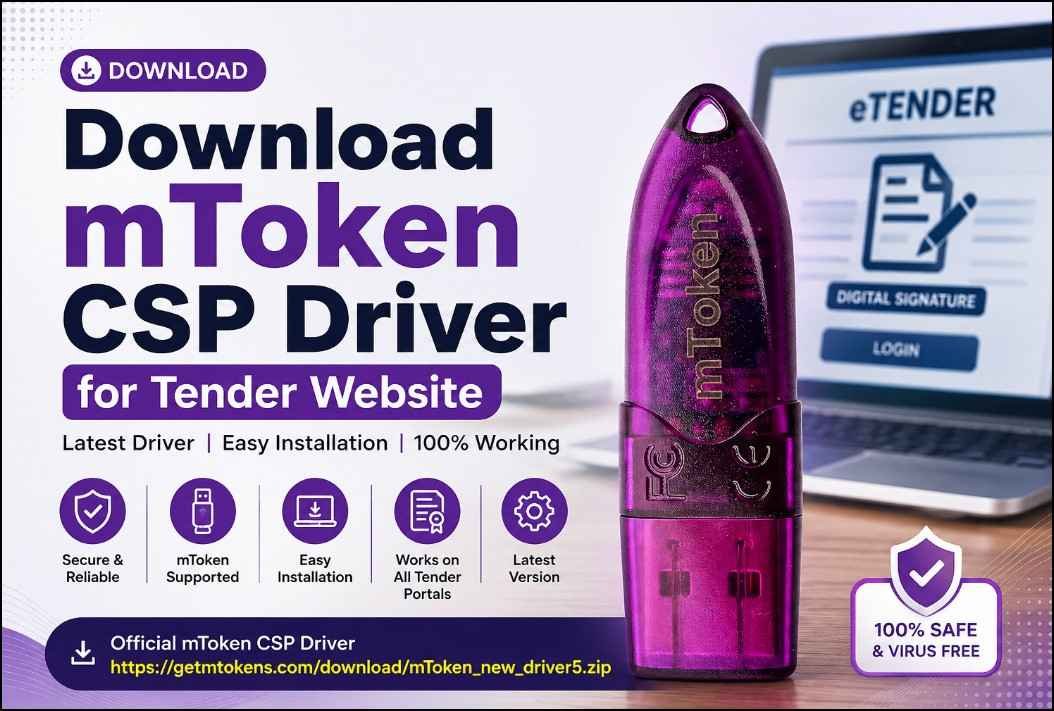
Download mToken CSP Driver for Tender Website (Latest Version) – Complete Installation Guide
If you are unable to use your Digital Signature Certificate (DSC) on any eTender portal because your USB token is not detected, the first thing you should check is whether the correct mToken CSP Driver is installed.
On this page, you can download the latest mToken CSP Driver for Tender Website and learn how to install it correctly on your Windows computer.
Download mToken CSP Driver for Tender Website
Latest mToken CSP Driver Download:
👉 https://getmtokens.com/download/mToken_new_driver5.zip
Important: Always download the driver from the official manufacturer or a trusted source to avoid corrupted or modified files.
What is the mToken CSP Driver?
The mToken CSP (Cryptographic Service Provider) Driver is software that enables Windows and government portals to communicate with your mToken USB Token.
Without this driver:
- Windows may not detect your USB Token.
- Your Digital Signature Certificate (DSC) will not appear.
- Tender websites may fail to sign documents.
- You may receive cryptographic or token-related errors.
Installing the latest driver ensures better compatibility with modern Windows versions and government eProcurement portals.
Supported Tender Portals
After installing the latest mToken CSP Driver, it can be used on most government and private tender websites, including:
- CPP Portal (Central Public Procurement)
- GeM Portal
- NIC eProcurement
- IREPS
- IRCTC Tender Portal
- Indian Oil Tender Portal
- ONGC Tender Portal
- HPCL
- BPCL
- MSTC
- State eTender Portals
- PWD Tender Portals
- Smart City Projects
- Municipal Tender Websites
Most Indian eTender portals require a valid CCA-approved DSC along with the appropriate token driver installed on the system.
System Requirements
The latest mToken CSP Driver supports:
- Windows 10
- Windows 11
- 64-bit Windows
- USB 2.0 & USB 3.0 Ports
- Class 3 Digital Signature Certificates
How to Install mToken CSP Driver
Follow these simple steps:
Step 1
Download the driver ZIP file.
Download Here
https://getmtokens.com/download/mToken_new_driver5.zip
Step 2
Extract the ZIP file.
Step 3
Run the Setup file as Administrator.
Step 4
Click Next until installation completes.
Step 5
Restart your computer.
Step 6
Insert your mToken USB Token.
Step 7
Open Internet Options → Content → Certificates to verify that your DSC is visible.
How to Verify the Driver is Installed
You can confirm successful installation by:
- Opening Device Manager
- Connecting the USB Token
- Opening Internet Options
- Checking whether your Digital Signature Certificate appears under Certificates
If your certificate is visible, the driver has been installed successfully. Government eTender documentation also recommends verifying that the token driver is properly installed before using DSC-based services.
Common Problems & Solutions
mToken Not Detected
Possible reasons:
- Driver not installed
- Faulty USB port
- Windows security restrictions
Solution:
- Reinstall the latest CSP Driver.
- Restart Windows.
- Try another USB port.
DSC Not Showing
Possible reasons:
- Driver corruption
- Token not inserted properly
- Certificate expired
Solution:
- Reinstall the driver.
- Reinsert the token.
- Check certificate validity.
“No Certificate Found”
Possible causes:
- Driver missing
- Browser issue
- Token not recognized
Solution:
- Install the latest mToken Driver.
- Restart the browser.
- Restart the computer.
Digital Signature Not Working on Tender Website
Check:
- Driver installation
- Valid DSC
- Correct browser settings
- Required signing utility installed
- Token connected before opening the portal
Why Use the Latest mToken Driver?
Using the newest version provides several benefits:
- Improved Windows compatibility
- Better security
- Faster token detection
- Stable cryptographic operations
- Fewer signing errors
- Better compatibility with government portals
Frequently Asked Questions (FAQ)
Is the mToken CSP Driver free?
Yes. The driver can be downloaded free of charge from the official source.
Does this driver work on Windows 11?
Yes. The latest version supports Windows 11.
Can I use this driver for eTender portals?
Yes. It is designed for Digital Signature usage on government and private tender websites.
Do I need to uninstall the old driver?
If you are experiencing errors, uninstalling the old version before installing the latest version is recommended.
Can I use the same driver for PDF signing?
Yes. Once installed, applications such as Adobe Acrobat and supported signing utilities can access the token for digital signing, provided the DSC is valid.
Final Words
If your Digital Signature Certificate is not working on an eTender website, installing the latest mToken CSP Driver is usually the first and most effective troubleshooting step.
Download the latest version, install it correctly, restart your computer, and verify that your DSC is visible before accessing the tender portal.
Keeping the driver updated helps ensure smoother authentication, secure digital signing, and compatibility with the latest Windows updates and government eProcurement systems.
Need Help with mToken Installation?
If you are facing issues while installing the driver or using your Digital Signature Certificate on any tender portal, Digital Signature Spot provides technical assistance for:
- mToken Driver Installation
- DSC Configuration
- Tender Portal Setup
- USB Token Troubleshooting
- Digital Signature Support
- Remote Technical Assistance
Our experienced support team can help you get your DSC working quickly and securely.
Here are polished, SEO-friendly sections you can add to your blog.
Contact Us for Technical Support
Facing issues while installing the mToken CSP Driver or using your Digital Signature Certificate (DSC) on a tender website?
Our technical experts at Digital Signature Spot are here to help. We provide remote assistance for driver installation, USB token configuration, DSC setup, browser compatibility, and tender portal troubleshooting.
Note: Technical support is available at nominal service charges.
Our Support Services:
- mToken CSP Driver Installation
- USB Token Configuration
- DSC Installation & Renewal Support
- Tender Portal Setup
- Browser & Java Configuration
- Remote Technical Assistance
- Digital Signature Troubleshooting
Contact Us
- 🌐 Website: https://digitalsignaturespot.com
- 📧 Email: digitalsignaturespot@gmail.com
- 📱 WhatsApp/Call: +91 7579984381
About the Author
Samarth
Samarth is the founder of Digital Signature Spot and has 11+ years of experience in the Digital Signature Certificate (DSC) industry. He specializes in DSC issuance, USB token configuration, eTender portal setup, and resolving technical issues related to Digital Signatures across various government and private portals.
Through Digital Signature Spot, he has helped thousands of individuals, businesses, chartered accountants, and tender professionals successfully install and use Digital Signature Certificates with minimal downtime.
His articles are based on real-world technical experience and are written to provide accurate, practical, and easy-to-follow solutions for DSC users across India.

About author


Add comment