

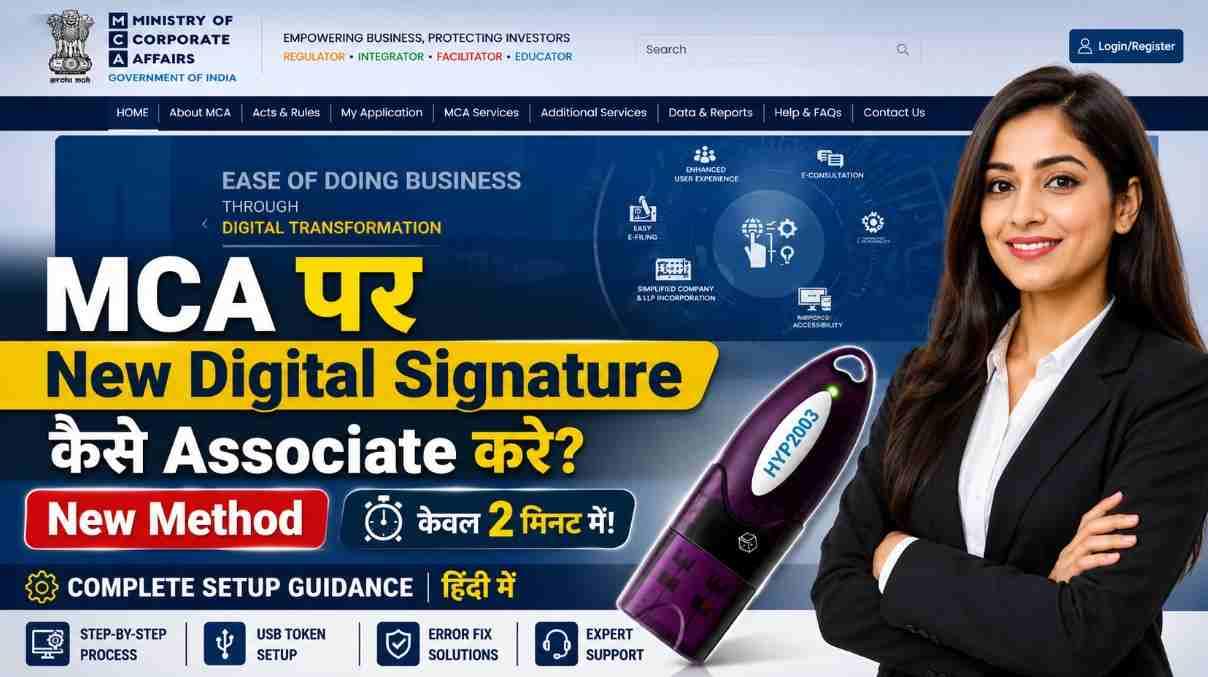
How to Associate a New Digital Signature Certificate on MCA Portal – Complete Guide (2026)
Author: Digital Signature Spot Technical Team
Last Updated: 2026
Reading Time: 5 Minutes
How to Associate a New Digital Signature Certificate on MCA Portal? If you have recently purchased or renewed your Digital Signature Certificate (DSC), you must associate it with your MCA (Ministry of Corporate Affairs) account before using it for company filings, ROC compliance, annual returns, incorporation forms, and other MCA services.
As a Digital Signature service provider assisting businesses, company directors, Chartered Accountants, Company Secretaries, and professionals across India, we frequently receive support requests related to DSC association errors, USB token issues, and emBridge installation problems.
This guide explains the latest MCA DSC association process with practical troubleshooting tips based on real-world support experience.
The Reality of MCA DSC Association in 2026
After spending over 11 years in the Digital Signature Certificate (DSC) industry, I have personally navigated every update the Ministry of Corporate Affairs (MCA) has rolled out. From the early days of signing utilities to the current emBridge architecture, I have seen thousands of professionals—from Company Secretaries to Independent Directors—hit a wall when it comes to DSC association.
If you have recently purchased or renewed your DSC, you likely already know that simply having the token is not enough. You must successfully link it to your MCA account. This guide is built on my decade-plus of real-world troubleshooting experience to ensure you don’t just get it done, but get it done right without the common “DSC not detected” headaches.
Why Trust This Guide?
At Digital Signature Spot, we don’t just write about DSCs; we manage them daily. My team and I handle hundreds of support requests monthly for DSC errors on GST, MCA, DGFT, and e-Tender portals. This guide is distilled from our internal knowledge base—the same steps we use to resolve issues for our corporate clients across India.
Watch the Complete Video Tutorial
If you prefer a visual walkthrough, watch our detailed YouTube video where we demonstrate the entire MCA DSC association process step-by-step.
In this video, you will learn:
- How to associate a new Digital Signature Certificate (DSC) on the MCA Portal
- How to download and install emBridge
- USB Token driver installation and setup
- How to fix “USB Token Not Detected” errors
- Common MCA DSC association issues and their solutions
- Browser permission settings required for DSC detection
- Best practices for a successful DSC association
Whether you are a Company Director, Chartered Accountant (CA), Company Secretary (CS), LLP Partner, or business owner, this video will help you complete the process quickly and avoid common mistakes.
📺 Watch the complete tutorial below:
By following both this written guide and the video tutorial, you can successfully associate your DSC on the MCA Portal without technical difficulties.
What is DSC Association on the MCA Portal?
Think of DSC association as a “digital handshake” between your physical USB token and the MCA government servers. It confirms to the system that the specific certificate inside your token is authorized to sign forms on behalf of a specific user.
Without this association, you will face errors during:
- Company Incorporation (SPICe+ forms)
- Annual Return Filings (AOC-4, MGT-7)
- Director DIN updates
- LLP Compliance
Prerequisites: The 11-Year Checklist
Before you begin, ensure your workstation is prepared. In my experience, 90% of failures occur because one of these items is overlooked:
- Valid Class 3 DSC: Ensure it is a Class 3 (the only legal standard for MCA now).
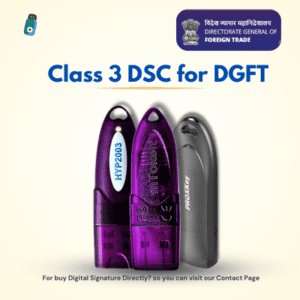
- Latest Token Drivers: A driver from 2022 won’t cut it. Download the latest version for your specific token (ProxKey, HYP2003, mToken, or WatchData).
- Clean Browser Environment: I strongly recommend Google Chrome (latest version) or Microsoft Edge. Clear your cache before starting.
- Admin Rights: Ensure you are logged into your computer as an Administrator.
What is DSC Association on the MCA Portal?
DSC Association is the process of linking your Digital Signature Certificate to your MCA user account.
Once associated, your DSC can be used for:
- MCA e-Filing
- ROC Compliance
- Company Incorporation Forms
- Director Filings
- LLP Filings
- Annual Return Submission
- Digital Authentication on MCA Services
Without associating your DSC, you may not be able to digitally sign MCA forms.
Who Needs to Associate a DSC?
You may need to associate a DSC if:
- You purchased a new Class 3 DSC
- Your DSC has been renewed
- You received a replacement USB token
- You changed your digital certificate provider
- Your previous DSC has expired
Requirements Before Associating DSC
Before starting the process, ensure that you have:
✔ Valid Class 3 Digital Signature Certificate
✔ USB Token
✔ USB Token Driver Installed
✔ MCA User Account
✔ Stable Internet Connection
✔ emBridge Application Installed
How to Associate a New Digital Signature Certificate on MCA Portal?
Step 1: Login to MCA Portal
Visit the MCA Portal and log in using your registered credentials.
After successful login, you will reach your MCA dashboard.
Step 2: Open DSC Services
Navigate to:
My Application → DSC Services
This section contains all Digital Signature-related options.
Step 3: Click on Associate DSC
Select the Associate DSC option.
You will be redirected to the DSC Association page.
Step 4: Download emBridge
The MCA Portal uses emBridge software to communicate with your USB token.
On the Associate DSC page, click:
Download the latest Windows installer and complete the installation.
Step 5: Run emBridge
This is one of the most common mistakes users make.
Installing emBridge is not enough.
After installation:
- Open emBridge
- Allow required permissions
- Keep the application running in the background
If emBridge is not running, MCA may fail to detect your certificate.
Step 6: Refresh the MCA Page
Return to the Associate DSC page.
Refresh the browser.
When prompted:
- Allow browser permissions
- Approve communication requests
This step enables MCA Portal to access your USB token securely.
Step 7: Verify USB Token Detection
The Token Type section should display your USB token.
Common token brands include:
- ProxKey
- HYP2003
- WatchData
- mToken
If the token appears successfully, proceed to the next step.
Step 8: Associate Your DSC
Select your certificate and click:
Associate DSC
Once completed, your DSC will be successfully linked to your MCA account.
Common MCA DSC Errors and Solutions
USB Token Not Detected
Possible Reasons
- Missing token driver
- Corrupt driver installation
- USB connection issue
- emBridge not running
Solution
- Reinstall token drivers
- Restart emBridge
- Reconnect USB token
- Refresh MCA Portal
No Certificate Found
Solution
- Check certificate validity
- Verify token driver installation
- Restart the token service
- Reconnect the USB device
emBridge Not Working
Solution
- Install the latest version
- Restart your system
- Check browser permissions
- Temporarily review firewall settings
Browser Permission Error
Solution
Always click “Allow” when prompted by the browser or emBridge.
Blocked permissions may prevent token detection.
Expert Tips from Our Technical Support Team
After helping thousands of DSC users across India, we recommend:
- Use Google Chrome or Microsoft Edge
- Install the latest token drivers
- Keep emBridge updated
- Avoid using multiple DSC utilities simultaneously
- Check certificate validity before filing
These simple precautions prevent most DSC-related issues.
Frequently Asked Questions
Is DSC Association Mandatory?
Yes. MCA requires a valid associated DSC for many filing and signing activities.
Do I Need to Associate a Renewed DSC Again?
In most cases, yes.
A renewed certificate should be associated again before use.
What is emBridge?
emBridge is the software used by MCA Portal to establish communication between your browser and USB token.
Why Is My USB Token Not Showing?
Usually because of:
- Missing drivers
- Expired certificate
- USB issues
- emBridge not running
About Digital Signature Spot
Digital Signature Spot provides Digital Signature solutions across India for businesses and professionals.
Our services include:
- Class 3 DSC
- MCA DSC
- Tender DSC
- DGFT DSC
- Foreign National DSC
- USB Tokens
- DSC Renewal
- Remote Installation Support
Our technical team regularly assists users with:
- MCA DSC Association
- USB Token Issues
- emBridge Setup
- Driver Installation
- Certificate Renewal
Need assistance?
📞 Call/WhatsApp: 7579984381
🌐 Download Drivers & Utilities:
https://digitalsignaturespot.com/downloads/
Final Thoughts
Associating a DSC on the MCA Portal is usually a straightforward process when emBridge, token drivers, and browser permissions are configured correctly.
By following the steps outlined in this guide, you can successfully associate your Digital Signature Certificate and avoid common errors that delay filings.
If you encounter any technical issues, seek assistance from a qualified DSC support provider to ensure your MCA filings remain uninterrupted.


About author













Add comment