

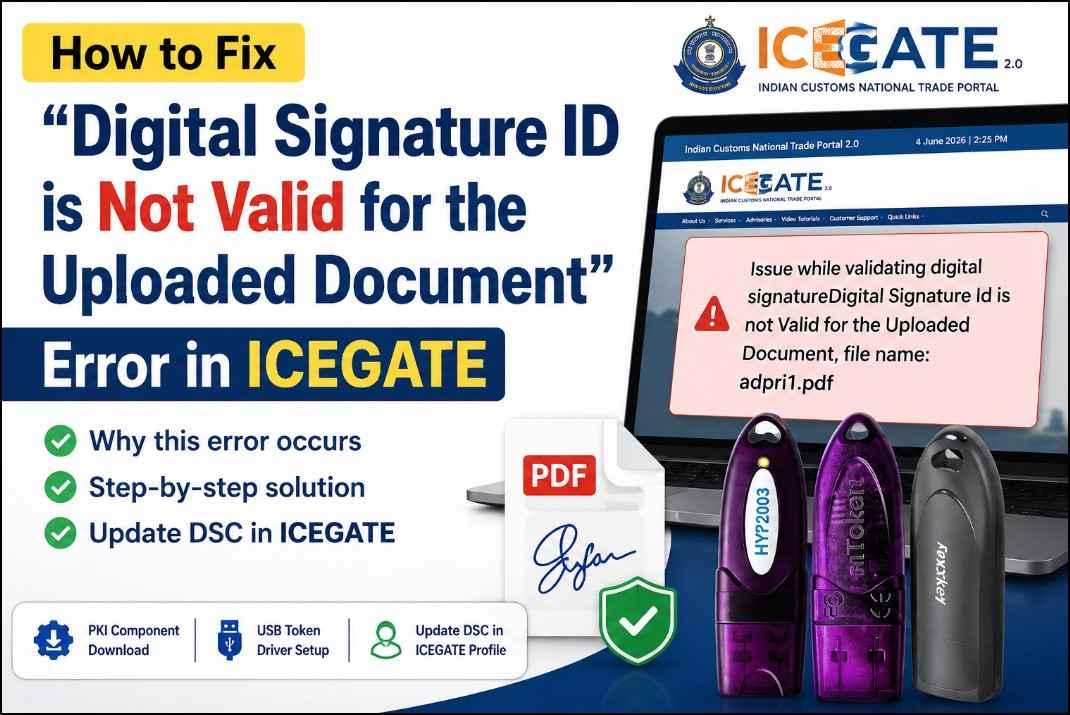
How to Fix “Issue while validating digital signature: Digital Signature ID is Not Valid for the Uploaded Document” in ICEGATE
Complete Guide to Update DSC in ICEGATE Portal
If you are trying to upload a digitally signed PDF on the ICEGATE portal and receiving the error:
“Issue while validating digital signature: Digital Signature ID is not valid for the uploaded document”
don’t worry. This is one of the most common Digital Signature Certificate (DSC) errors faced by ICEGATE users.
In this guide, we will explain why this error occurs and how to update your DSC in ICEGATE to resolve the issue permanently.

Why Does This Error Occur?
The error usually appears when:
- You have signed the PDF using a valid Digital Signature Certificate (DSC).
- However, the same DSC is not registered or updated in your ICEGATE profile.
- You recently renewed your DSC and are still using an old DSC registered in ICEGATE.
- Your DSC token has changed, but the profile has not been updated accordingly.
In simple words, the Digital Signature used to sign the document and the Digital Signature registered in ICEGATE do not match.
As a result, ICEGATE cannot validate the uploaded document and displays the error:
“Digital Signature ID is not valid for the uploaded document.”
Watch Video Tutorial: Fix “Digital Signature ID is Not Valid for the Uploaded Document” Error in ICEGATE
If you prefer watching a step-by-step video guide instead of reading, we have created a detailed tutorial that shows the complete process of fixing the ICEGATE error:
“Issue while validating digital signature: Digital Signature ID is Not Valid for the Uploaded Document”
In this video, you will learn:
✅ Why this ICEGATE error occurs
✅ How to download and install the ICEGATE PKI Component
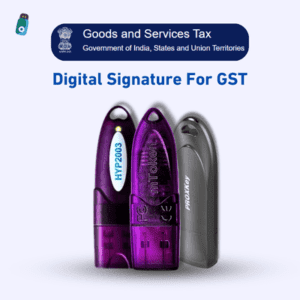
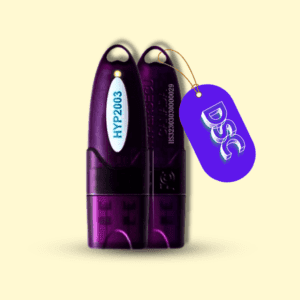
✅ How to install USB Token drivers (HYP2003, ProxKey, mToken)
✅ How to update your DSC in the ICEGATE profile
✅ How to re-register a renewed Digital Signature Certificate
✅ How to successfully upload digitally signed PDF documents in ICEGATE
🎥 Watch the Complete Video Tutorial
This tutorial is especially useful for Importers, Exporters, Customs Brokers (CHA), Freight Forwarders, and businesses using ICEGATE for customs-related filings.
If the video helps you, don’t forget to subscribe to our YouTube channel for more tutorials on Digital Signature Certificates (DSC), ICEGATE, DGFT, GST, MCA, Income Tax, and USB Token setup.
Need help? Contact us on WhatsApp: 7579984381
Prerequisites Before Updating DSC in ICEGATE
Before updating your DSC, make sure the following components are installed on your system.
1. Download ICEGATE PKI Component
ICEGATE requires its PKI Component (Signer Utility) to detect and validate your Digital Signature.
Download Link:
ICEGATE PKI Component (Signer Utility)
https://signerutility.blob.core.windows.net/signerutility/PKIComponent.zip
Download and install the utility on your computer.
2. Install USB Token Driver
Your DSC USB Token driver must be installed properly before ICEGATE can detect your certificate.
Supported tokens generally include:
- HYP2003 Token
- WD ProxKey Token
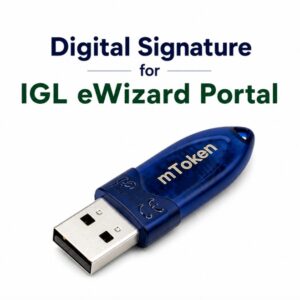
- mToken
You can download token drivers from:
After installation, connect your USB Token and verify that the DSC is visible.
Step-by-Step Process to Update DSC in ICEGATE
Follow the steps below carefully.
Step 1: Login to ICEGATE Portal
Visit the ICEGATE portal and login using:
- User ID
- Password
After successful login, proceed to your account dashboard.
Step 2: Open Profile Section
Navigate to the Profile section from your dashboard.
Scroll down slightly until you find the Update button highlighted in blue color.
Click on Update.
Step 3: Allow Browser Permissions
When you click Update, your browser may ask for permissions related to the ICEGATE Signer Utility.
Allow all required permissions and continue.
If prompted:
- Click Allow
- Click Open Signer Utility
- Confirm any security prompts
Step 4: Select Your Digital Signature
The system will display available certificates from your connected USB Token.
Now:
- Select your DSC.
- Enter the USB Token password.
- Confirm the selection.
Step 5: Complete DSC Registration
After successful verification, ICEGATE will update your profile with the newly selected Digital Signature Certificate.
Your DSC registration process is now complete.
Verify the Solution
Once your DSC has been updated:
- Open the PDF document.
- Sign it using the same DSC.
- Upload the signed PDF to ICEGATE.
The error:
“Issue while validating digital signature: Digital Signature ID is not valid for the uploaded document”
should no longer appear.
Additional Troubleshooting Tips
If the error still persists:
Check DSC Validity
Make sure your Digital Signature Certificate has not expired.
Reinstall Token Driver
Remove and reinstall the USB Token driver.
Restart PKI Component
Close and reopen the ICEGATE Signer Utility.
Use Supported Browser
Use the browser recommended by ICEGATE and ensure pop-ups are enabled.
Re-sign the PDF
After updating DSC in ICEGATE, sign the PDF again using the same registered certificate.
Frequently Asked Questions (FAQs)
Why is ICEGATE rejecting my digitally signed PDF?
Most commonly because the DSC used for signing the PDF is different from the DSC registered in your ICEGATE account.
Do I need to update DSC after renewal?
Yes. Whenever your DSC is renewed or reissued, you should update it in your ICEGATE profile.
Can I use an expired DSC on ICEGATE?
No. An expired Digital Signature Certificate cannot be used for authentication or document signing.
Which USB Tokens are supported?
HYP2003, WD ProxKey, and mToken are among the commonly used USB Tokens for ICEGATE DSC operations.
Need Help Updating Your DSC?
If you are still facing issues while updating your Digital Signature Certificate in ICEGATE, our support team can help you with:
- DSC Registration
- DSC Renewal
- ICEGATE DSC Update
- USB Token Setup
- Driver Installation
- Technical Troubleshooting
Buy New or Renew DSC
If your DSC has expired, you can purchase a new Class 3 Digital Signature Certificate at competitive pricing from Digital Signature Spot.
Contact Support

📞 WhatsApp: 7579984381
Get quick assistance for ICEGATE DSC errors, renewal, installation, and digital signing issues.

About author















Add comment