


Get Digital Signature for MahaTenders: Registration, Java Setup, and Bidding (2026 Updated). Think before buy
Get Digital Signature for MahaTenders: For contractors and business entities in Maharashtra, the MahaTenders (mahatenders.gov.in) portal is the primary gateway to lucrative government projects from departments like PWD Maharashtra, Water Resources, MahaVitaran, and various Zilla Parishads.
As of 2026, the Maharashtra government has streamlined its e-procurement process under the National Informatics Centre (NIC) GePNIC framework. The most critical component of this digital shift is the Class 3 Digital Signature Certificate (DSC). Without a correctly configured DSC, your participation in the state’s development projects remains impossible.

This guide provides a comprehensive 360-degree view of obtaining, configuring, and using your digital signature on the Maharashtra tender portal.
1. Why MahaTenders Requires a Get Digital Signature for MahaTenders.
A Digital Signature Certificate is not just an “access key.” Under the Information Technology Act, 2000, it is a legally recognized credential that provides:
- Data Integrity: It ensures that the technical documents (PDFs) you upload are not tampered with during transmission.
- Authentication: It confirms that the person submitting the bid is the authorized signatory of the registered company.
- Encryption of Financial Bids (BOQ): In MahaTenders, the financial quote (Excel/BOQ) is “locked” by the Encryption certificate. This ensures that no department official can view your rates until the official date of the financial bid opening, ensuring 100% transparency.
2. Technical Specifications: The “Combo” Mandate
Maharashtra e-Procurement strictly follows the NIC guidelines. If you are applying for a DSC, you must ensure it meets these three criteria:
A. Class 3 High-Security
Class 2 DSCs have been officially discontinued by the CCA. Only Class 3 is valid for tendering.
B. Organizational (ORG) Category
Even if you are a Sole Proprietor, you should apply for an Organizational DSC. If you bid as a Private Limited, Partnership, or LLP, the DSC must reflect the company’s name. Individual DSCs will result in an “Invalid Certificate” error on MahaTenders.
C. Signing + Encryption (Combo)
MahaTenders is a “Two-Cover” or “Three-Cover” bidding system.
- Signing: Used for the Technical Bid (Cover 1).
- Encryption: Mandatory for the Financial Bid (Cover 2).
Expert Insight: Buying “Signing Only” is the most common mistake contractors make. Always ensure you get the Combo DSC to avoid last-minute bidding failures.
3. Step-by-Step: Registering (Mapping) Your DSC on MahaTenders
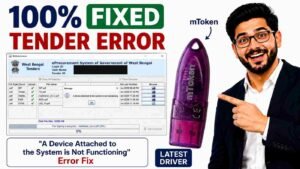
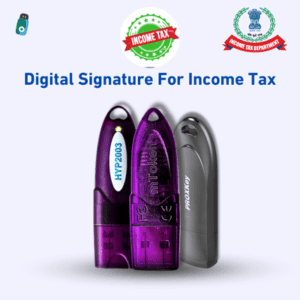
Once you have your physical USB token (e.g., ProxKey, mToken, or HYP2003), you must “Map” it to your bidder profile.
Step 1: System Readiness
- Install Token Drivers: Plug in the token, go to ‘My Computer’, open the token drive, and run the
.exesetup file. - The Java Factor: MahaTenders relies heavily on Java. You must install the latest 32-bit Java Runtime Environment (JRE), even if your computer is 64-bit.
Step 2: Browser Configuration
- Open Microsoft Edge.
- Go to Settings → Default Browser → Allow sites to be reloaded in Internet Explorer mode.
- Add
[https://mahatenders.gov.in](https://mahatenders.gov.in)to the “Internet Explorer mode pages” list.
Step 3: Mapping the DSC
- Visit the MahaTenders Portal and log in with your Bidder ID.
- Upon first login, the portal will prompt: “You have not registered with DSC.”
- Click on ‘Signing Certificate’. A Java pop-up will appear; click ‘Run’ and ‘Allow’.
- Select your certificate from the list, enter your Token PIN, and click ‘OK’.
- Repeat the same for the Encryption Certificate.
- Once mapped, the status will change to “DSC Enrolled Successfully.”
4. Configuring Java for MahaTender (2026 Critical Update)
90% of technical errors on MahaTenders are caused by Java security blocks. Follow these expert settings:
- Open Java Control Panel: Go to Windows Search → ‘Configure Java’.
- Security Tab: Click on ‘Edit Site List’.
- Add Exceptions: Add the following URLs exactly:
[https://mahatenders.gov.in](https://mahatenders.gov.in)[https://etenders.gov.in](https://etenders.gov.in)
- Advanced Tab: Scroll down to ‘Miscellaneous’ and ensure “Show Console” is checked. This helps you see if the DSC handler is running.
5. Document Checklist for MahaTender DSC (Fast-Track Approval)
For 30-minute issuance, keep these scanned documents ready:
| Business Entity | Required Documents |
| Sole Proprietorship | PAN Card, Aadhaar, GST Certificate / Udyam Registration. |
| Partnership / LLP | Firm PAN, Partnership Deed, Authorized Partner’s ID, Authorization Letter. |
| Pvt Ltd / Public Co. | Company PAN, Incorporation Certificate, Board Resolution, Authorized Signatory’s ID. |
6. Troubleshooting Common MahaTender DSC Errors
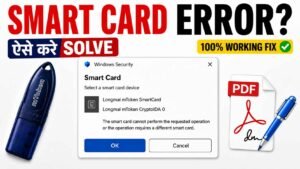
- Error: “Unable to find valid certificate in the token”
- Solution: Re-install the drivers and ensure the token’s light is glowing. Try a USB 2.0 port instead of a 3.0 port.
- Error: “Login Button Not Appearing”
- Solution: This is a classic Java issue. Re-verify that Java is enabled in your browser and the portal is added to the Java Exception List.
- Error: “Certificate Expired”
- Solution: You must renew your DSC. After renewal, log in and use the “Change DSC” option on the portal to map the new serial number.
7. Pricing Structure: MahaTender DSC (Transparent Policy)
Prices include the secure FIPS-certified USB Token and full technical support.
- Class 3 Org Combo (1 Year): ₹1,780
- Class 3 Org Combo (2 Years): ₹2,800
- Class 3 Org Combo (3 Years): ₹3,800 (Best value for active contractors)
8. High-Volume FAQs for Maharashtra Contractors
Q1. Can I use the same DSC for MahaTenders and GeM? A: Yes! A Class 3 Organizational Combo DSC is universal. You can use it for MahaTenders, GeM, CPPP, Income Tax, and GST.
Q2. I am bidding for a PWD Maharashtra tender. Is individual DSC okay? A: No. PWD tenders require an Organizational DSC. Using an Individual DSC can lead to technical disqualification at the bid-opening stage.
Q3. How long does it take to get a DSC for MahaTenders? A: At Digital Signature Spot, we provide paperless issuance. Once your video verification is complete, your DSC is ready for dispatch or download in 30 minutes.
Q4. Do I need to be in Maharashtra to get this DSC? A: No. We provide Pan-India service. Whether you are in Mumbai, Pune, Nagpur, or Delhi, we can issue and ship the DSC to your doorstep.
🔐 Why Trust Digital Signature Spot?
Winning a Maharashtra government tender requires technical precision. We don’t just provide a USB token; we provide a solution.
- Expert Setup: We assist you in configuring Java and browser settings via AnyDesk.
- 24/7 Troubleshooting: Our team knows the “GePNIC” portal architecture better than anyone.
- CCA Compliant: Every certificate we issue follows the latest 2026 guidelines.
📞 Get Your MahaTender DSC Instantly
📲 WhatsApp/Call: 7579984381 📧 Email: digitalsignaturespot@gmail.com 🌐 Trusted Platform: Digital Signature Spot
☕ The Critical Java Setup for e-Tendering (2026 Guide)
Most government portals like MahaTenders, UP Tenders, and GeM are built on the GePNIC (NIC) framework, which relies heavily on the Java Runtime Environment (JRE) to detect your USB token. Without the correct version and security settings, your “Login” or “Bid Submission” buttons simply won’t appear.
⬇️ Step 1: Download the Correct Java Version
Do not just download any version from the official site. For e-Tendering, the 32-bit (x86) version is often required for better compatibility with emSigner utilities.
👉 Download Java for e-Tendering Website
🛠️ Step 2: Step-by-Step Installation Process
- Remove Old Versions: Go to Control Panel > Programs > Uninstall a Program. Remove any existing versions of Java to avoid “Version Mismatch” errors.
- Run the Installer: Double-click the downloaded file from the link above.
- Complete Setup: Follow the on-screen instructions. Once the installation is complete, you will see a “Java successfully installed” message. Restart your browser immediately after this.
🔐 Step 3: Configuring Java Security (The “Exception List”)
Even after installation, your computer’s security will block the tender portal’s Java applet. You must manually “Whitelist” the website.
- Open Java Control Panel: Search for “Configure Java” in your Windows search bar.
- Go to the ‘Security’ Tab: Ensure the “Enable Java content in the browser” checkbox is ticked.
- Edit Site List: Click on the ‘Edit Site List…’ button.
- Add Portal URLs: Click ‘Add’ and type the following URLs (depending on your state):
[https://mahatenders.gov.in](https://mahatenders.gov.in)[https://etenders.up.nic.in](https://etenders.up.nic.in)[https://gem.gov.in](https://gem.gov.in)
- Save: Click OK and Apply.
⚙️ Step 4: Advanced Settings for 2026 Compatibility
To ensure the emSigner and USB Token communicate perfectly, go to the ‘Advanced’ tab in the Java Control Panel:
- Scroll down to “Advanced Security Settings.”
- Ensure “Use TLS 1.2” and “Use TLS 1.3” are both checked.
- Under “Miscellaneous,” check the box for “Place icon in system tray” so you can monitor if Java is active during your bid.
🚨 Common Java Errors & Quick Fixes
- Error: “Java Blocked by Security Settings”
- Solution: Double-check your Exception Site List. Ensure you have included
https://(not justhttp://).
- Solution: Double-check your Exception Site List. Ensure you have included
- Error: “Grey Box appearing instead of Login”
- Solution: This means Java is installed but the browser isn’t running it. Ensure you are using Microsoft Edge in Internet Explorer Mode.
- Error: “Wrong Architecture”
- Solution: If you installed 64-bit Java and the portal requires 32-bit, the emSigner will not detect the DSC. Always use the 32-bit version provided in the link above for maximum compatibility.
✍️ Author Expert Tip by Smarth
“In my 10+ years of experience, I’ve seen 90% of tender rejections happen not because of documents, but because the Java setup failed at the 11th hour. I always tell my clients at Digital Signature Spot: ‘Test your Java 24 hours before the deadline.’ If you see the ‘Run’ pop-up when you click login, your setup is perfect.”
About the Author: Expert Insight by Smarth
This guide was authored by Author Smarth, a recognized industry leader with over 10 years of hands-on experience in Digital Signature technology and Indian e-procurement portals.
As the founder of Digital Signature Spot, Smarth has successfully guided thousands of contractors through the complexities of MahaTenders, UP Tenders, and GeM. His technical expertise in troubleshooting Java-based errors and configuring cryptographic tokens (like HYP2003, ProxKey, and mToken) has made him a trusted consultant for firms across Maharashtra and India. Smarth’s mission is to ensure that every bidder can focus on their business, while he handles the digital security.


About author














Add comment