

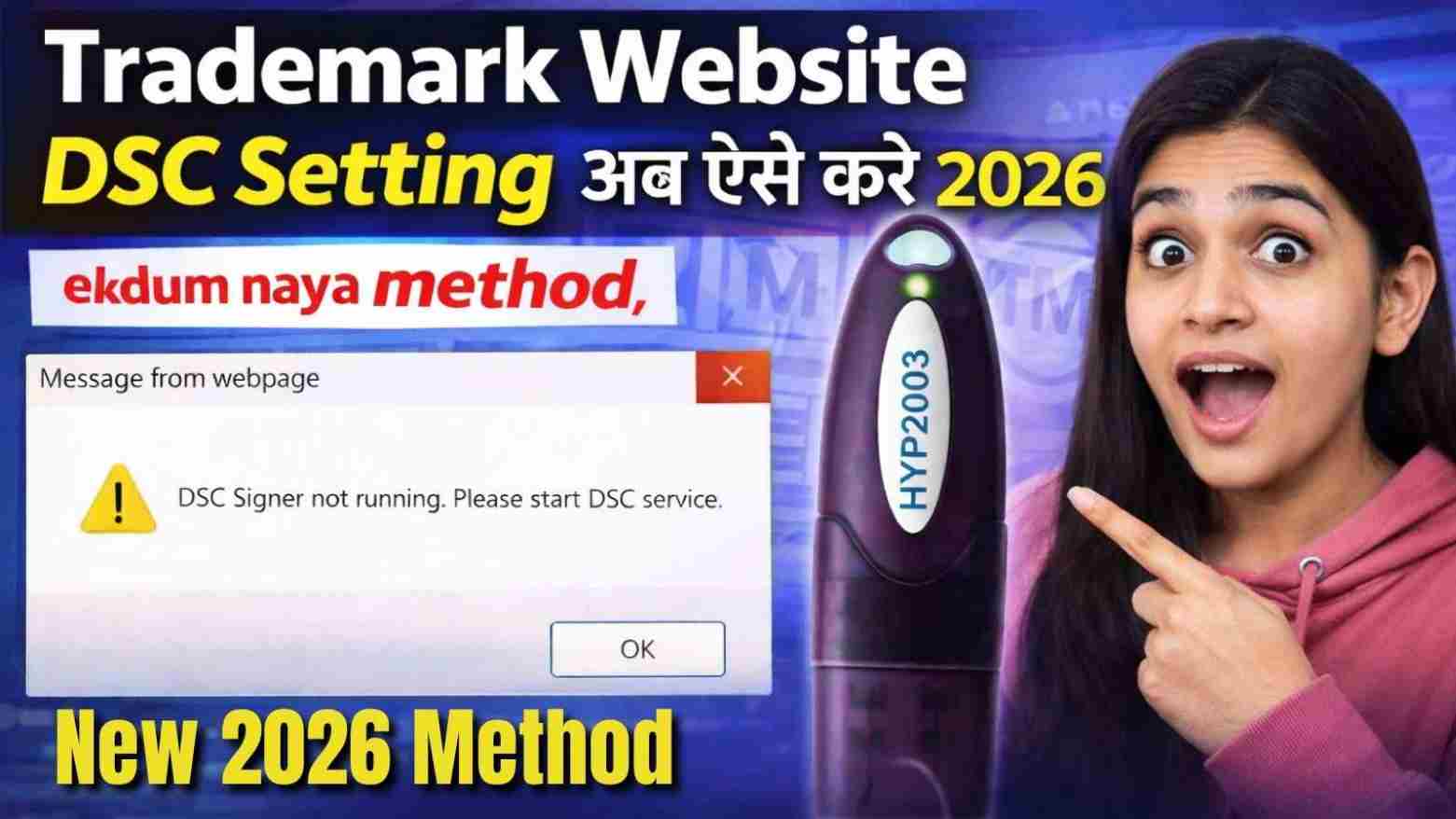
New Digital Signature Setting in Trademark Portal (2026) – Complete Guide to Browser Signing Solution
Introduction
New Digital Signature Setting in Trademark Portal: The Trademark Portal (Controller General of Patents, Designs & Trademarks) has introduced a new Digital Signature (DSC) system in 2026, making it mandatory to install the Browser Signing Solution (BSS).
If your DSC is:
- Not working
- Not showing in browser
- Giving signing errors
👉 Then this new setup is exactly what you need.
This guide will help you understand the latest DSC settings update and how to fix everything step-by-step.
🚨 What Changed in 2026 Trademark Portal?
The trademark portal has upgraded its DSC integration system for better security and compliance.
✅ Key Updates:
- Old Java-based signing removed
- New Browser-based signing system introduced
- Mandatory installation of Browser Signing Solution (BSS)
- Real-time DSC detection via localhost (port 1620)
📌 This update ensures faster, safer, and more reliable digital signing.
🧠 What is Browser Signing Solution (BSS)?
Browser Signing Solution is a PKI-based background application that connects your:
👉 USB Token (DSC)
👉 Browser (Chrome/Edge/Firefox)
👉 Trademark Portal
Without this software, DSC will not work on the new system.
🎥 Video Tutorial: New DSC Setting in Trademark Portal 2026
If you prefer a step-by-step practical demonstration, watch this complete video tutorial where the entire process is explained in real-time.
👉 This video covers:
- New Digital Signature setting in Trademark Portal (2026 update)
- How to install Browser Signing Solution
- Live DSC setup process
- Fix “DSC Not Working” error
- Troubleshooting common issues (port 1620, token detection, etc.)
▶️ Watch Full Tutorial
💡 Why Watch This Video?
- ✔ Understand the process visually (easier than reading)
- ✔ Avoid common mistakes during DSC setup
- ✔ See real-time error fixing
- ✔ Perfect for beginners and professionals
🚀 Pro Tip
Before starting the process shown in the video:
- Insert your USB DSC Token
- Close all browsers
- Run Browser Signing Solution
👉 Then follow the video step-by-step for best results.
⚙️ New DSC Setting in Trademark Portal (Step-by-Step)
✅ Step 1: Download Browser Signing Solution
Download from official link:
👉 https://www.pki.network/download/?app=pki-signing-solution
📌 As shown in the official manual, this is the required software for DSC integration
✅ Step 2: Install the Software
- Open
BrowserSigningSolution.msi - Click Next → Install → Finish
👉 Installation wizard will guide you (as shown in manual screenshots)
✅ Step 3: Run Browser Signing Solution
- Right-click on desktop shortcut
- Click Open
✔ This starts the DSC service in background
✅ Step 4: Verify DSC Service Running
After running:
- Notification will appear
- Service runs on:
http://127.0.0.1:1620 - Icon visible in taskbar
📌 This confirms your DSC is ready for use
✅ Step 5: Use DSC on Trademark Portal
- Open Trademark portal
- Login to your account
- Click on Sign / Submit
- Your DSC will now be detected automatically
💡 Pro Tip (Important for Users)
👉 Always keep Browser Signing Solution running before using DSC
👉 Insert USB token before opening browser
👉 Use updated Chrome or Edge
❌ Common Errors in New DSC System & Fixes
🔴 Error 1: DSC Not Detected
✔ Install token driver
✔ Restart BSS
✔ Try different USB port
🔴 Error 2: “Failed to Establish Connection”
✔ Check if BSS is running
✔ Ensure port 1620 is not blocked
✔ Disable antivirus/firewall temporarily
🔴 Error 3: Blank DSC Popup
✔ Clear browser cache
✔ Enable pop-ups
✔ Update browser
🔴 Error 4: Signing Failed
✔ Check certificate validity
✔ Reinstall BSS
✔ Restart system
🔐 Why This New System is Better?
- No Java dependency
- Faster signing process
- More secure (PKI-based)
- Works on modern browsers
🧑💼 Who Needs This Setup?
This update is important for:
- Trademark applicants
- IP attorneys
- CA/CS professionals
- Business owners filing trademarks
📞 Need Help? (High Conversion Section)
If you are facing issues or want ready-to-use DSC setup:
👉 Call / WhatsApp: 7579984381
✔ Instant DSC activation
✔ Full installation support
✔ Error fixing assistance
❓ FAQs (SEO Boost Section)
Q1. What is the new DSC setting in Trademark Portal 2026?
It is a browser-based signing system using Browser Signing Solution instead of Java.
Q2. Is Browser Signing Solution mandatory?
Yes, without it DSC will not work.
Q3. Which port does DSC use now?
Port 1620 for localhost communication.
Q4. Can I use old DSC settings?
No, old Java-based system is discontinued.
Q5. How to fix DSC not working error?
Install BSS, run it, and ensure USB token is connected.
🏁 Conclusion
The new Digital Signature setting in Trademark Portal (2026) is a major upgrade that improves security and user experience.
By installing and running the Browser Signing Solution, you can:
✔ Fix DSC errors
✔ Ensure smooth trademark filing
✔ Avoid submission failures
✍️ About the Author
Samarth is a DSC expert and founder of Digital Signature Spot, helping users across India with DSC issuance, installation, and troubleshooting. With real-world experience in trademark and tender filings, he provides practical solutions that work.

About author













Add comment