

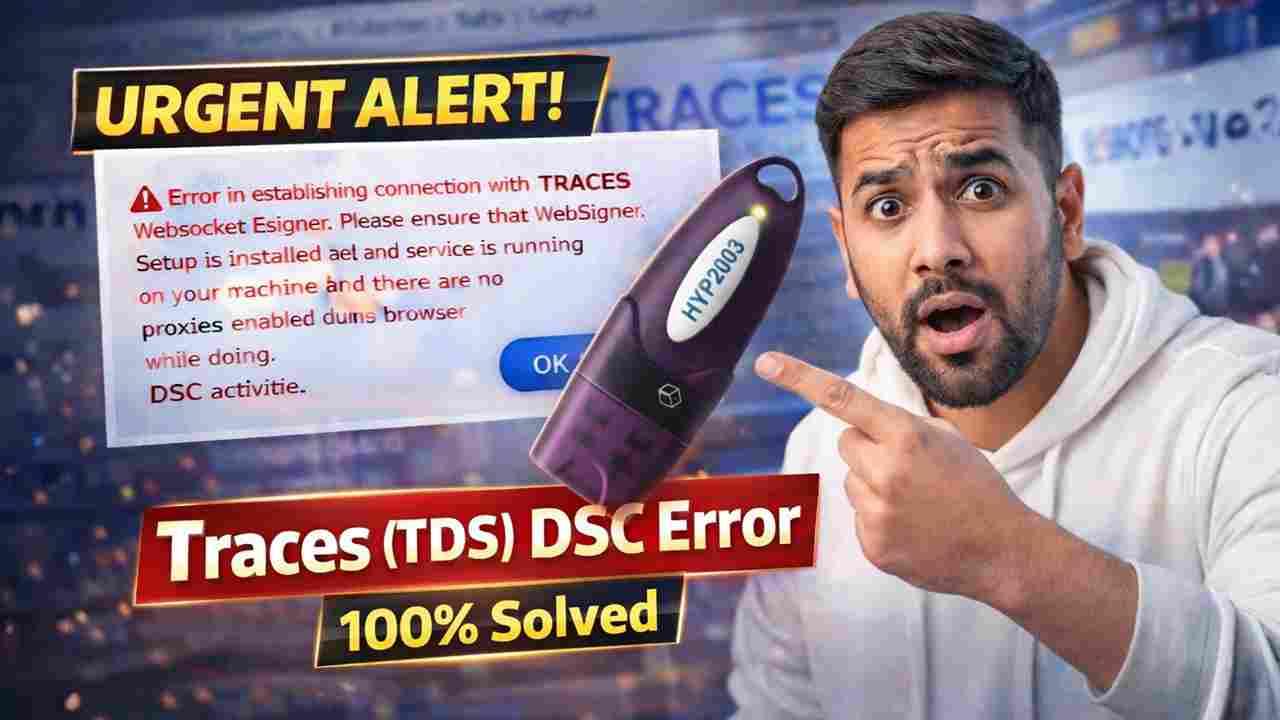
How to Fix “Error in Establishing Connection” in TDS & Get Class 3 Digital Signature Easily (Complete Guide)
Digital Signature errors on the TRACES portal are more common than most users realize. One of the most frustrating issues is:
“Error in Establishing Connection”
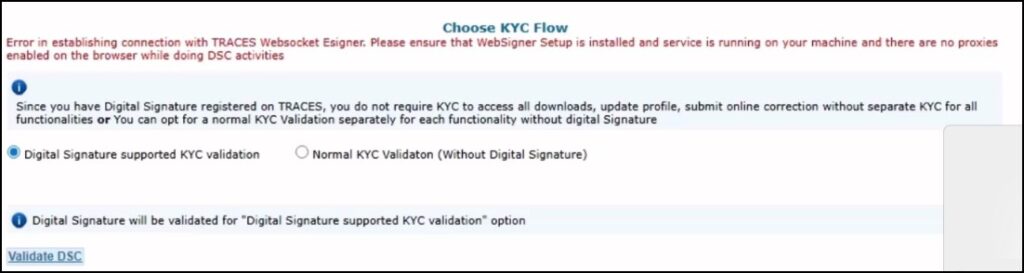
If you are facing this problem while signing TDS returns, don’t worry — the solution is usually simple when handled correctly.
With over 11+ years of experience in Digital Signature Certificates (DSC), USB tokens, and government portal compliance, I’ve helped thousands of professionals, CAs, tax practitioners, and business owners resolve this exact issue quickly.
In this guide, I will explain:
- Why this error happens
- Step-by-step solution
- How to avoid it in the future
- How to get a reliable Class 3 Digital Signature
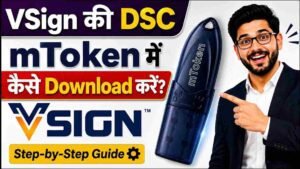
Watch the Complete Video Tutorial (Step-by-Step Practical Guide)
If you prefer a visual explanation, I have created a detailed YouTube video where I solve the “Error in Establishing Connection” issue live on screen.
In this video, you will see:
- How to check USB Token detection
- How to properly install TRACES WebSigner
- How to update EM Signer
- How to run Signer as Administrator
- Browser compatibility fix
- Common mistakes users make during TDS signing
Unlike theoretical guides, this tutorial is completely practical and based on real client cases I handle regularly.
With over 11+ years of experience in Digital Signature processing and government portal support, I explain not just the steps — but also the reasons behind the error, so you understand how to avoid it in the future.
This makes a huge difference.
Many users repeatedly face DSC errors because they fix the symptom but not the root cause. In the video, I clearly explain:
- Why outdated drivers cause connection failure
- Why EM Signer must be updated regularly
- Why Chrome works better in most cases
- How system permissions affect DSC signing
If you are a:
- Tax Consultant
- Chartered Accountant
- Business Owner
- Compliance Executive
- Tender Participant
This video will save you significant troubleshooting time.
👉 Watch the complete tutorial on our YouTube channel for a clear, practical walkthrough.
Why I Recommend Watching the Video
While written instructions are helpful, Digital Signature issues are often system-based. Seeing the exact steps visually reduces mistakes.
Many of my clients resolve their issue within 5–10 minutes after watching the video carefully.
If you still face issues after following the tutorial, you can contact us directly for professional assistance.
What is “Error in Establishing Connection” in TDS?
This error typically appears when:
- The TRACES WebSigner is not installed properly
- EM Signer is outdated
- USB token driver is missing or corrupted
- Browser compatibility issue
- Token not detected by system
Most users think it’s a technical server issue, but in 90% of cases, it’s a local system configuration problem.
Step-by-Step Solution to Fix the Error
Step 1: Check USB Token Connection
Make sure:
- USB token is properly inserted
- Token light is blinking
- Drivers are installed correctly
Always download the latest driver version. Outdated drivers are one of the biggest reasons for this issue.
👉 Download latest USB Token Drivers here:
https://digitalsignaturespot.com/downloads
Step 2: Download TRACES WebSigner
- Login to TRACES
- Click on Downloads
- Go to Requested Downloads
- Scroll down to find TRACES WebSigner Setup
- Download and install it
Even if EM Signer is already installed, reinstalling the latest version is strongly recommended.
Signer tools are updated regularly, and outdated versions create connection errors.
Step 3: Run EM Signer as Administrator
After installation:
- Right-click EM Signer
- Select Run as Administrator
- Keep it running in background
Then open a fresh browser tab and try signing again.
Step 4: Use Google Chrome Browser
From practical experience, Google Chrome provides the most stable compatibility for TRACES signing.
Avoid:
- Very old browser versions
- Unsupported browsers
- Multiple browsers running together
Why This Error Happens So Frequently
Based on my 11+ years of experience in DSC processing and compliance support, the most common causes are:
- Users installing token drivers from random websites
- Not updating WebSigner
- System format without reinstalling drivers
- Antivirus blocking signer tools
- Using expired or incorrectly configured Class 3 DSC
Most of these problems can be avoided with proper guidance.
Get Class 3 Digital Signature – Fast & Reliable

If you are facing repeated DSC issues, it may be time to get a fresh, properly configured Class 3 Digital Signature.
At Digital Signature Spot, we provide:
✔ Class 3 DSC (Individual & Organization)
✔ New Application
✔ Renewal
✔ USB Token Support
✔ Assistance for TDS, MCA, GST, ICEGATE, DGFT, Parivahan
✔ PAN India Service
📞 Call / WhatsApp: 7579984381
📩 Email: Digitalsignaturespot@gmail.com
We ensure proper activation and setup support so you don’t face technical errors later.
Why Trust Matters in Digital Signature Services
A Digital Signature Certificate is not just a file — it is your legal identity for government compliance.
Improper processing can lead to:
- Filing delays
- Rejected submissions
- Compliance penalties
- Tender disqualification
That’s why experience matters.
With over a decade in this field, we focus on:
- Correct documentation
- Proper token configuration
- Post-activation support
- Transparent pricing
- Secure processing
Final Thoughts
“Error in Establishing Connection” may look complicated, but it is usually a simple technical mismatch.
Follow the correct steps:
- Update USB Token Drivers
- Install latest TRACES WebSigner
- Run EM Signer as Administrator
- Use Chrome
And in most cases, the issue will be resolved immediately.
If you still face difficulties, professional guidance can save you hours of frustration.
For reliable Class 3 Digital Signature and technical support, feel free to contact us.


About author












Add comment