

How to Digitally Sign Multiple PDF Files in One Click (mToken & ProxKey Users)
How to Digitally Sign Multiple PDF Files in One Click (mToken & ProxKey Users): Digitally signing documents one by one can be extremely time-consuming, especially when you are dealing with bulk PDFs for accounting, compliance, invoicing, or government-related work. Many professionals waste valuable hours signing 50, 100, or even 200 PDF files individually—without realizing that there is a faster and more efficient solution available.
In this guide, I will explain how you can digitally sign multiple PDF files in a single click, saving a significant amount of time. This method is practical, tested, and widely used by professionals who work daily with Digital Signature Certificates (DSC).
Who Can Use This One-Click Bulk PDF Signing Method? How to Digitally Sign Multiple PDF Files in One Click
Before moving forward, it is important to clearly understand token compatibility, as this is where most users get confused.
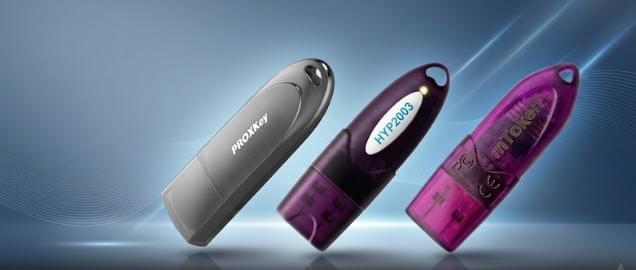
Supported USB Tokens
This method works only for:
- mToken USB Token
- ProxKey USB Token
Not Supported
- HYP2003 USB Token
(This token requires a different signing process.)
If you are using an HYP2003 token, this guide will not work for you. A separate method is required.
Why Bulk PDF Signing Is Better Than One-by-One Signing
Signing PDFs individually may look simple, but in bulk work it creates multiple problems:
- Wastes a lot of productive time
- Increases the risk of missing documents
- Creates unnecessary repetition
- Slows down official or business workflows
With the one-click bulk signing method, you can:
- Sign hundreds of PDFs at once
- Maintain accuracy and consistency
- Complete tasks within seconds instead of hours
What You Need Before Starting
To follow this process smoothly, make sure you have the following ready:
- mToken or ProxKey USB Token
- Token connected properly to your system
- Token driver installed and working
- PDF Signer software for mToken
- PDFs placed inside a single folder
Recommended Best Practice for Bulk Signing
If you have:
- One PDF with 100–150 pages and need a signature on each page
That method is not recommended, as it is less reliable.
Best Practice
- Split large PDFs into individual files
- Keep all PDFs inside one folder
- Use the folder-based bulk signing option
This approach is faster, safer, and works more consistently.
Step-by-Step: How to Digitally Sign Multiple PDFs in One Click
Step 1: Connect Your USB Token
Insert your mToken or ProxKey USB Token into the system and ensure it is detected correctly.
Step 2: Open PDF Signer Software
Launch the PDF Signer for mToken software on your computer.
You will see two options:
- Single PDF Document
- A Folder with PDF Document
Step 3: Select Folder with PDF Documents
Choose “A Folder with PDF Document” and browse to the folder where all your PDFs are stored.
Step 4: Set Destination Folder
It is recommended to keep the destination folder the same as the source folder so that:
- Signed PDFs replace original files
- Storage space is not wasted
Step 5: Select Digital Signature & Reason
- Choose your Digital Signature Certificate
- Enter the Reason for Signing
Examples:- Accounting
- Invoice Approval
- Authorization
- Compliance
- Demo
Step 6: Enable Signature Status Image (Important)
Go to Advanced Options and enable:
- Include Adobe Signature Status Image
This ensures:
- Green tick appears on the PDF
- Signature validity is clearly visible
- Adobe Reader shows “Signature is valid”
Step 7: Apply Signature
Click Apply Signature, enter your token password, and wait.
The software will start signing all PDFs automatically.
How Long Does Bulk Signing Take?
- 50 PDFs → a few seconds
- 100 PDFs → around 20–25 seconds
- 200 PDFs → still under a minute
This is significantly faster compared to manual signing.
How to Verify Signed PDFs
After completion:
- Open any signed PDF
- Check the bottom corner
- You will see the digital signature
- Status will show: “Signature is valid”
This confirms that the document is legally and digitally signed.
About the Author
Smarth is a Digital Signature Certificate (DSC) specialist with hands-on experience in USB tokens, PDF signing solutions, and government portal compliance in India. He works closely with professionals, accountants, exporters, and businesses to solve real-world DSC issues such as token errors, bulk PDF signing, and portal compatibility problems.
With years of practical exposure to mToken, ProxKey, HYP2003, and various DSC use cases, the content shared is based on actual implementation experience, not just theory. The goal is simple—save users time, reduce errors, and simplify digital processes.
Get Your Digital Signature Certificate From Us
If you are looking to buy a reliable and genuine Digital Signature Certificate (DSC) with proper guidance and after-sales support, you can get it directly from us.
Why Choose Us?
- ✔ Genuine Class 3 Digital Signature Certificates
- ✔ Support for mToken, ProxKey & other compatible tokens
- ✔ Guidance for installation, PDF signing & portal usage
- ✔ Fast issuance & renewal support
- ✔ Dedicated WhatsApp / call assistance
Whether you need DSC for:
- Accounting & invoicing
- GST, ICEGATE, DGFT, MCA, or other portals
- Bulk PDF digital signing
- Business or professional use
👉 We help you choose the right DSC and token based on your requirement.
Contact & Support:
📞 +91 7579984381
🌐 www.digitalsignaturespot.com
Frequently Asked Questions (FAQs)
1. Can I digitally sign multiple PDFs at once?
Yes. If you are using mToken or ProxKey USB Token, you can digitally sign multiple PDF files in one click using the folder-based signing method.
2. Does this method work with HYP2003 USB Token?
No. The HYP2003 token uses a different signing mechanism. Bulk signing through this method is not supported for HYP2003.
3. Is bulk PDF digital signing legally valid?
Yes. Digital signatures applied using a valid Class 3 DSC are legally recognized under the Information Technology Act, 2000 (India).
4. How many PDFs can I sign at once?
There is no fixed limit. You can sign 50, 100, or even 200 PDFs at a time, depending on system performance.
5. Will signed PDFs show “Signature is valid” in Adobe Reader?
Yes. If you enable “Include Adobe Signature Status Image”, the signed PDF will display a green tick and show “Signature is valid.”
6. Is it better to sign one large PDF or split PDFs?
Best practice is to:
- Split large multi-page PDFs into individual files
- Keep them in one folder
- Use bulk signing
This method is faster and more reliable.
7. Do you provide support after DSC purchase?
Yes. We provide complete support, including:
- Token installation
- PDF signing guidance
- Common error troubleshooting
- Portal compatibility help
About author














Add comment