

HYP2003 USB Token Installation Guide (Step-by-Step Fix for DSC Not Detecting Issue)
HYP2003 USB Token Installation Guide: Many users face a common problem while using a Digital Signature Certificate (DSC) —
the USB token does not detect properly, or the DSC works on one system but fails on another.
From our daily experience of handling DSC-related queries, one of the most frequent causes of this issue is incorrect or incomplete installation of the HYP2003 USB Token.
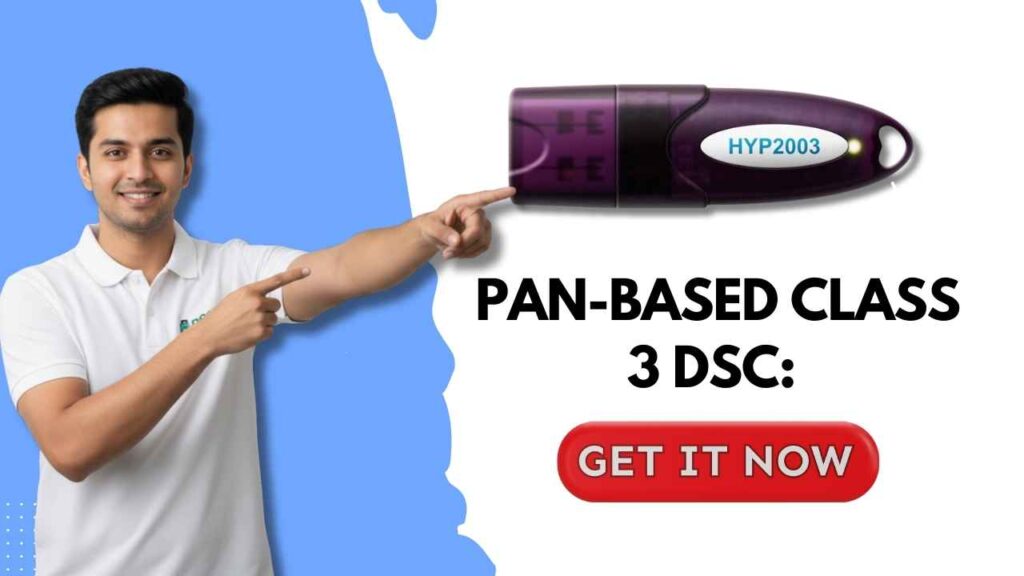
To help you avoid confusion and save time, this guide explains the correct step-by-step process to install the HYP2003 USB Token, so your DSC works smoothly on any supported portal.
Why HYP2003 USB Token Installation Is Important
A DSC does not work independently.
It requires:
- Proper USB token drivers
- Correct CSP (Cryptographic Service Provider) selection
- Successful system-level installation
If any of these are missing, users often report errors like:
- DSC not detecting
- Token not showing in browser
- Digital signature failing on government portals
Installing the HYP2003 USB Token correctly solves most of these issues.
Follow the steps below carefully:
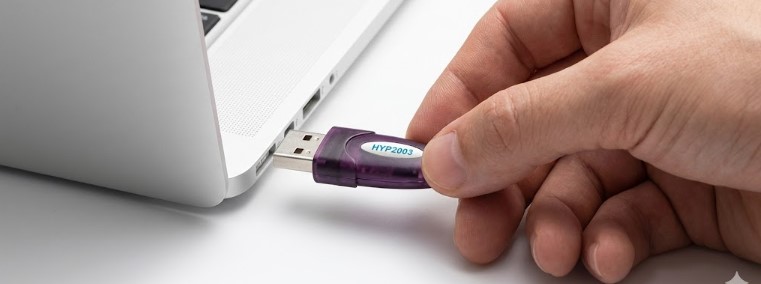
Step 1: Insert the USB Token
Insert your HYP2003 USB Token into your PC or laptop.
- In some systems, a popup window will appear automatically.
- If a popup appears, click on it and proceed.
If no popup appears, do not worry — this is normal on many systems.
Step 2: Open the Token from “This PC”
- Open This PC on your computer
- Look for a CD Drive
- Inside the CD Drive, you will see HYP2003
Right-click on HYP2003 and click Open.
Step 3: Run the Setup File
Inside the folder, you will see three files.
- Locate the file named Setup
- Double-click on it to start the installation
No additional configuration is required at this stage.
Step 4: Select the Correct CSP (Most Important Step)
During installation, you will see two options:
- Private CSP
- Microsoft CSP
👉 Always select: Private CSP
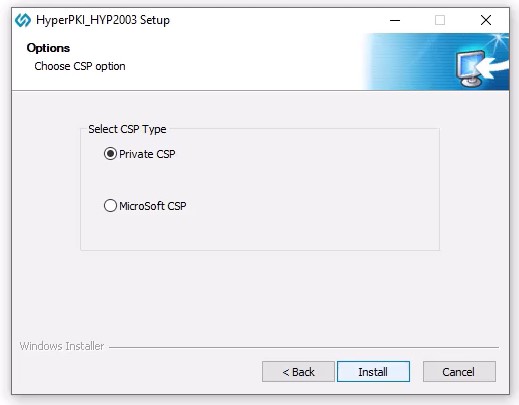
This is the most critical step.
Choosing the wrong CSP is one of the main reasons why DSC fails to work even after installation.
Step 5: Complete the Installation
Once Private CSP is selected, allow the installation to complete.
After completion:
- The HYP2003 USB Token is successfully installed
- Your system is now ready to use DSC
After Installation: What You Can Do
Once the installation is completed correctly:
- You can use your DSC on different government portals
- The token will be detected properly
- Most DSC-related errors will be resolved automatically
In short, your DSC is now ready to work wherever required.
Common Mistakes to Avoid
Based on real user issues, avoid these mistakes:
- Skipping the setup file
- Selecting Microsoft CSP instead of Private CSP
- Removing the token during installation
- Installing drivers from untrusted sources
Following the steps above correctly prevents these problems.
Need Help with DSC or USB Token Issues?
If you still face issues related to:
- DSC not detecting
- Token errors
- Portal-specific DSC problems
You can ask your questions in the comment section.
We try to respond as quickly as possible with practical, tested solutions.
Get Class 3 DSC from Us
If you are planning to purchase a Class 3 Digital Signature Certificate (DSC),
we provide genuine, verified, and portal-compatible DSCs with complete guidance.
Why Choose Us?
- ✔ Class 3 DSC for Individual & Organization
- ✔ Compatible with DGFT, ICEGATE, MCA, Income Tax, GST, GeM, and other portals
- ✔ End-to-end support: Purchase → Installation → Usage
- ✔ Guidance based on real DSC troubleshooting experience
- ✔ Quick issuance with clear instructions
Whether you are buying a new DSC or renewing an old one,
our team ensures that your DSC works smoothly without technical confusion.
👉 Contact us to get your Class 3 DSC with proper support and guidance.
About the Author
This article is written by a Digital Signature Certificate (DSC) specialist
with hands-on experience in resolving real DSC and USB token issues.
Over the years, the author has:
- Assisted users with DSC installation and error resolution
- Worked on issues related to USB tokens, CSP errors, and portal compatibility
- Helped businesses and individuals use DSCs smoothly across multiple government platforms
All guides and tutorials are created based on practical experience,
not copied documentation — ensuring accuracy, trust, and real-world usefulness.
Frequently Asked Questions (FAQ)
1. Why is my HYP2003 USB Token not detecting even after installation?
In most cases, the issue occurs because Microsoft CSP was selected instead of Private CSP during installation.
Reinstall the token and ensure Private CSP is selected.
2. Can I use the HYP2003 USB Token on multiple computers?
Yes.
You can use the token on multiple systems, but proper installation is required on each computer.
3. Do I need internet connectivity to install the HYP2003 USB Token?
No.
The token installation runs locally from the CD Drive.
However, internet access may be required later while using DSC on portals.
4. Is HYP2003 USB Token compatible with all DSC portals?
Yes, when installed correctly, it works with most major portals including:
- DGFT
- ICEGATE
- MCA
- Income Tax
- GST
- GeM
5. What should I do if my DSC still does not work after installation?
If the issue persists:
- Recheck CSP selection
- Restart the system
- Ensure the token is not damaged
If needed, you can ask for support or comment your issue for guidance.
6. Is Class 3 DSC mandatory for government portals?
Yes.
Most government portals require Class 3 DSC for secure authentication and signing.
7. Can I buy Class 3 DSC online?
Yes.
You can buy Class 3 DSC online, but ensure you choose a provider that also offers
installation and technical support, not just the certificate.
Final Note
Correct installation of the HYP2003 USB Token is the foundation of smooth DSC usage.
Following the right steps and choosing the correct CSP can save hours of frustration.
If this guide helped you,
feel free to share it, bookmark it, or reach out for DSC support.
About author













Add comment