


100% Fix Parivahan DSC Not Connected Error 2026 – Please Try After Some Time Error on Parivahan
The Parivahan website is widely used for vehicle-related services such as registration, permits, driving licenses, and transport services. Many of these services require Digital Signature Certificate (DSC) authentication.
However, users frequently face errors like “DSC Not Connected”, “Please Try After Some Time”, or Digital Signature Not Working on Parivahan Website.
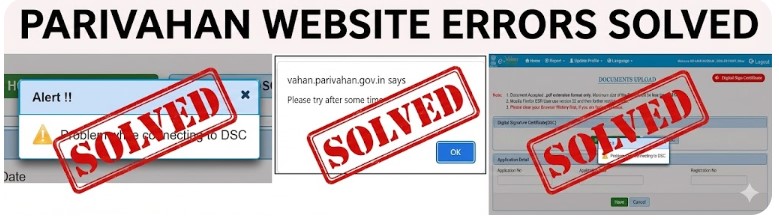
In this detailed guide, we will explain why Parivahan DSC errors occur, how to fix them step by step, and how to ensure smooth DSC signing on the Parivahan portal in 2026.
Common Parivahan DSC Errors Faced by Users
Users may encounter one or more of the following errors while using DSC on the Parivahan website:
- Parivahan DSC Not Connected Error
- Please Try After Some Time Error on Parivahan
- Digital Signature Not Working on Parivahan Website
- Parivahan Website DSC Setting Issue
- DSC USB Token Not Detected
- Parivahan Digital Signature Verification Failed
These errors usually occur due to system-level or utility-related issues, not because of the Parivahan server itself.
Watch Video Tutorial: How to Fix Parivahan DSC Not Connected Error
For users who prefer a visual, step-by-step explanation, we have also created a detailed video tutorial covering the complete process of fixing Parivahan DSC Not Connected, Please Try After Some Time, and Digital Signature errors on the Parivahan website.
In this video, you will learn:
- Why Parivahan DSC errors occur
- How to uninstall old Digital Signer Utility properly
- How to install the latest Parivahan Digital Signer Utility
- Correct browser restart process
- How to verify DSC USB token connection on Parivahan portal
This video is especially useful for beginners and users who want to avoid technical mistakes while configuring DSC settings.
Video: Parivahan DSC Not Connected Error Solution (2026)
We recommend watching the full video once before applying the steps on your system to ensure a smooth and error-free setup.
If you still face issues after following the video and written guide, professional assistance can help resolve the problem quickly.
For DSC purchase, renewal, or Parivahan portal support, you can contact:
Call / WhatsApp: 7579984381
Website: https://digitalsignaturespot.com
Why Parivahan DSC Error Occurs? (Root Causes)
Understanding the cause of the error helps prevent future problems.
1. Old or Incompatible Digital Signer Utility
Parivahan regularly updates its security standards. An outdated Digital Signer Utility cannot communicate properly with the website.
2. Multiple DSC Utilities Installed
If more than one signer utility (from different portals like MCA, GST, ICEGATE) is installed, conflicts may occur.
3. Browser Not Restarted After Installation
Google Chrome must be restarted after installing or updating the signer utility. Otherwise, the DSC will not be detected.
4. USB Token Driver Issues
Missing or corrupted drivers of the DSC USB token can result in DSC Not Connected errors.
5. Expired or Invalid DSC
An expired Digital Signature Certificate will not work on the Parivahan portal.
Step-by-Step Solution: How to Fix Parivahan DSC Not Connected Error (2026)
✅ Step 1: Uninstall Old Digital Signer Utility
- Open Control Panel
- Click on Programs and Features
- Find any old Digital Signer / DSC Utility
- Right-click and select Uninstall
- Restart your system (recommended)
This step removes conflicts caused by outdated signer utilities.
✅ Step 2: Download Latest Parivahan Digital Signer Utility
Download the latest DSC utility compatible with the Parivahan website from the link below:
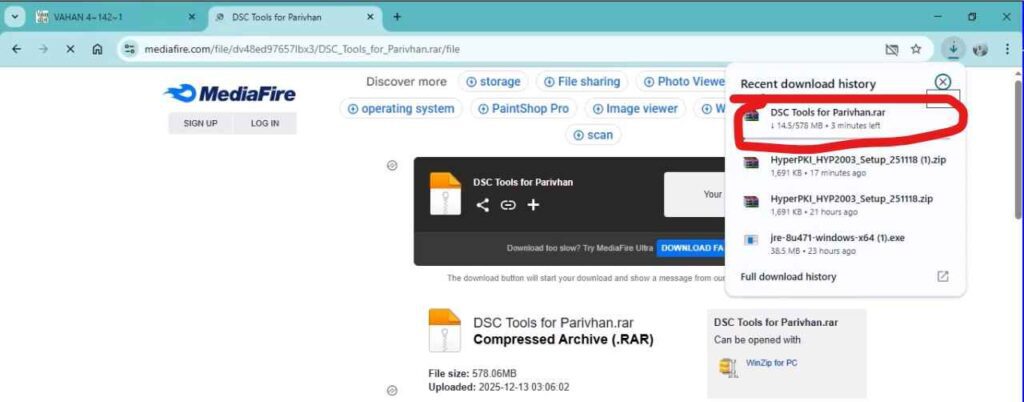
Always use the latest utility to avoid Parivahan website digital signature errors.
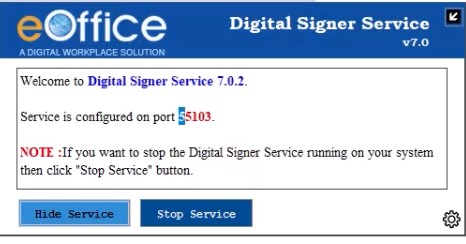
✅ Step 3: Extract and Install the Utility
- Extract the downloaded
.rarfile - Open the extracted folder
- Run the Digital Signer Utility setup file
- Complete the installation process
Make sure no error appears during installation.
✅ Step 4: Restart Google Chrome Browser
After installation:
- Close all Chrome windows
- Reopen Google Chrome
- Do not skip this step
Chrome loads DSC extensions only after restart.
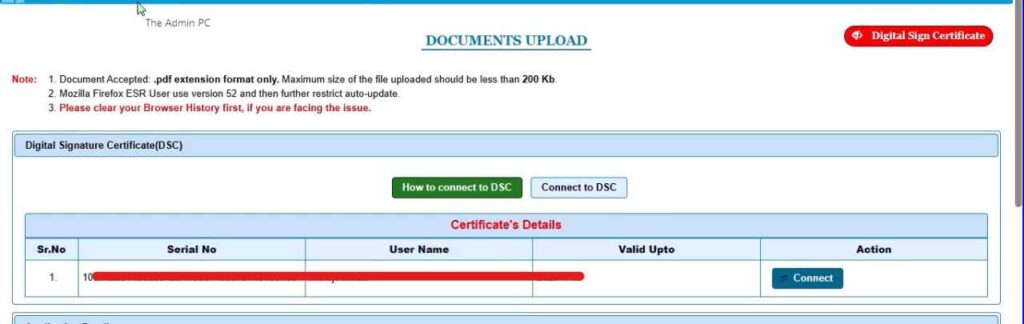
✅ Step 5: Connect DSC USB Token and Retry
- Insert your DSC USB Token
- Ensure token light is ON
- Open the Parivahan website
- Perform the required signing action
Your Parivahan DSC Not Connected Error should now be resolved.
Important Tips to Avoid Parivahan DSC Errors in Future
- Always use Google Chrome (updated version)
- Do not install multiple DSC utilities unnecessarily
- Renew your DSC before expiry
- Restart browser after every utility update
- Use a genuine and compatible DSC USB token
Need to Purchase or Renew DSC for Parivahan Portal?
If you do not have a valid DSC or your existing digital signature has expired, you must purchase or renew it to continue using Parivahan services.
📌 For DSC purchase, renewal, or Parivahan portal support, you can contact us professionally:
📞 Call / WhatsApp: 7579984381
🌐 Website: https://digitalsignaturespot.com
We provide Parivahan-compatible Digital Signature Certificates, quick assistance, and doorstep support across India.
FAQs – Parivahan Website DSC Issues
Q1. Why does Parivahan show “Please Try After Some Time”?
This usually happens due to signer utility issues, browser cache, or DSC detection problems—not server downtime.
Q2. Which DSC is required for Parivahan portal?
A valid Class 3 Digital Signature Certificate is generally required.
Q3. Can expired DSC cause Parivahan error?
Yes. An expired DSC will always show signing errors.
Q4. Does Parivahan DSC work on all browsers?
Best supported browser is Google Chrome.
Conclusion
The Parivahan DSC Not Connected Error and Please Try After Some Time issue are common but completely solvable.
By uninstalling old utilities, installing the latest Parivahan Digital Signer Utility, and restarting your browser, you can fix the issue in minutes.
For users who want hassle-free DSC purchase, renewal, or technical support for the Parivahan portal, professional assistance is always recommended.
📞 Support & DSC Services: 7579984381
🌐 https://digitalsignaturespot.com


About author
















Add comment