

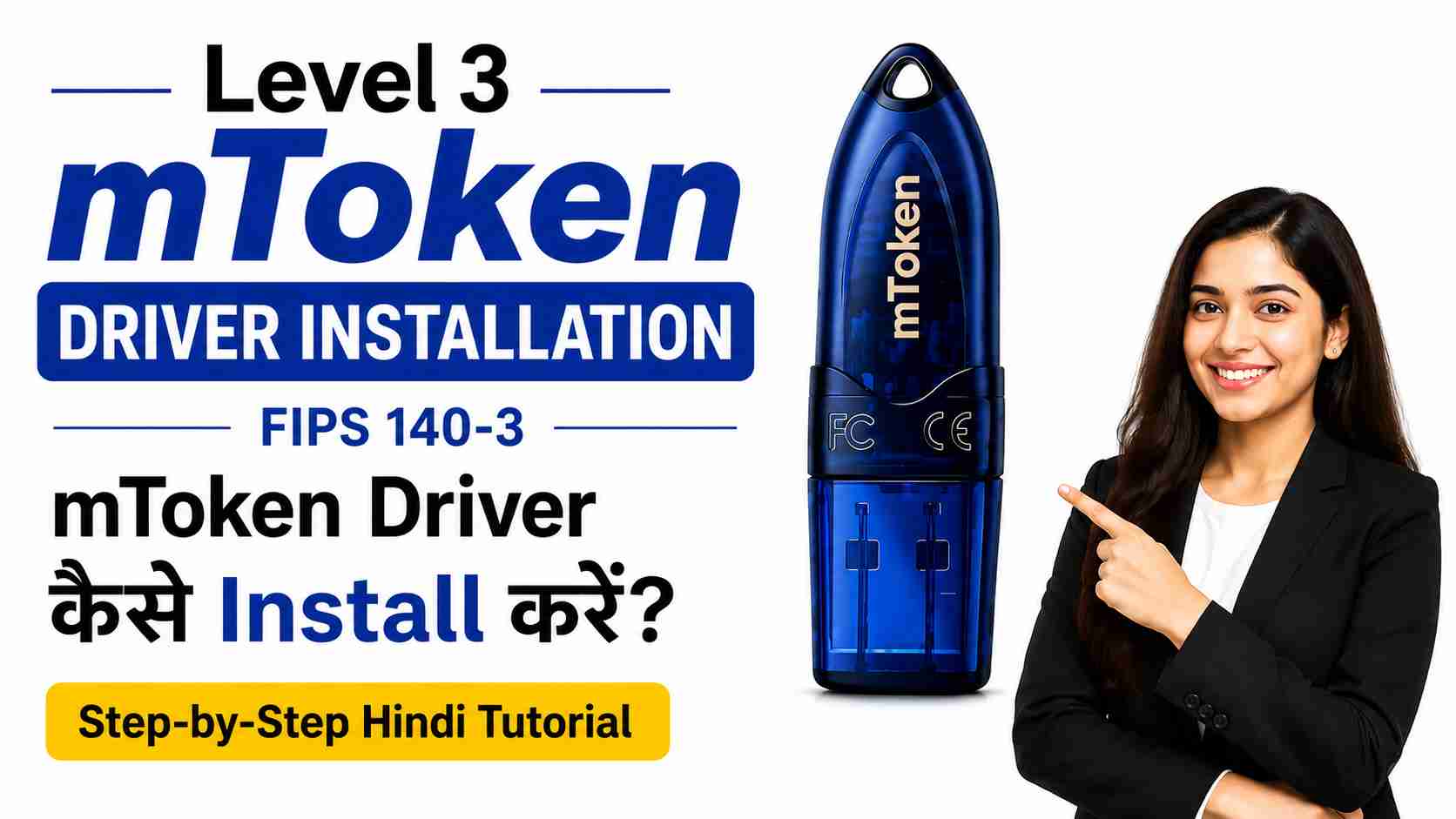
Level 3 mToken Driver Installation Guide | How to Install FIPS 140-3 mToken Driver on Windows 2026
Level 3 mToken Driver Installation Guide | How to Install FIPS 140-3 mToken Driver on Windows 2026: If you have recently purchased a FIPS 140-3 Level 3 Certified mToken and are unable to use it, the most common reason is that the latest mToken Driver has not been installed.
Without the correct driver, Windows may not detect the USB Token, and you won’t be able to download or use your Digital Signature Certificate (DSC).
In this guide, we’ll show you how to install the Level 3 mToken Driver correctly on Windows 10 and Windows 11.
Why Do You Need the New mToken Driver?
The new Level 3 mToken is based on the latest FIPS 140-3 Level 3 Security Standard. Unlike older USB Tokens, it requires the latest driver to communicate with your computer.
If the driver is missing, you may experience issues such as:
- mToken not detected
- USB Token not showing in Windows
- Unable to download DSC
- Digital Signature not appearing in applications
- Signing errors during DSC usage
Installing the latest driver resolves these issues in most cases.
System Requirements
Before installing the driver, ensure that you have:
- Windows 10 or Windows 11
- Administrator rights
- Internet connection (recommended)
- Original Level 3 mToken USB Token
Download the Latest Level 3 mToken Driver
Download the latest official driver using the link below.
Driver Download
https://getmtokens.com/download/mToken_new_driver5.zip
After downloading, extract the ZIP file before starting the installation.
Watch the Step-by-Step Video Tutorial
If you prefer watching a video instead of reading, we’ve got you covered. Watch our complete Level 3 mToken Driver Installation tutorial below and follow each step exactly as shown.
In this video, you’ll learn:
- How to download the latest FIPS 140-3 mToken Driver
- How to install the Level 3 mToken Driver on Windows
- How to select the correct Private CSP option
- Common installation mistakes to avoid
- How to prepare your mToken for Digital Signature (DSC) download
🎥 Watch the complete tutorial below:
Still facing any issues?
Feel free to leave a comment on the video or contact Digital Signature Spot. Our technical support team will be happy to assist you with mToken installation, DSC download, and any Digital Signature-related queries.
Step 1: Insert the mToken
Insert your Level 3 mToken into any available USB port.
If AutoPlay appears, do not install anything directly from the popup.
Step 2: Open the mToken Drive
Open This PC.
Locate the mToken Drive.
Right-click on the drive and choose Open.
Do not click Install directly.
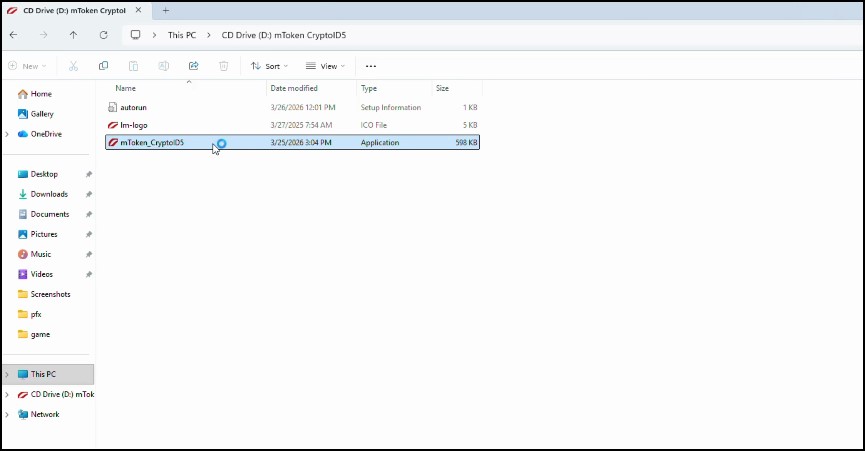
Step 3: Run the Driver Installer
Inside the mToken drive, locate the driver setup.
Run the installer as Administrator.
When the installation window appears, click Start.
The installation process will begin.
Step 4: Follow the Installation Wizard
Simply follow the on-screen instructions.
Click Next whenever prompted.
No additional configuration is required.
Step 5: Select Private CSP
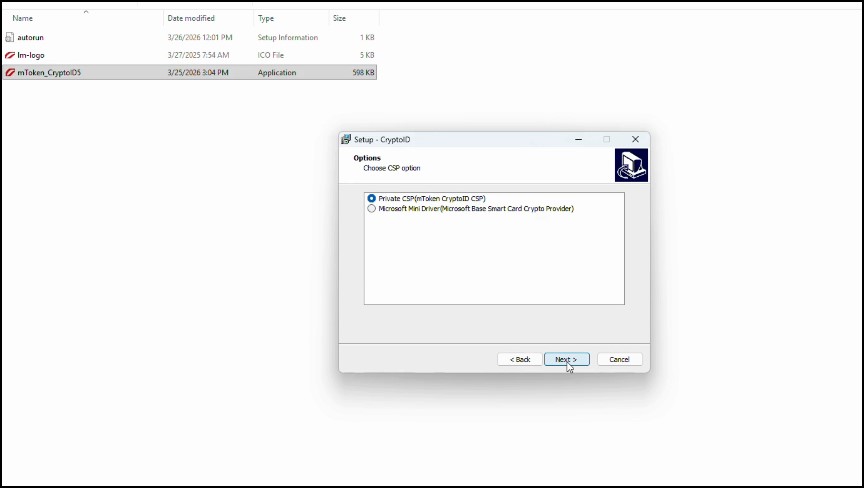
During installation, you’ll see the option for Private CSP.
Select Private CSP and click Next.
This is the recommended option for Digital Signature usage.
Step 6: Complete the Installation
Wait until the installation finishes.
Once completed successfully, your Level 3 mToken Driver is ready to use.
Now you can safely download your Digital Signature Certificate (DSC) into the USB Token.
How to Check Whether the Driver Is Installed Successfully
You can verify the installation by:
- Connecting the mToken again.
- Opening the Token Management Utility.
- Confirming that Windows detects the USB Token.
- Checking whether the DSC download utility recognizes the token.
If all these steps work correctly, your installation has been completed successfully.
Common Problems and Solutions
mToken Is Not Detected
Possible reasons:
- Driver not installed
- USB port issue
- Antivirus blocking installation
- Old driver conflict
Try reinstalling the latest driver and reconnect the token.
Driver Installation Failed
If installation fails:
- Restart your computer.
- Run the installer as Administrator.
- Temporarily disable antivirus if necessary.
- Install the latest driver again.
DSC Not Showing
If your Digital Signature is not visible:
- Verify that the driver is installed.
- Ensure the DSC has been downloaded into the token.
- Restart the browser or application.
Which Portals Support Level 3 mToken?
After successful installation, the token can be used on various government and business portals, including:
- MCA
- GST
- Income Tax
- DGFT
- ICEGATE
- GeM
- eTender Portals
- Trademark
- Patent
- IREPS
- Parivahan
- And many more.
Need a Digital Signature Certificate?
We provide genuine and fast Digital Signature services across India.
Our services include:
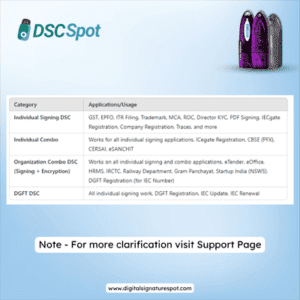
- Class 3 Individual DSC
- Organization DSC
- DGFT DSC
- ICEGATE DSC
- GST DSC
- MCA DSC
- eTender DSC
- DSC Renewal
- FIPS 140-3 USB Tokens
- Technical Support
Contact Us
Digital Signature Spot
📞 Phone / WhatsApp: +91 8467874934
📧 Email: info@digitalsignaturespot.com
Frequently Asked Questions
Is the new mToken compatible with Windows 11?
Yes. The latest Level 3 mToken Driver supports both Windows 10 and Windows 11.
Can I use the old USB Token driver?
No. The new FIPS 140-3 Level 3 mToken requires its own latest driver.
Why is my mToken not detected?
Usually because the driver is missing or an older driver is installed.
Do I need internet during installation?
Internet is not mandatory, but downloading the latest driver is recommended.
Can I download my DSC after installing the driver?
Yes. Once the installation is complete, you can download your Digital Signature Certificate into the mToken.
Final Words
Installing the Level 3 mToken Driver is the first and most important step before using your FIPS 140-3 USB Token. Following the correct installation process ensures that your token works smoothly with Windows and government portals.
If you face any issues during installation, feel free to contact Digital Signature Spot. Our technical support team will be happy to assist you.
About the Author
Samarth is the founder of Digital Signature Spot and has over 11 years of experience in the Digital Signature Certificate (DSC) industry. He specializes in Class 3 DSCs, USB Tokens, eTender solutions, DGFT, ICEGATE, GST, MCA, Income Tax, and other government portal integrations.
Through detailed tutorials, troubleshooting guides, and practical insights, Samarth helps individuals, businesses, Chartered Accountants, Company Secretaries, and government contractors resolve Digital Signature-related issues quickly and efficiently. His content is based on real-world experience, ensuring accurate, up-to-date, and easy-to-follow guidance.
If you need assistance with Digital Signature Certificates (DSC), USB Tokens, or technical support, feel free to contact Digital Signature Spot.
📞 Phone / WhatsApp: +91 7579984381
📧 Email: info@digitalsignaturespot.com
🌐 Website: https://digitalsignaturespot.com
About author


Add comment