

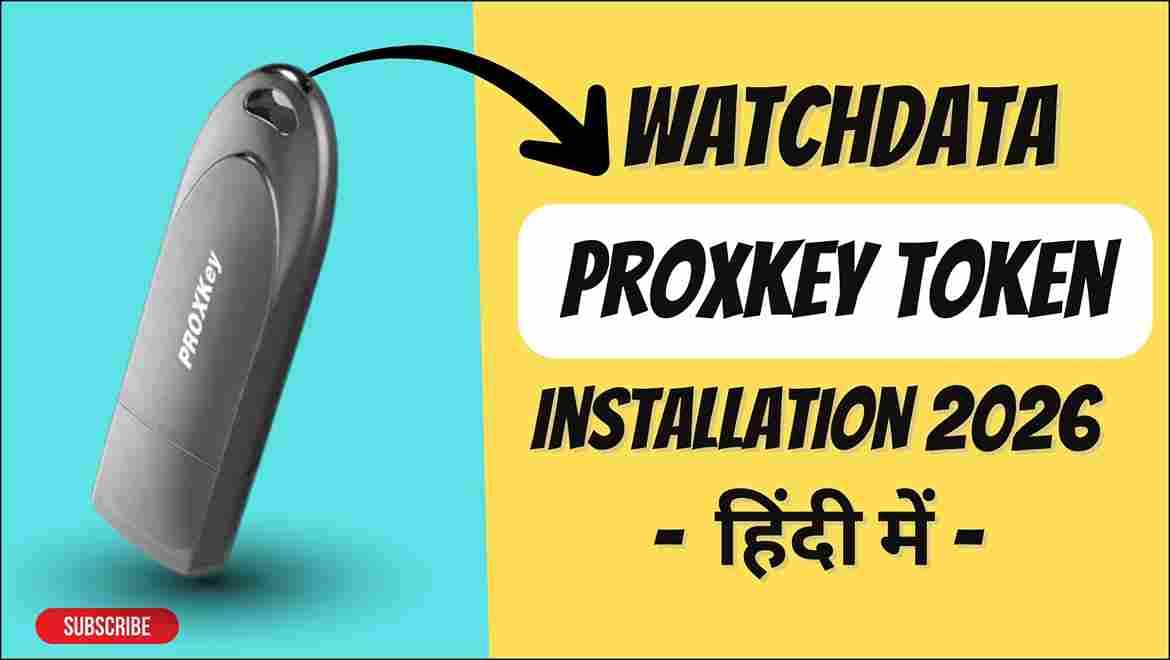
WatchData Proxkey USB Token Driver Installation Guide (2026) – Latest WD Proxkey Driver Included
WatchData Proxkey USB Token Driver Installation Guide (2026) :If you are using a WatchData Proxkey USB Token for Digital Signature (DSC) work and facing installation or detection issues, this complete guide will help you install the latest driver properly and avoid common configuration mistakes.
With over 11+ years of hands-on experience in Digital Signature Certificates (DSC), USB tokens, and government portal integrations, I’ve handled thousands of real-world token installation cases. In most situations, token problems are not hardware failures — they are driver or configuration issues.
This guide will walk you through the correct installation method using the latest WD Proxkey driver, along with expert troubleshooting insights.
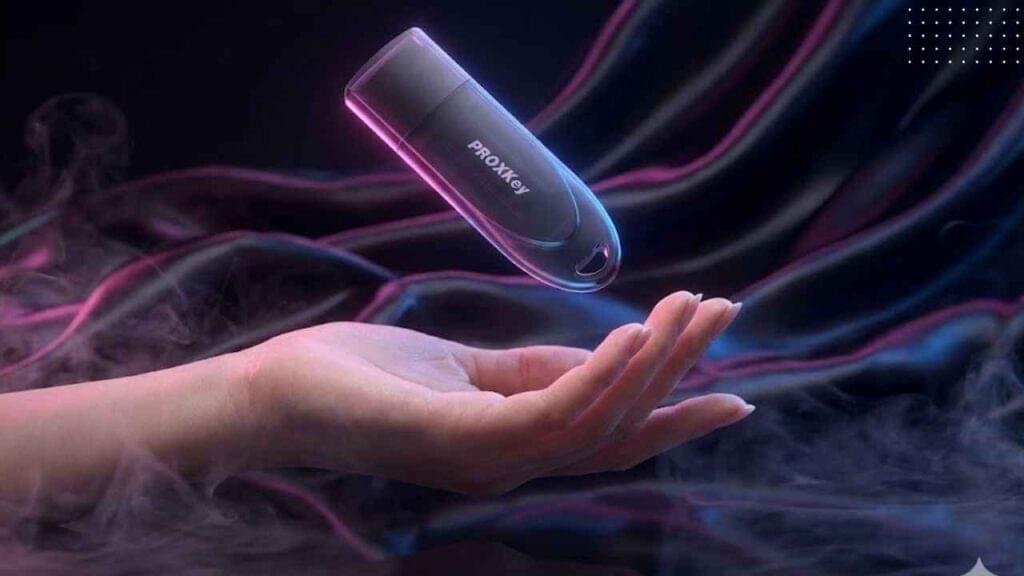
🎥 Watch Complete WD Proxkey Driver Installation Video (Step-by-Step Live Demo)
If you prefer a visual walkthrough instead of only written instructions, I have explained the complete WatchData Proxkey USB Token driver installation process in a detailed video tutorial.
In this video, I demonstrate:
- How to insert the WD Proxkey token
- How the token appears in “This PC”
- How to open the CD drive setup
- Running the setup file correctly
- Allowing installation permissions
- Checking installation using Windows search (WD)
- Updating the token to the latest version
This is a real-time screen recording — not a theoretical explanation. You can follow each step alongside your own system to avoid mistakes.
If you are:
- Installing Proxkey token for the first time
- Facing driver detection issues
- Not comfortable with manual configuration
- Wanting to ensure proper setup before filing
I strongly recommend watching the video demonstration below.
👉 Watch the full installation guide here:
Combining the written guide above with the video walkthrough ensures a complete understanding and reduces the chances of configuration errors.
What is WatchData Proxkey USB Token?
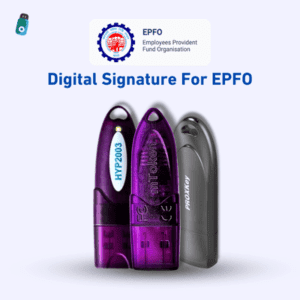
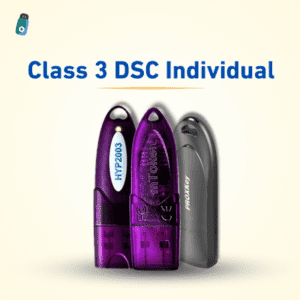
The WatchData Proxkey USB Token is a secure cryptographic USB device used to store Digital Signature Certificates. It is widely used for:
- Trademark filings
- MCA filings
- GST submissions
- ICEGATE registrations
- Income Tax filings
- e-Tendering & e-Procurement
It securely stores your Class 3 DSC and ensures legally valid digital authentication under the IT Act, 2000.
Download Latest WD Proxkey USB Token Driver (2026)
To avoid compatibility issues, always install the latest official driver version.
👉 Download Latest WD Proxkey Driver Here:
https://www.support.cryptoplanet.in/downloads.php
Installing the updated version helps resolve:
- Token not detected
- Certificate not showing
- Driver outdated errors
- Compatibility issues with Windows updates
Step-by-Step WD Proxkey Driver Installation Process
Step 1: Insert the USB Token
Plug your Proxkey token into your PC or laptop.
Step 2: Open This PC
Go to “This PC.”
You will see the token appear as a CD Drive.
Step 3: Open Setup
Right-click on the CD drive and select Open.
Step 4: Run Setup File
Double-click the Setup file.
If Windows asks for permission, click Allow.
Step 5: Complete Installation
Follow the on-screen instructions until installation finishes.
Step 6: Verify Installation
Press the Windows key and type WD.
If the Proxkey management tool appears, the driver is installed successfully.
Why Updating the Driver is Important
From my experience, many token issues happen because:
- The token was manufactured earlier but shipped later
- The embedded driver version is outdated
- Windows security patches changed compatibility
- Old drivers conflict with updated DSC utilities
Updating ensures:
✔ Better stability
✔ Improved certificate detection
✔ Compatibility with Windows 10/11
✔ Smooth operation with government portals
Common WD Proxkey Issues & Solutions
Token Not Showing in System
- Reinstall latest driver
- Try different USB port
- Run as Administrator
Certificate Not Visible
- Check DSC validity
- Restart system
- Ensure token drivers are updated
Government Portal Not Detecting Token
- Check browser compatibility
- Ensure DSC utility is running
- Verify token service is active
Expert Insight (Based on 11+ Years in DSC Industry)
In thousands of troubleshooting cases, I’ve observed:
- 80% of token issues are driver-related
- Only 10–15% are actual hardware defects
- Many users unnecessarily replace working tokens
Proper installation and environment configuration solve most problems.
Frequently Asked Questions (FAQ)
1. Where can I download the latest WD Proxkey driver?
You can download it from the official support link:
https://www.support.cryptoplanet.in/downloads.php
2. Is the Proxkey token compatible with Windows 11?
Yes, it is compatible with Windows 10 and 11 when the latest driver version is installed.
3. Do I need internet during installation?
Internet is recommended if you want to update to the latest version after installation.
4. My token is detected but certificate is not visible. Why?
This may be due to expired DSC, improper utility configuration, or compatibility mode issues.
5. Should I replace my USB token if it’s not working?
Not immediately. Always reinstall and update drivers first before replacing hardware.
About the Author
Smarth is a Digital Signature Certificate specialist with over 11 years of practical experience in DSC issuance, USB token configuration, and government portal integrations.
He has worked extensively with:
- Trademark portal under the Controller General of Patents, Designs & Trade Marks
- MCA filings
- GST portal integrations
- ICEGATE registrations
- Income Tax DSC configurations
His approach focuses on identifying root technical causes instead of applying random fixes — saving professionals time, cost, and unnecessary system reinstallation.
Need Help with Class 3 DSC or Token Setup?
If you need:
✔ New Class 3 DSC (Signing / Encryption / Combo)
✔ WD Proxkey USB Token
✔ Driver installation support
✔ Remote troubleshooting
✔ Government portal configuration
You can connect directly for professional assistance.
📱 Call / WhatsApp: 7579984381
📧 Email: Digitalsignaturespot@gmail.com
🌐 Website: digitalsignaturespot.com
Get expert-backed DSC setup and avoid technical errors before your important filings.

About author

















Add comment