

How to download XtraTrust DSC in 2026: So Easy, Even a Beginner Can Do It!
How to download XtraTrust DSC: If you’ve recently applied for a Digital Signature Certificate (DSC) through XtraTrust, you’re probably looking at your USB token and wondering, “What now?” Whether you’re a business owner filing GST, an advocate handling e-tenders, or a professional submitting an ITR, getting your DSC onto your token is the final—and most crucial—hurdle. I’ve helped hundreds of people navigate this process, and I can tell you: it’s easy when you know the shortcuts, but a nightmare if you miss a single setting.
In this guide, I’ll walk you through the XtraTrust DSC download process step-by-step, ensuring you don’t lock your token or lose your certificate.
Prefer a Visual Guide? Watch the Live Walkthrough!
While this guide covers every detail in writing, I know that some technical steps are much easier to understand when you see them in action.
To help you out, I’ve recorded a complete, step-by-step video tutorial on my YouTube channel. In this video, I walk you through the entire live process—from plugging in the token to the final “Success” message.
What you’ll see in this video:
- How to correctly launch the XtraTrust Download Utility.
- A live demonstration of entering the Application ID and Passcode.
- Troubleshooting common “Token Not Found” errors in real-time.
- How to verify your certificate inside the token manager.
If you found the video helpful, don’t forget to Subscribe to the channel for more “zero-stress” technical guides and digital signature updates!
Before You Begin: The “Anti-Frustration” Checklist
Before we dive into the software, make sure your desk has these four things ready:
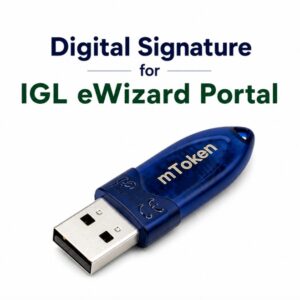
- Your USB Token: (e.g., mToken, ePass2003, or Watchdata).
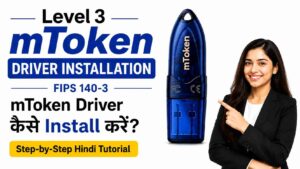
- Token Drivers: Ensure the driver for your specific token is already installed on your PC.
- Application ID & Download Passcode: These are sent to your registered mobile/email by XtraTrust.
- A Stable Windows PC: DSC downloads are notoriously finicky on unstable internet or outdated versions of Windows.
Step 1: The “Security First” Rule (Don’t Skip This!)
Plug your USB token into your computer. Now, here is a piece of expert advice most people ignore: Change your default token password immediately.
Most tokens come with a factory password (like 12345678). If you try to download a certificate onto a token with a default password, the system might throw a security error, or worse, leave your sensitive signature vulnerable. Open your Token Manager and set a unique PIN before moving forward.
Step 2: Launch the XtraTrust Download Utility
Modern browsers like Chrome and Edge have moved away from supporting the older “plugin” style downloads. To fix this, XtraTrust created a standalone Download Utility.
- Action: Download the utility from the official XtraTrust website (usually found in the “Downloads” or “Help” section).
- Pro Tip: Right-click the application and select “Run as Administrator.” This gives the software the permissions it needs to write data directly to your USB hardware.
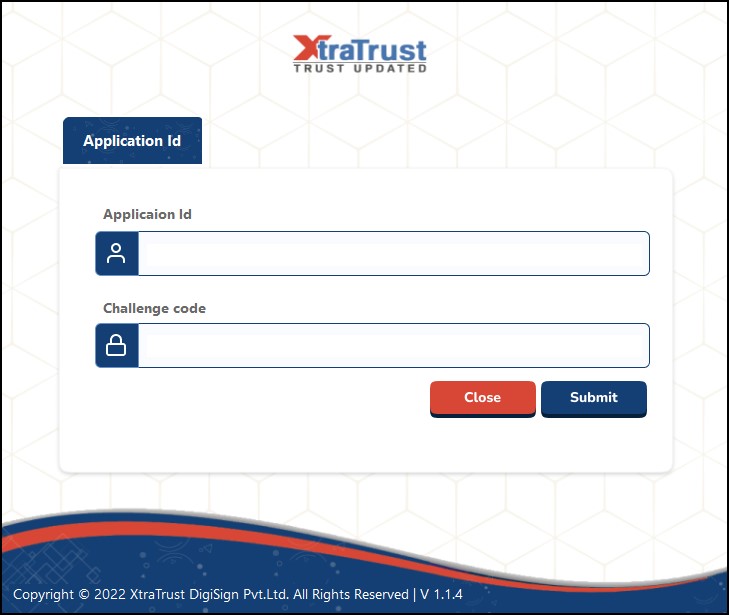
Step 3: Authenticate Your Application
Once the utility is open, you’ll see a clean, simple interface. It’s time to tell the system who you are.
- Enter Application ID: This is your unique reference number.
- Enter Download Passcode: This is the 6 or 8-digit code sent to you after your video verification was approved.
- Click Submit: The utility will now talk to the XtraTrust servers to verify your identity.
Step 4: Identify Your Hardware (Token Selection)
The utility will now look for your connected USB device.
- You will see a list of available tokens.
- Select your token name. For example, if you are using an mToken, select it from the dropdown or list.
If your token doesn’t appear here, try unplugging it and plugging it back in, or check if your Token Driver is actually running.
Step 5: The Final Handshake (Token Password)
A small popup window will appear asking for your Token PIN/Password.
- Enter the password you created in Step 1.
- Click Submit.
At this point, the magic happens. The software generates your private key and securely downloads the certificate from the XtraTrust cloud directly into the encrypted chip of your USB token.
Step 6: Success & Verification
Wait for about 10–30 seconds. Do not pull the token out or close the window while the progress bar is moving. Once finished, you will see a message: “DSC Downloaded Successfully.”
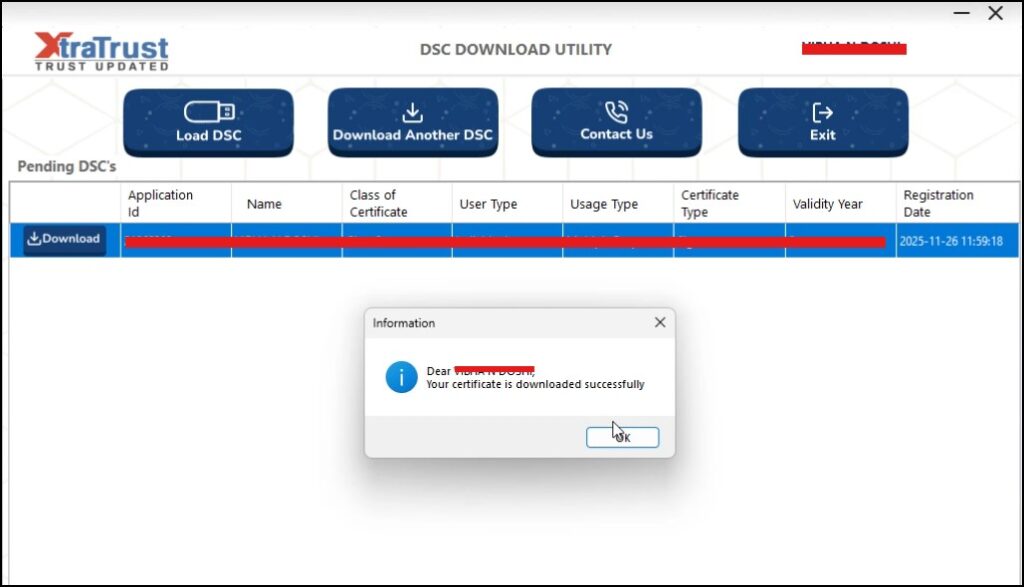
How to verify? Open your Token Manager (the software that came with your USB drive), login, and you should see your name listed under the “Certificates” tab.
Common Troubleshooting (What if it fails?)
As someone who has seen every error code in the book, here are the three most likely fixes:
| Issue | Likely Fix |
| “Token Not Found” | Re-install your token drivers and restart the utility. |
| “Invalid Passcode” | Double-check your SMS. Passcodes are case-sensitive. |
| “Communication Error” | Disable your Antivirus/Firewall for 5 minutes. They often mistake DSC writing as a “threat.” |

Final Thoughts
Downloading your XtraTrust DSC doesn’t have to be a technical struggle. By using the standalone utility and ensuring your token drivers are up to date, you can complete the process in under two minutes.
Still stuck? Don’t risk locking your token. Drop a comment below with the specific error you’re seeing, and I’ll do my best to help you troubleshoot!
To boost your blog’s SEO and reach the Google “People Also Ask” section, adding an FAQ section is essential. Here are the most common questions people ask about XtraTrust DSC, written in a helpful, human tone.
Frequently Asked Questions (FAQs)
Q1: Where can I find my XtraTrust Application ID and Download Passcode? Answer: Once your video verification is approved, XtraTrust sends these details directly to your registered mobile number via SMS and to your registered email address. If you haven’t received them, check your “Spam” folder or log in to the XtraTrust portal to resend the credentials.
Q2: Why is the XtraTrust Utility saying “Token Not Found”? Answer: This is usually due to missing drivers. Even if the computer recognizes the USB drive, the DSC software needs the specific Token Driver (like ePass2003 or mToken) to communicate with the chip. Install the driver from the “CD Drive” that appears when you plug in the token, then restart the utility.
Q3: Can I download my XtraTrust DSC on a Mac or a Mobile phone? Answer: Currently, the DSC download process requires a Windows-based PC or Laptop. This is because the USB tokens and the cryptographic writing process are designed for Windows environments. Once downloaded, the token can sometimes be used on other systems, but the download must happen on Windows.
Q4: What should I do if I forget my Download Passcode? Answer: Don’t guess! Entering the wrong passcode multiple times can block your application. You can easily reset or retrieve it by visiting the XtraTrust official website, going to the “Track Application” section, and clicking on “Forgot Passcode.”
Q5: Is it mandatory to change the default token password? Answer: While the system might allow a download with the default password, it is highly recommended to change it. A custom PIN ensures that only you can use your digital signature, preventing unauthorized access to your legal and financial documents.
Q6: How long does the XtraTrust DSC download process take? Answer: If you have the utility ready and your drivers installed, the actual download takes less than 2 minutes. Most of the time is spent on identity verification; the data writing part is very fast.


About author












Add comment