

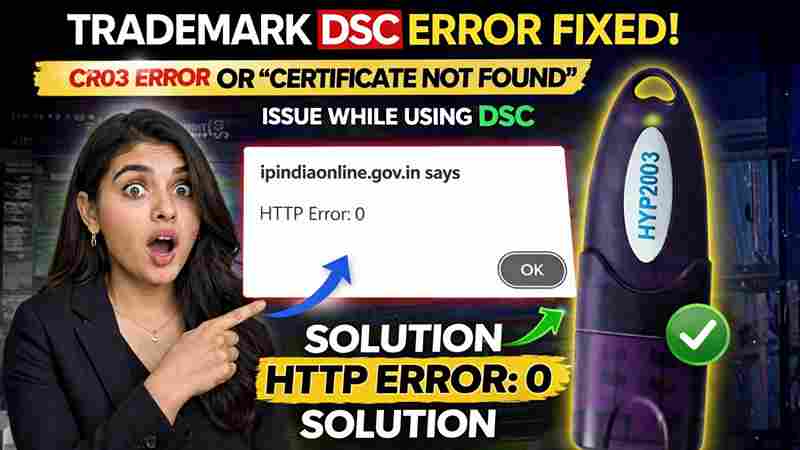
Trademark DSC Error Fix (2026) – HTTP Error 0 Solution | Digital Signature Not Working
Introduction
Trademark DSC Error Fix (2026) – HTTP Error 0 Solution: In today’s digital filing system, using a Digital Signature Certificate (DSC) on the Trademark portal is mandatory for authentication. However, many users are currently facing a frustrating issue —
👉 “HTTP Error: 0” while digitally signing forms
If you are also stuck with this error, don’t worry. This is a very common issue in 2026, and the good news is — it can be fixed easily without any technical expertise.
In this guide, we will walk you through the step-by-step solution to fix the Trademark DSC error quickly.
❌ What is HTTP Error: 0 in Trademark Portal?
HTTP Error: 0 usually appears when your Digital Signature is not properly recognized by the system during signing.
🔍 Common Reasons Behind This Error:
- DSC not registered properly on the portal
- Browser Signing Utility not running
- Certificate selection issues
- Expired or corrupted session
- Browser cache conflict
Read This also :TradeMark DSC Error Fixed | CR03 Error or Certificate Not Found Solution (2026 Guide)
✅ Step-by-Step Solution to Fix Trademark DSC Error
Follow these steps carefully to resolve the issue:
🔹 Step 1: Check Your DSC Token
Make sure your USB Digital Signature Token is properly inserted into your computer.
✔ If not detected, reconnect the token
✔ Ensure drivers are installed correctly
🔹 Step 2: Open Control Panel (Trademark Portal)
- Login to the Trademark portal
- Go to the Control Panel section
🔹 Step 3: Click on “Renew Digital Signature”
Even if your DSC is not expired, you still need to:
👉 Click on “Renew Digital Signature”
This step refreshes your DSC mapping with the portal.
🔹 Step 4: Click on “Select New DSC”
- Click the “Select New DSC” button
- If you see “Certificate Failed” error — don’t panic
🔹 Step 5: Install & Run Browser Signing Utility
This is the most important step ⚠️
👉 Download emBridge (Browser Signing Solution):
Download Now
✔ Install the utility
✔ Run it before selecting DSC
🔹 Step 6: Select Certificate & Enter Password
- Click again on “Select New DSC”
- Choose your certificate
- Enter your USB token password
- Click OK
🔹 Step 7: Click on “Submit New DSC”
👉 Don’t skip this step
Click “Submit New DSC” to register your signature successfully.
🔹 Step 8: Try Signing Again
Now go back and digitally sign your form again.
🎉 Your HTTP Error: 0 should now be resolved
💡 Pro Tips to Avoid DSC Errors
- Always use Google Chrome browser
- Clear cache before signing
- Run emBridge utility before every session
- Ensure DSC is Class 3 and valid
- Avoid multiple DSC tokens at once
💼 Need Help with Digital Signature?
If you are still facing issues, don’t worry — we provide complete DSC support services:
✔ Class 3 DSC (Individual & Organization)
✔ Trademark DSC Setup
✔ GST / Income Tax DSC Support
✔ Remote Assistance via AnyDesk
📞 Call / WhatsApp: 7579984381
🎥 Video Guide (Watch Step-by-Step Solution)
You can also watch our complete video tutorial for better understanding:
❓ Frequently Asked Questions (FAQs)
1. Why is my DSC not working on Trademark portal?
This usually happens due to improper DSC registration, inactive signing utility, or browser issues.
2. Do I need to renew DSC even if it is valid?
Yes, in this case, “Renew DSC” helps refresh the certificate mapping on the portal.
3. Which utility is required for DSC signing?
You need to install and run emBridge (Browser Signing Solution).
4. Which browser is best for DSC?
Google Chrome is recommended for smooth DSC functionality.
5. What if the error is still not resolved?
You can contact DSC experts for remote support and quick resolution.
🧠 Conclusion
The Trademark DSC HTTP Error: 0 can be frustrating, but with the right steps, it can be resolved within minutes.
Just make sure:
- Your DSC is properly registered
- Signing utility is running
- You follow each step carefully
✍️ About the Author
Samarth is a Digital Signature expert and founder of Digital Signature Spot, helping businesses and professionals with DSC issuance, renewal, and technical support across India.


About author












Add comment