

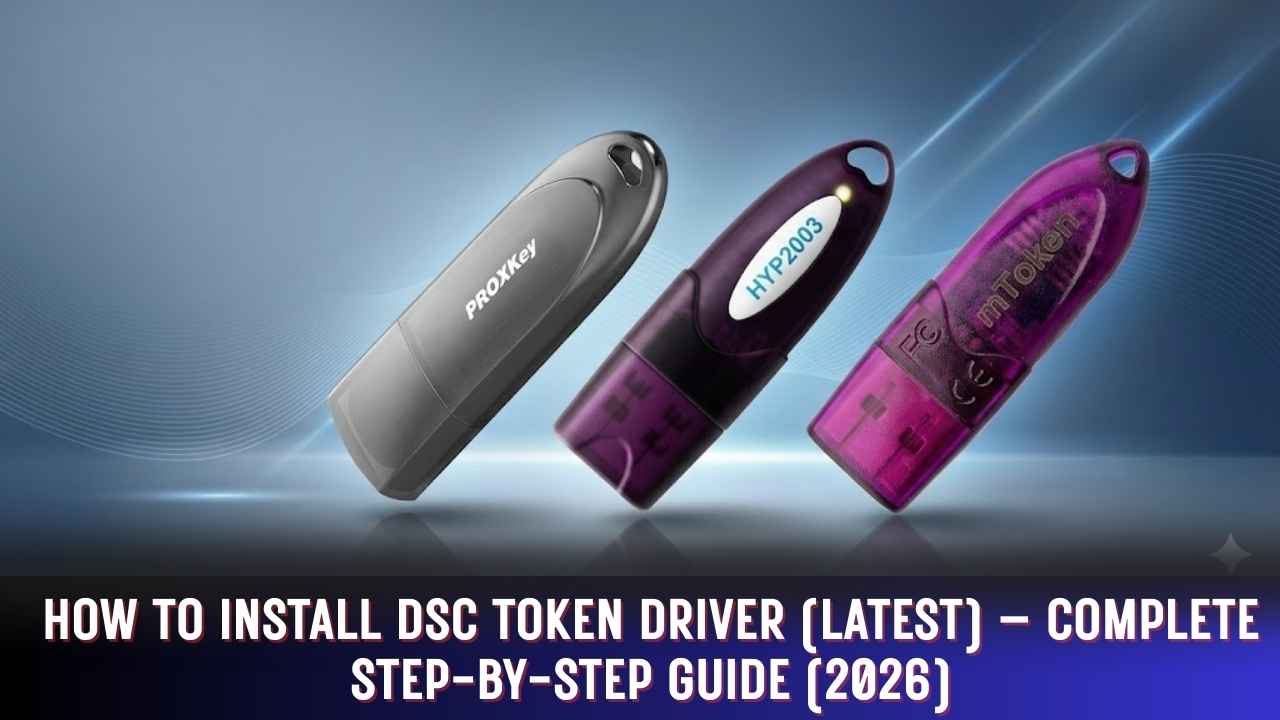
How to Install DSC Token Driver (Latest) – Complete Step-by-Step Guide (2026)
How to Install DSC Token Driver: Installing a DSC Token Driver is a mandatory step before using a Digital Signature Certificate (DSC) on government and compliance portals such as GST, MCA, ICEGATE, DGFT, EPFO, and Income Tax.
This blog post is written based on real-world experience, daily user support, and practical troubleshooting, following.
If your DSC is not working, not detected, or not showing on any portal, this guide will solve 90% of real issues.
1. Introduction to How to Install DSC Token Driver
A Digital Signature Certificate is issued digitally, but for security reasons, it must be stored inside a USB cryptographic token. To allow your computer and browser to read that token, a token driver is required.
Why Users Search for “How to Install DSC Token Driver”
Based on my daily interaction with DSC users, most people search this topic because:
- Token is not detected by the system
- DSC is not showing on GST or MCA portal
- Signing button is disabled
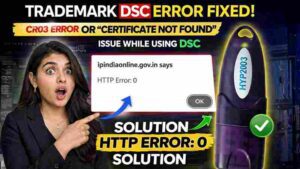
- Error message: No certificate found
- New laptop or Windows update caused issues
Importance in Digital Signature Processes
Without a properly installed DSC token driver:
- Your DSC will not load
- Government portals will not recognize your certificate
- Filing deadlines may be missed
2. What Is “How to Install DSC Token Driver”?
Installing a DSC token driver means installing manufacturer-specific cryptographic middleware that allows:
- Secure storage of the DSC
- PIN-based authentication
- Communication between token, browser, and government portals
Technical Overview (Easy Language)
- USB token works on PKI (Public Key Infrastructure)
- Driver installs CSP / PKCS#11 libraries
- Browser and signer utilities read DSC via the driver
Relation with the DSC Ecosystem
For a DSC to work correctly, all four components must align:
USB Token + Correct Driver + Browser + Government Portal
3. Why DSC Token Driver Is Required?
Business & Professional Use Cases
- GST return filing
- MCA company filings
- ICEGATE customs clearance
- EPFO digital signing
- Income Tax e-Verification
Compliance Requirements
Indian government mandates that DSCs must be stored in hardware tokens to prevent misuse.
Government Portal Requirements
Portals like GST Portal, MCA, and ICEGATE only accept DSCs through USB tokens with valid drivers.
4. Eligibility & Pre-Requisites
Who Can Use a DSC Token Driver?
- Individuals
- Proprietors
- Company directors
- CA / CS / CMA professionals
- Business owners
Document & Access Checklist
- Issued Digital Signature Certificate
- Token PIN/password
- Administrator access on computer
System & Software Requirements
- Windows 10 or Windows 11 (64-bit recommended)
- Google Chrome or Microsoft Edge
- Latest DSC token driver
- Java (only for specific portals like ICEGATE)
5. Step-by-Step Guide: How to Install DSC Token Driver
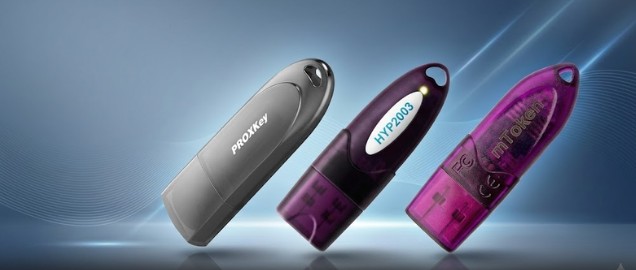
Step 1: Identify Your Token Brand
Check the token body or invoice. Common DSC token brands include:
- HYP2003
- WatchData ProxKey
- mToken
⚠️ Each token requires its own specific driver.
Step 2: Download the Correct Driver
Always download the driver:
- From the official token manufacturer website
- Or from a trusted DSC service provider
🔐 Download Latest DSC Token Drivers (Official)
✅ HYP2003 Token Driver
📥 Download here: HYP2003 USB Token Driver
➡️ https://www.hypersecu.com/downloads (official Hypersecu downloads page) Hypersecu
✅ WatchData ProxKey Driver
📥 Download here: WatchData ProxKey Token Driver
➡️ https://support.cryptoplanet.in/downloads.php (ProxKey official support downloads) CryptoPlanet Support
✅ mToken Driver
📥 Download here: mToken Driver & Utility
➡️ https://digitalsignaturespot.com/mtoken-driver-download/ (mToken CryptoID driver)
❌ Never install random or mismatched drivers.
Step 3: Install the Driver (Recommended Method)
- Remove the USB token from the computer
- Right-click the setup file → Run as Administrator
- Complete the installation
- Restart your computer
- Insert the token after restart
Expert Tip (From Experience):
Always use the lates USB Tokens Drivers
Step 4: Verify Token Detection
- Open Device Manager
- Check under Smart Card Readers
- Or open the token management utility
If detected correctly, the driver installation is successful.
6. Pricing, Validity & Cost Factors
Government Norms
- DSC token drivers are completely free
- No government charges apply
Market Reality
Some vendors charge for support, but the driver itself is always free.
Renewal Impact
- Drivers do not expire
- DSC renewal may require re-downloading the certificate into the token
7. Portal-Specific Integration
GST Portal
- Register DSC on portal
- Select signing certificate
- Token auto-detects during signing
MCA Portal
- Associate DSC with Director/Professional role
- Use token during form submission
ICEGATE Portal
- Requires signer utility and Java
- Token driver must be correctly installed and updated
8. Common Errors and Fixes
Token Not Detected
Solution:
- Reinstall correct driver
- Change USB port
- Avoid USB hubs
- Temporarily disable antivirus
Certificate Not Showing
Solution:
- Enter correct token PIN
- Check DSC validity
- Ensure signing certificate is selected
Portal-Specific Errors
- Clear browser cache
- Restart browser
- Run signer utility as administrator
9. Advanced Troubleshooting (Expert Level)
From my real support experience:
- Remove old or unused token drivers
- Update Windows root certificates
- Use only one token at a time
- Avoid installing multiple brand drivers unnecessarily
10. Comparison with Related Topics
Class 2 vs Class 3 DSC
- Class 2: Mostly discontinued
- Class 3: Mandatory for most government portals
Signing vs Encryption Certificates
- Signing DSC: Filing & authentication
- Encryption DSC: Secure communication
Brand-Wise Comparison
All major token brands perform well if the correct driver is installed properly.
11. Security & Compliance Guidelines
- Never share your token PIN
- Remove token after use
- Do not install cracked signer tools
- Keep your system and browser updated
12. Expert Tips for Faster & Error-Free Use
Based on installing and supporting 1000+ DSC tokens:
- Always install driver before inserting token
- Use Chrome or Edge only
- Avoid outdated signer utilities
- Keep token firmware updated
13. FAQs About How to Install DSC Token Driver
Q1. Can I use DSC without installing a token driver?
No. The driver is mandatory.
Q2. Does the driver work on macOS?
Most DSC tokens are optimized for Windows only.
Q3. Can I use one token on multiple computers?
Yes, just install the driver on each system.
Q4. Do I need to reinstall the driver after Windows update?
Sometimes yes, especially after major updates.
14. Conclusion
Installing a DSC token driver is simple but extremely important.
Most DSC issues occur due to:
- Incorrect driver
- Wrong installation sequence
- System or browser misconfiguration
Follow this guide carefully, and your DSC will work smoothly across all government portals.
Digital Signature Sales & Support
If you are looking for:
- Same-day DSC issuance
- 100% paperless process
- Genuine USB token
- Complete installation and portal support
You can contact me directly. I personally ensure that your DSC works perfectly from the first attempt.
👉 WhatsApp Support: https://wa.me/917579984381
👉 YouTube Channel: https://www.youtube.com/@Digitalsignaturespot
Author Box
Author: Smarth
Founder – Digital Signature Spot
I have hands-on experience helping individuals, professionals, and businesses with:
- Digital Signature Certificate issuance
- DSC token driver installation
- Government portal errors and fixes
- Urgent and last-date compliance filings
About author












Add comment