

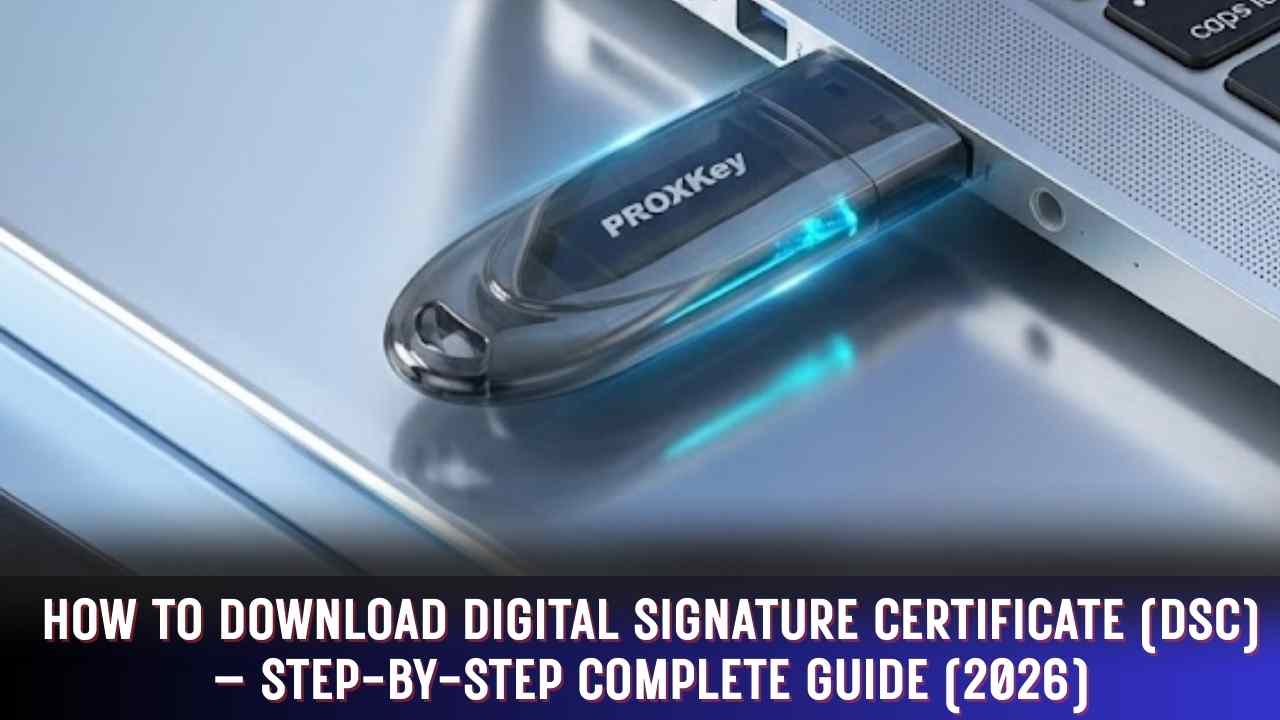
How to Download Digital Signature Certificate (DSC) – Step-by-Step Complete Guide (2026)
A Digital Signature Certificate (DSC) is a legally valid digital identity used to sign electronic documents securely. In India, DSC is mandatory for many online and government-related processes such as GST filing, Income Tax Return (ITR), MCA filings, ICEGATE, DGFT, and various other compliance portals.
Many users successfully apply for a DSC but get confused at the download stage. This detailed guide explains how to download digital signature certificate step by step in simple English, so even first-time users can complete the process without errors.

What Is a Digital Signature Certificate?
A Digital Signature Certificate is an electronic form of identity issued by a licensed Certifying Authority (CA). It ensures:
- Data authenticity
- Identity verification
- Document integrity
- Legal validity of online submissions
Once issued, the DSC is securely stored in a USB token and used to digitally sign documents and portal submissions.
Requirements to Download a Digital Signature Certificate
Before starting the DSC download process, make sure you have the following:
- Application ID / PID
- Download Passcode / Download Key / Challenge Code
- DSC Download Utility
- Java installed on your system
- New Series USB Token
- USB Token Driver
- Windows Computer or Laptop (mandatory)
Let’s understand each requirement in detail.
What Is Application ID / PID?
The Application ID (or PID) is a unique number generated when you apply for a Digital Signature Certificate through any Certifying Authority.
When you submit your DSC application:
- The Application ID is sent to your registered email ID and mobile number
- It allows you to:
- Track DSC application status
- Check video verification completion
- Identify approval or rejection
- Download the final DSC
👉 This same Application ID is required during the DSC download process, so keep it safe.
What Is Download Passcode / Download Key / Challenge Code?
After completing:
- Payment
- Identity verification
- Video verification
A Download Passcode is generated in your DSC application or eKYC account.
Important to know:
- Download Passcode
- Download Key
- Challenge Code
👉 All three terms mean the same thing, but different Certifying Authorities use different names.
This passcode is mandatory to securely download your digital signature certificate.
What Is DSC Download Utility?
A DSC Download Utility is a software tool provided by the Certifying Authority to download and install your DSC into the USB token.
Whether your DSC is issued by:
- eMudhra
- VSign
- PantaSign
👉 The DSC download process is almost the same for all authorities.
Only the utility interface may vary slightly.
Why Is Java Required for DSC Download?
Most DSC download utilities are Java-based applications. Without Java, the utility may:
- Fail to open
- Show security errors
- Stop midway during download
👉 Always install the latest version of Java before starting the DSC download process.
Importance of USB Token in Digital Signature Download
A Digital Signature Certificate cannot be downloaded without a USB token.
The USB token is a secure hardware device that safely stores your DSC.
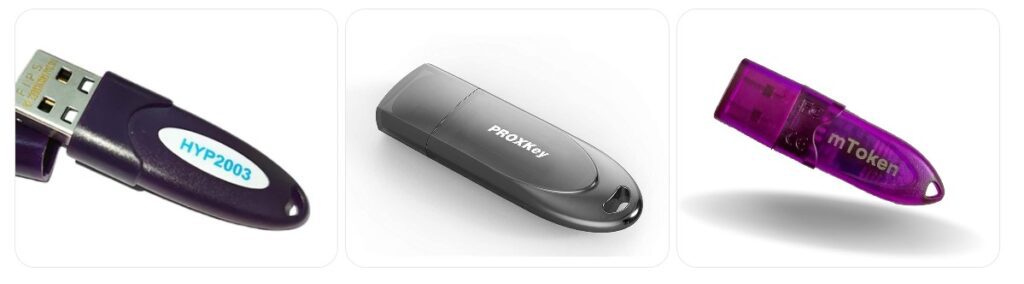
Commonly Used New Series USB Tokens
- HYP2003
- WatchData ProxKey
- mToken
You must have any one of these supported tokens to download your DSC.
If you do not already have a USB token, you can purchase one from an authorized DSC service provider at a reasonable price.
What Is USB Token Driver?
The USB token driver allows your computer to detect and communicate with the USB token.
When you insert the token:
- A CD drive or virtual drive appears
- It contains the required driver files
- You must install the driver before downloading DSC
⚠️ Without installing the correct driver:
- The USB token will not be detected
- DSC download will fail
How to Download Digital Signature Certificate in USB Token (Step-by-Step)
Follow these steps carefully:
Step 1: Keep DSC Details Ready
- Application ID / PID
- Download Passcode / Challenge Code
Step 2: Insert USB Token
- Plug the USB token into your computer
- Install the USB token driver completely
Step 3: Open DSC Download Utility
- Open the DSC download utility provided by your Certifying Authority
- Allow Java permissions if prompted
Step 4: Enter Application Details
- Enter your Application ID
- Enter your Download Passcode
- Click on Next
Step 5: Set USB Token Password
- Do not use default passwords such as:
- 123456
- 12345678
- Create a strong and secure password
📌 Default passwords are not accepted during DSC download.
Step 6: DSC Download Completed
- Within a few seconds
- Your Digital Signature Certificate is downloaded into the USB token
🎉 Your DSC is now ready for use.
Important Points to Remember
- DSC download works only on Windows OS
- Java must be installed and enabled
- USB token driver must be installed properly
- Application ID and Passcode must be correct
Frequently Asked Questions (FAQs)
How can I download my digital signature certificate?
You can download your DSC using a DSC download utility by entering your Application ID and Download Passcode, along with a USB token on a Windows system.
Can I download DSC without a USB token?
No. A USB token is mandatory to download and store a digital signature certificate.
Is Java mandatory for DSC download?
Yes. Most DSC download utilities require Java to function correctly.
How long does it take to download DSC?
If all details are correct, the download usually takes 1–2 minutes.
Can DSC be downloaded on macOS or Linux?
No. DSC download is supported only on Windows computers.
Why Trust This Guide? (EEAT Section)
This guide is written based on real-world experience of helping users download Digital Signature Certificates for GST, ITR, MCA, ICEGATE, and DGFT portals. All steps follow standard Certifying Authority procedures and are regularly updated to match the latest DSC utilities, token types, and security requirements.
Conclusion
Downloading a Digital Signature Certificate may look technical, but once you understand the required tools and steps, the process becomes very simple.
In this guide, we explained how to download digital signature certificate in a clear and beginner-friendly way, covering:
- Application ID
- Download passcode
- USB token and driver
- Java requirements
- Step-by-step DSC download process
If you face any issue or want professional support, same-day DSC service, or USB token assistance, it is always recommended to contact a trusted DSC service provider.

About author












Add comment