

DSC Not Working on Income Tax Portal? The Complete Fix Guide (2026)
Introduction
DSC Not Working on Income Tax Portal? The Complete Fix Guide (2026): Filing your Income Tax Return (ITR) or responding to a tax notice is stressful enough without technical glitches getting in the way. If your Digital Signature Certificate (DSC) is not working on the Income Tax portal, you are definitely not alone.
Every day, taxpayers and professionals face frustrating errors like:
- “DSC not detected”
- “Failed to establish connection”
- emSigner/emBridge utility crashing
- The certificate simply not showing up in the drop-down menu
In over a decade of resolving complex digital signature bottlenecks, I have found that most portal issues come down to a few hidden browser settings. In this guide, I will share a real, tested, and working solution that fixes DSC issues on the new Income Tax portal in 99% of cases.
The Real Working Solution (Tested Method)
Follow these steps carefully to fix your DSC connection issues and successfully sign your documents.
Step 1: Ensure You Have the Correct DSC Type
The Income Tax portal has strict security protocols. Make sure your USB token contains a Class 3 Signing Digital Signature Certificate. 👉 Note: Class 2 certificates are discontinued and will no longer work on the Income Tax portal.
Step 2: Download and Install the ’emBridge’ Utility
While the portal previously relied heavily on emSigner, the Income Tax system now works flawlessly with the emBridge utility.
- Download: Go to the official portal: https://embridge.emudhra.com/
- Supported Systems: It is available for Windows, Mac, Ubuntu, and RedHat.
- Install & Run: Install the software and ensure it is actively running in your system’s background (check your system tray near the clock).
Step 3: Use Google Chrome Browser Only
While edge and Firefox sometimes work, Google Chrome provides the most stable environment for DSC operations. Avoid using outdated, unsupported browsers like Internet Explorer.
Step 4: Clear Income Tax Website Data (The “Master Fix”)
If your utility is running but the portal still says “DSC Not Detected,” this step is your master key. Old cache data often blocks the new emBridge connection.
How to clear site-specific data in Chrome:
- Open Google Chrome.
- Go to Settings → Privacy & Security → Site Settings.
- In the search bar under ‘Recent Activity’ or ‘All Sites’, type: incometax.gov.in
- Click on the Income Tax portal entry.
- Click on the Clear Data and Reset Permissions buttons.
Step 5: Allow Popup Permissions
After resetting the permissions in Step 4, you need to grant the portal fresh access.
- Open the Income Tax portal and log in again.
- Navigate to the DSC signing page.
- Your browser will show a Popup Blocked warning (usually a small icon in the right corner of the address bar).
- Click it and select “Always allow pop-ups and redirects from incometax.gov.in”. 👉 This step is absolutely crucial for the portal to detect your USB token.
The Final Result
After completing these five steps, refresh your page.
- Your DSC will now be detected instantly.
- The signing process will work without errors.
- You will bypass the endless “emSigner not running” loop.
Additional Quick Tips for Success:
- Always insert your USB token into the computer before opening the browser.
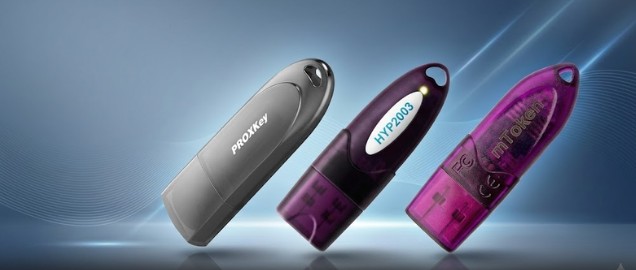
- Double-check that your token drivers (HYP2003, ProxKey, etc.) are installed.
- Ensure the PAN on the DSC matches the PAN logged into the Income Tax portal.
Still Need Help?
Filing deadlines wait for no one. If you have followed this guide and your DSC is still refusing to connect, our technical support team at Digital Signature Spot can fix it for you remotely.
We Provide:
- ✔️ Remote DSC issue troubleshooting (via AnyDesk).
- ✔️ Complete Income Tax & MCA portal setup.
- ✔️ Fast token driver and utility installations.
- ✔️ Instant Class 3 DSC Issuance & Renewal.
🌐 Visit us: Digital Signature Spot 📞 Technical Support (Call / WhatsApp): +91-7579984381
Frequently Asked Questions (FAQ)
Q1. Why is my DSC not working on the Income Tax portal? In most cases, it is caused by conflicting browser cache, missing popup permissions, or the emBridge/emSigner utility not running with Administrator privileges.
Q2. What is emBridge? emBridge is a secure middleware utility used to bridge the communication gap between the web-based Income Tax portal and the physical USB token plugged into your computer.
Q3. Which browser is best for DSC operations? Google Chrome is highly recommended as it has the best compatibility with the emBridge utility and government portals.
Q4. What is the most important step in troubleshooting? Clearing the specific site data for incometax.gov.in and explicitly allowing popup permissions is the most effective fix for detection errors.
About the Author: Samarth is a Digital Signature expert and the founder of Digital Signature Spot. With over 10 years of hands-on experience in the digital signature industry, he specializes in helping users navigate complex portal compliances and seamlessly troubleshoot technical errors across Income Tax, MCA, and GST platforms.
About author














Add comment