

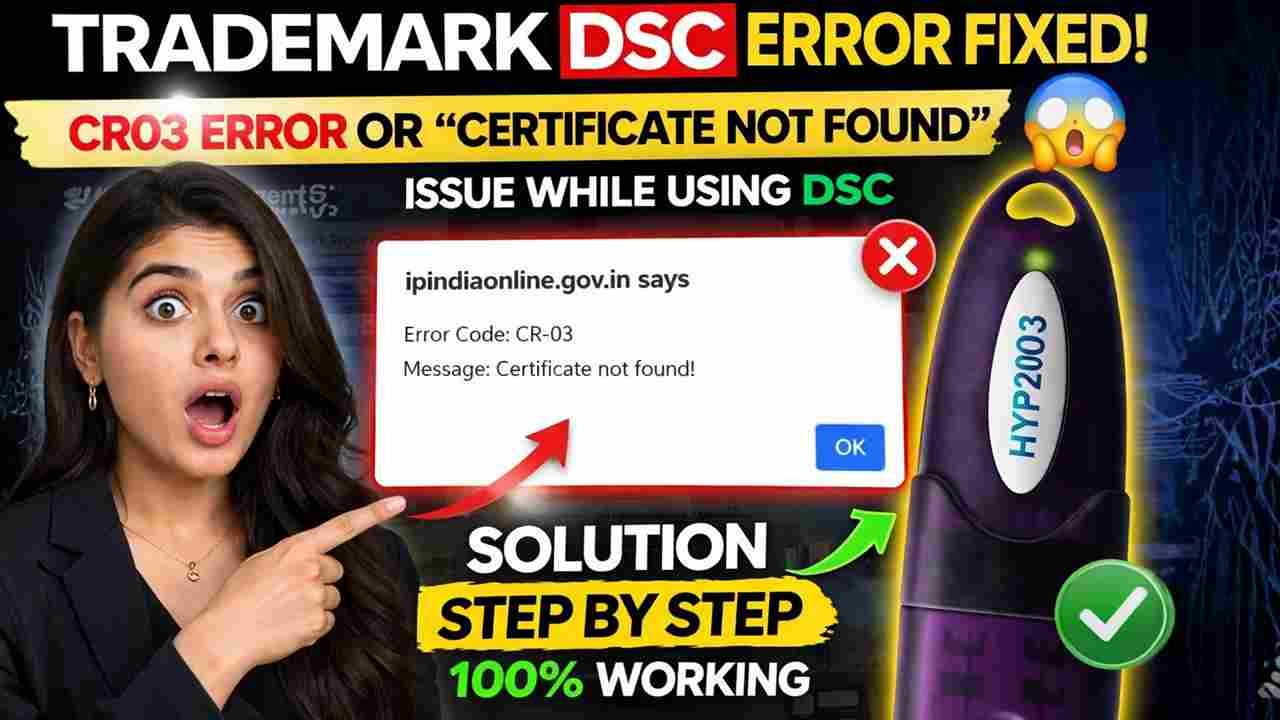
TradeMark DSC Error Fixed | CR03 Error or Certificate Not Found Solution (2026 Guide)
📌 Introduction
TradeMark DSC Error Fixed : If you are facing the CR03 error or “Certificate Not Found” issue while using DSC on the Trademark Registry portal, you are not alone.
After the latest update on the trademark website, many users are encountering problems while signing documents using their Digital Signature Certificate (DSC).
The good news?
👉 This issue is 100% fixable — and in this guide, I will show you the exact working solution step-by-step.
Video Tutorial: Fix Trademark DSC Error (CR03 / Certificate Not Found)
If you prefer a step-by-step visual guide, watch this complete video tutorial where the entire process is explained practically.
👉 In this video, you will learn:
- How to fix CR03 error on the Trademark Registry website
- How to resolve “Certificate Not Found” issue
- How to update and map DSC in your profile
- Complete walkthrough using real example
📺 Watch the Full Video Below:
💡 Pro Tip:
Make sure to install the Browser Signing Solution and follow each step carefully while watching the video to avoid missing anything.
If this video helps you, don’t forget to like, comment, and subscribe for more DSC-related solutions and updates.
⚠️ What is CR03 Error in Trademark DSC?
The CR03 error usually appears when:
- Your DSC is not properly mapped in your trademark profile
- The system fails to detect your certificate
- Browser signing components are missing or outdated
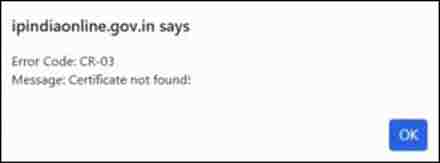
👉 Error Message Example:
“Error Code: CR-03 | Certificate Not Found”
🎯 Why This Error Happens? (Real Reason)
Based on practical experience and multiple user cases, the main reasons are:
- DSC not updated in profile
- Expired or renewed DSC not remapped
- Missing Browser Signing Solution utility
- Token driver issues (like mToken)
- Browser compatibility problems
💡 Important Insight (EEAT):
After the recent Trademark portal update, the system now requires proper DSC mapping again, even if your DSC was previously working.
🛠️ Step-by-Step Solution (100% Working Method)
Follow these steps carefully 👇
✅ Step 1: Install Browser Signing Solution
Download and install the required utility:
👉 https://www.pki.network/download/?app=pki-signing-solution
✔ This is mandatory for DSC detection
✔ Restart browser after installation
✅ Step 2: Check DSC Driver (mToken / ePass)
- Ensure your USB token driver is installed
- Insert token properly
- Check if DSC appears in your system
✅ Step 3: Login to Trademark Portal
Go to the Trademark Registry website and login.
✅ Step 4: Open Your Profile
- Click on View Profile
- Check if your DSC is already mapped
👉 If not mapped → यही आपका main issue है
✅ Step 5: Renew / Update DSC
- Go to Control Panel
- Click on Renew Digital Signature
- Select “Select New DSC”
👉 Your DSC name will appear in popup
👉 If not visible → click View More
✅ Step 6: Submit New DSC
- Click Submit New DSC
- Your DSC will now be mapped successfully
✅ Step 7: Logout & Test Again
- Logout from your account
- Login again
- Try signing
🎉 अब आपका DSC बिना error के काम करेगा
✅ Result (After Fix)
Once you complete the above steps:
✔ CR03 error will be resolved
✔ Certificate Not Found issue will disappear
✔ DSC signing will work smoothly
💼 Need DSC or Renewal Support?
If you are still facing issues or need a new DSC:
📞 Call / WhatsApp: 7579984381
⚡ Fast Approval
💻 Remote Setup Support
🔒 Trusted Service
❓ Frequently Asked Questions (FAQ)
🔹 Q1. What is the CR03 error in Trademark DSC?
The CR03 error occurs when the system is unable to detect your Digital Signature Certificate (DSC), usually due to improper mapping or missing configuration.
🔹 Q2. Why am I getting “Certificate Not Found” on the Trademark website?
This happens when your DSC is not updated or mapped in your trademark profile, or when the browser signing utility is not installed properly.
🔹 Q3. Is installing the Browser Signing Solution enough to fix the issue?
No, installing the Browser Signing Solution is important, but you also need to update and map your DSC in your Trademark profile to completely resolve the error.
🔹 Q4. Do I need to update DSC even if there is no renew alert?
Yes, even if no renew alert is visible, you should still follow the DSC update process to avoid errors.
🔹 Q5. Which browser is best for using DSC on the Trademark portal?
Google Chrome (latest version) with the Browser Signing Solution installed is recommended for smooth DSC functionality.
🔹 Q6. What should I do if my DSC is not showing in the popup?
Click on “View More” in the DSC selection window. If it still doesn’t appear, check your USB token driver and ensure the token is properly connected.
🏁 Conclusion
The Trademark DSC error (CR03 / Certificate Not Found) is mainly caused due to improper DSC mapping after the latest update.
👉 By simply updating your DSC in the profile and installing the signing utility, you can fix this issue completely.
About the Author
Samarth is a Digital Signature (DSC) expert and the founder of a trusted DSC service platform, helping individuals and businesses across India with fast and hassle-free DSC issuance, renewal, and error resolution.
With hands-on experience in resolving complex issues related to portals like the Trademark Registry, MCA, Income Tax, and more, he has guided hundreds of users in fixing DSC errors such as CR03, certificate not found, and signing failures.
Samarth regularly shares practical tutorials, step-by-step guides, and real-world solutions through blogs and YouTube videos, making technical processes simple and easy to follow.
📞 Need help with DSC?
Call / WhatsApp: 7579984381
⚡ Fast Support | 💻 Remote Assistance | 🔒 Trusted Service


About author












Add comment