

USB Token Not Detected – Complete Fix Guide
Introduction
USB Token Not Detected – Complete Fix Guide: A USB token is an essential device used to store a Digital Signature Certificate (DSC) securely. It allows users to sign documents digitally and authenticate their identity on government portals such as Income Tax, MCA, GST, DGFT, and eTender portals.
However, many users face a common issue where the USB token is not detected by the computer. This problem can prevent the Digital Signature Certificate from appearing while signing documents or logging into portals.
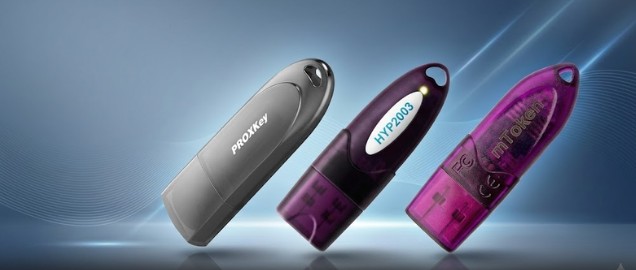
If you are facing the “USB token not detected” error, do not worry. In most cases, this issue can be fixed quickly by checking the token driver, system settings, or browser configuration.
In this guide, we will explain:
- Why the USB token is not detected
- Step-by-step solutions to fix the problem
- How to install the correct token driver
- Tips to prevent USB token errors in the future
Common Causes of USB Token Not Detected
Before fixing the issue, it is important to understand why the USB token is not detected.
1. Token Driver Not Installed
The most common reason is that the USB token driver is not installed on the computer.
Without the driver, the system cannot recognize the token.
2. Outdated Token Driver
Sometimes the token driver is installed but outdated. Older drivers may not work properly with updated browsers or operating systems.
3. USB Port Issue
If the USB port is faulty or loose, the token may not be detected by the system.
4. Token Not Properly Connected
If the token is not inserted properly, the computer may fail to detect the device.
5. Browser or System Configuration Problem
Sometimes the issue occurs because of browser settings or missing supporting utilities required for DSC authentication.
Step-by-Step Fix for USB Token Not Detected
Follow these steps to resolve the USB token detection problem.
Step 1 – Remove and Reinsert the USB Token
Remove the token from your computer and insert it again carefully.
Make sure the token is fully inserted into the USB port.
Step 2 – Restart the Computer
Sometimes the token is not detected because of temporary system glitches.
Restart your system and reconnect the token.
Step 3 – Try Another USB Port
Insert the token into another USB port to check whether the problem is related to the port.
Step 4 – Check Token Detection in Token Manager
Open the token management software installed with your driver.
If the token appears in the software, it means the system has detected it successfully.
How to Install USB Token Driver
If the token is still not detected, installing the correct driver usually solves the issue.
Step 1 – Download the Latest Driver
Download the latest USB token driver for your device.
For Watchdata Proxkey token, you can download the driver here:
https://www.support.cryptoplanet.in/downloads.php
www.digitalsignaturespot.com/downloads
Step 2 – Install the Driver
Run the driver setup file and follow the installation instructions.
Step 3 – Restart the Computer
After installation, restart your computer.
Step 4 – Connect the Token Again
Insert the USB token again and check whether the system detects it.
Preventive Tips to Avoid USB Token Issues
To avoid USB token detection problems in the future, follow these simple tips.
Always Use the Latest Token Driver
Keep your token driver updated to ensure compatibility with your system.
Use Updated Browsers
Use the latest version of browsers such as Google Chrome or Microsoft Edge when signing documents.
Insert Token Before Opening Portals
Always insert the USB token before opening government portals that require digital signatures.
Avoid Removing Token During Signing
Do not remove the token while signing documents or during verification.
Get Help with Digital Signature Issues
If your USB token is not detected or you are facing any DSC-related problems, our team can assist you with quick support.
We provide:
✔ Digital Signature Certificate issuance
✔ DSC renewal
✔ USB token driver installation
✔ Token troubleshooting
✔ Portal signing support
Apply or get support here:
📞 Call / WhatsApp: 7579984381
Our experts will guide you step-by-step and help you resolve digital signature token issues quickly.
Frequently Asked Questions (FAQ)
Why is my USB token not detected?
The token may not be detected because the driver is not installed, the driver is outdated, or the USB port is not working properly.
How do I install a USB token driver?
Download the latest driver from the token provider’s website and install it on your computer. After installation, restart the system and reconnect the token.
Can a USB port cause token detection issues?
Yes. A faulty or loose USB port can prevent the system from detecting the token.
Why is my digital signature not showing after inserting the token?
This usually happens if the token driver is not installed or the browser is not configured properly.
About the Author
Smarth is a Digital Signature expert associated with Digital Signature Spot, helping individuals and businesses obtain and manage Digital Signature Certificates quickly and securely.
With extensive experience in DSC issuance, token installation, and portal troubleshooting, he regularly publishes practical guides to help users solve digital signature problems and understand government compliance processes.

About author












Add comment