

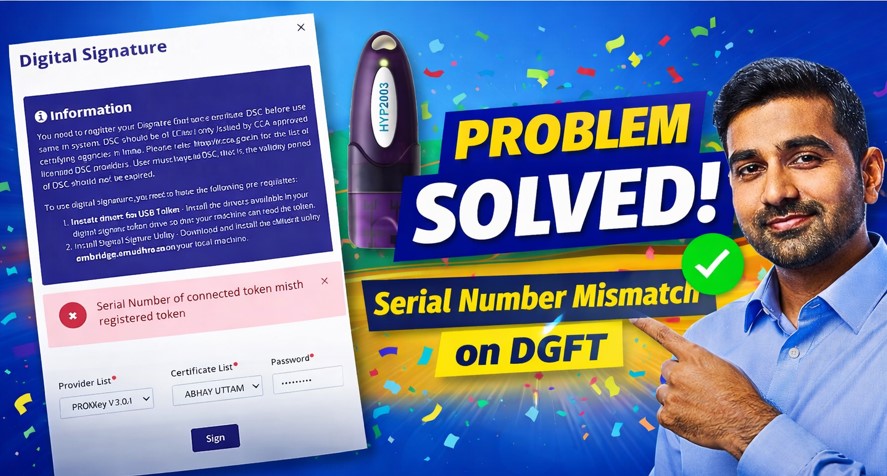
DGFT issue Solved: Serial Number of Connected Token Mismatch with Registered Token – DGFT DSC Error (Complete Solution)
If you are working on the DGFT portal and facing the error: DGFT issue : Serial Number of Connected Token Mismatch with Registered Token
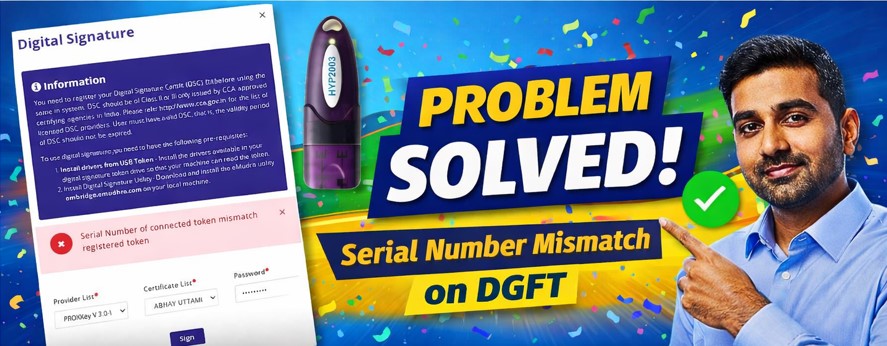
“Serial Number of connected token mismatch with registered token”
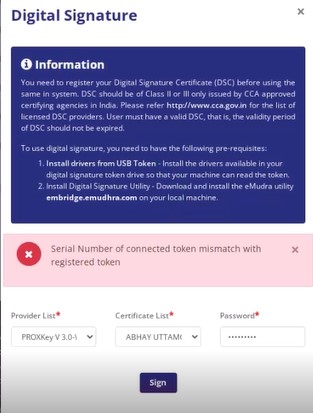
don’t panic.
This is a very common Digital Signature Certificate (DSC) error on the DGFT website and can be resolved easily in just a few minutes.
In this blog, we will explain:
- What this DGFT DSC error means
- Why it occurs
- The exact step-by-step solution
- How to avoid this issue in the future
What Does “Serial Number of Connected Token Mismatch” Mean?
This error appears when the USB DSC token currently connected to your system is not the same token that is registered in your DGFT profile.
In simple words:
- DGFT expects one specific DSC
- But your system is detecting another DSC or token
- Due to this mismatch, DGFT blocks the submission
Why This Error Happens on DGFT Portal?
This issue usually occurs because of one or more of the following reasons:
- You renewed or replaced your DSC
- You are using a new USB token
- Multiple DSCs were used earlier on the same DGFT account
- Browser cache or old token data is stored
- DSC was never registered properly in DGFT dashboard
👉 The good news: It is not a technical failure. It is a profile mismatch.
Quick Solution (Recommended by DGFT Experts)
The easiest and safest solution is to re-register your DSC in your DGFT account.
Follow the steps carefully.
Step-by-Step Solution to Fix the Error
Step 1: Keep the Error Page Open
Do not close the page where the error is showing.
Just leave it as it is.
Step 2: Open DGFT in a New Tab
- Open a new browser tab
- Login to your DGFT account
Step 3: Go to My Dashboard
- In the top menu, click on My Dashboard
- Select View and Register Digital Signature Token
Step 4: Register New DSC
- Click on Register New DSC
- Select your USB token name
- Choose your certificate
- Enter your USB token password
- Click on Sign
✅ Your new DSC will now be successfully registered in your DGFT profile.
Step 5: Submit the Old Page Again
- Go back to the old tab where the error was showing
- Click on Submit again
🎉 The error will be resolved instantly.
Important Tips to Avoid This Error in Future
- Always register DSC again after renewal
- Use only one active DSC for DGFT
- Avoid using multiple USB tokens on the same system
- Clear browser cache if DSC is not detected
- Use updated DSC drivers and supported browsers
Is This Error Serious?
No.
This error does not mean:
- Your DSC is invalid
- Your DGFT account is blocked
- Your application is rejected
It is purely a DSC mapping issue and is fully reversible.
Need Help with DGFT DSC Registration or Renewal?
If you want:
- New DGFT DSC
- DGFT DSC Renewal
- Token mismatch error support
- End-to-end DGFT DSC assistance
👉 Get Your DGFT DSC Done by Experts
We provide 100% genuine DSCs, quick support, and complete guidance for DGFT users.
📞 Contact us now for DGFT DSC services
💬 WhatsApp support available
⚡ Fast activation | Trusted service | Expert guidance
Don’t let a small DSC error stop your DGFT work — contact us today and get it fixed professionally.
Frequently Asked Questions (FAQs)
❓ What is “Serial Number of Connected Token Mismatch with Registered Token” error on DGFT?
This error means that the USB DSC token connected to your computer does not match the DSC registered in your DGFT profile. Because of this mismatch, DGFT does not allow the digital signature to complete the submission.
Why does this DGFT DSC error occur?
This error usually occurs when:
- Your DSC is renewed or replaced
- You are using a new USB token
- More than one DSC was used earlier on the same DGFT account
- DSC was not registered again after renewal
In most cases, it is a profile mapping issue, not a technical fault.
Is my DGFT account blocked because of this error?
No.
This error does not block your DGFT account and does not reject your application. It only indicates that the currently connected DSC is not registered in your DGFT dashboard.
How can I fix the token mismatch error on DGFT?
You can fix this error by:
- Logging into DGFT in a new tab
- Going to My Dashboard → View and Register Digital Signature Token
- Clicking on Register New DSC
- Selecting your USB token, certificate, and entering the token password
Once the DSC is registered again, the error gets resolved.
Do I need to buy a new DSC to solve this issue?
No.
In most cases, you do not need a new DSC. Re-registering your existing valid DSC in the DGFT portal is enough to solve the problem.
Does this problem happen after DSC renewal?
Yes, very often.
After DSC renewal, the certificate details change, and if the new DSC is not registered again on DGFT, this error appears.
Which DSC is required for DGFT?
DGFT requires a Class 3 Digital Signature Certificate for exporters and importers to sign applications and documents on the portal.
Can I use multiple DSC tokens for one DGFT account?
No.
DGFT works best when only one active DSC is mapped to one user profile. Using multiple tokens can cause serial number mismatch errors.
What if the error still comes after registering new DSC?
If the error continues:
- Clear browser cache
- Reinsert the USB token
- Check token drivers
- Ensure the correct certificate is selected
If the issue still persists, professional support is recommended.
Can experts help with DGFT DSC issues?
Yes.
Authorized DSC service providers can help with DGFT DSC registration, renewal, token errors, and complete setup, saving time and avoiding repeated errors.
Is this DGFT DSC error common?
Yes.
This is one of the most common DSC-related errors faced by DGFT users, especially during renewal or token change.
About the Author
Samarth is a Digital Signature Certificate (DSC) and DGFT compliance expert with hands-on experience in helping exporters, importers, and business professionals resolve DSC-related issues on government portals. With in-depth practical knowledge of DGFT DSC registration, renewal, token mismatch errors, and digital signing processes, Samarth has assisted thousands of users in smoothly completing their DGFT filings without technical hurdles.
He regularly creates easy-to-understand guides, tutorials, and troubleshooting content focused on real-world DGFT and DSC problems, ensuring accuracy, clarity, and compliance with official guidelines. His content is based on practical experience, current portal behavior, and user-centric solutions rather than theoretical explanations.
Samarth’s mission is to simplify complex digital compliance processes and provide reliable, step-by-step solutions that save time, reduce errors, and help businesses stay compliant with DGFT and other government platforms.

About author











Add comment