

How to Install Digital Signature Certificate in USB Token (Step-by-Step Guide)
Introduction
How to Install Digital Signature Certificate in USB Token (Step-by-Step Guide): A Digital Signature Certificate (DSC) is essential for secure online transactions on portals like Income Tax, GST, MCA, DGFT, and eTender websites.
To use your DSC, it must be installed in a USB token—a secure hardware device that safely stores your digital signature.
Many users face difficulties during installation, especially while downloading the certificate. This guide explains the process in simple, practical steps so you can set up your DSC without hassle.
What is a USB Token?
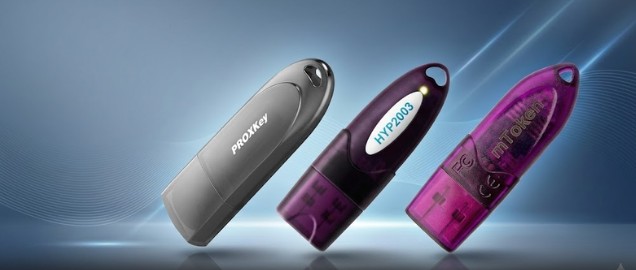
A USB token is a small, portable hardware device that looks similar to a pen drive but is designed specifically for secure storage of Digital Signature Certificates (DSCs). Unlike ordinary storage devices, a USB token has built‑in cryptographic security features that protect your DSC from unauthorized access or tampering.
Common Tokens
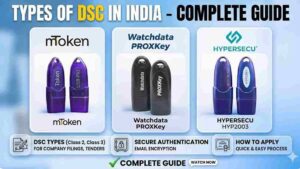
Different brands manufacture USB tokens, but they all serve the same purpose. Some widely used tokens include:
- Proxkey Token – Popular for government portals like GST and MCA.
- HYP2003 Token – Known for strong encryption and reliability.
- mToken – Lightweight and user‑friendly, often used for corporate DSCs.
Each token comes with its own driver and management software, which must be installed before use.
Benefits
- Benefits of Using a USB Token
- Safe and Encrypted Storage: Your DSC is stored in a tamper‑proof environment, making it impossible to copy or misuse.
- Protection Against Unauthorized Use: Even if someone gets hold of your token, they cannot use it without the password you set.
- Mandatory for Class 3 DSC: For high‑security transactions like eTender submissions, Class 3 DSC must be stored in a USB token.
- Portability: You can carry your digital signature anywhere and use it on different systems by simply plugging in the token.
- Compliance: USB tokens meet government security standards, ensuring your DSC is legally valid across official portals.
Step-by-Step Process to Install DSC in USB Token
Step 1 – Insert USB Token
- Plug your USB token into the system.
- Ensure it is detected properly.
Step 2 – Install USB Token Driver
Before installing DSC, the token driver must be installed.
- Download the driver for your token.
- Run the setup file.
- Complete installation.
- Restart your system.
Step 3 – Open Token Software
- Launch the token software.
- Confirm that the token is detected.
Step 4 – Download Digital Signature Certificate
If you have not downloaded your DSC yet, follow these steps:
- Log in to your DSC eKYC account
- Complete your eSign verification process
- Complete the online payment
- Set your Download Key / Download Passcode
After setting the passcode, your Digital Signature Certificate will be ready for download.
Step 5 – Install DSC Using Download Utility
To install your DSC, you need to use the DSC Download Utility provided by your Certifying Authority.
Examples of Certifying Authorities:
- VSign
- PantaSign
- Prodigisign
- eMudhra
You can download all DSC utilities from here:
👉 https://digitalsignaturespot.com/downloads
Installation Steps
- Open the DSC Download Utility
- First, change the default USB token password (recommended for security)
- Click on Proceed / Next
- Enter your USB token password
- Wait for 5–10 seconds while the system processes
- Click on Install
Final Result
After installation:
- Open the token manager software
- Your Digital Signature Certificate will be visible
👉 Your DSC is now ready to use on government portals
How to Verify DSC Installation
DSC install hone ke baad verify karna zaroori hai.
Check karein:
- Token manager me certificate visible hai
- PDF sign karke test karein
- Income Tax / MCA portal par check karein
Common Errors & Solutions
USB Token Not Detected
- Driver reinstall karein
- USB port change karein
DSC Not Showing
- Browser restart karein
- Token dubara insert karein
Wrong Password
- Carefully password enter karein
- Multiple attempts avoid karein
Pro Tips
- Always latest driver use karein
- Token browser open karne se pehle insert karein
- Token password secure rakhein
Need Help with DSC Installation?
Agar aapko DSC install karne me problem aa rahi hai, to hum aapki help kar sakte hain.
✔ DSC installation
✔ USB token setup
✔ Driver issues fix
✔ Complete support
🌐 https://digitalsignaturespot.com/product/digital-signature-certificate-renewal-online/
📞 Call / WhatsApp: 7579984381
Frequently Asked Questions (FAQ)
How do I install a Digital Signature Certificate in a USB token?
To install a DSC, first install the USB token driver, then download your certificate from the eKYC portal, and use the DSC download utility to install it into your USB token.
Why is my Digital Signature not showing after installation?
This issue usually occurs due to missing or outdated token drivers, incorrect installation, or browser configuration problems.
Is a USB token mandatory for Digital Signature?
Yes, for Class 3 Digital Signature Certificates, a USB crypto token is required to securely store the certificate.
What is DSC Download Utility?
DSC Download Utility is a software provided by Certifying Authorities (like Vsign, eMudhra, Prodigisign, etc.) used to download and install the Digital Signature Certificate into the USB token.
How long does it take to install a DSC?
The installation process usually takes 5–10 minutes after downloading the certificate and setting up the token.
Can I install DSC without a driver?
No, installing the correct USB token driver is mandatory. Without the driver, the system will not detect the token or certificate.
What should I do if my USB token is not detected?
You should reinstall the token driver, try a different USB port, and restart your system.
About the Author
Samarth is a Digital Signature expert and the founder of Digital Signature Spot, a platform dedicated to providing fast, reliable, and hassle-free Digital Signature Certificate (DSC) services across India.
With hands-on experience in Class 3 DSC issuance, renewal, USB token setup, and troubleshooting, Samarth has helped hundreds of professionals, businesses, and organizations successfully complete their digital signature processes without technical difficulties.
He specializes in solving real-world DSC problems such as:
- USB token not detected
- DSC not showing in browser
- emSigner errors
- Token driver installation issues
- Portal signing errors (Income Tax, MCA, GST, DGFT, eTender)
Through his blogs and guides, Samarth focuses on simplifying complex digital signature processes into easy step-by-step solutions, so that even non-technical users can understand and apply them easily.
His goal is to make Digital Signature services more accessible, faster, and error-free for everyone in India.
For support or queries related to Digital Signature Certificate:
📞 Call / WhatsApp: 7579984381
🌐 https://digitalsignaturespot.com

About author










Add comment