

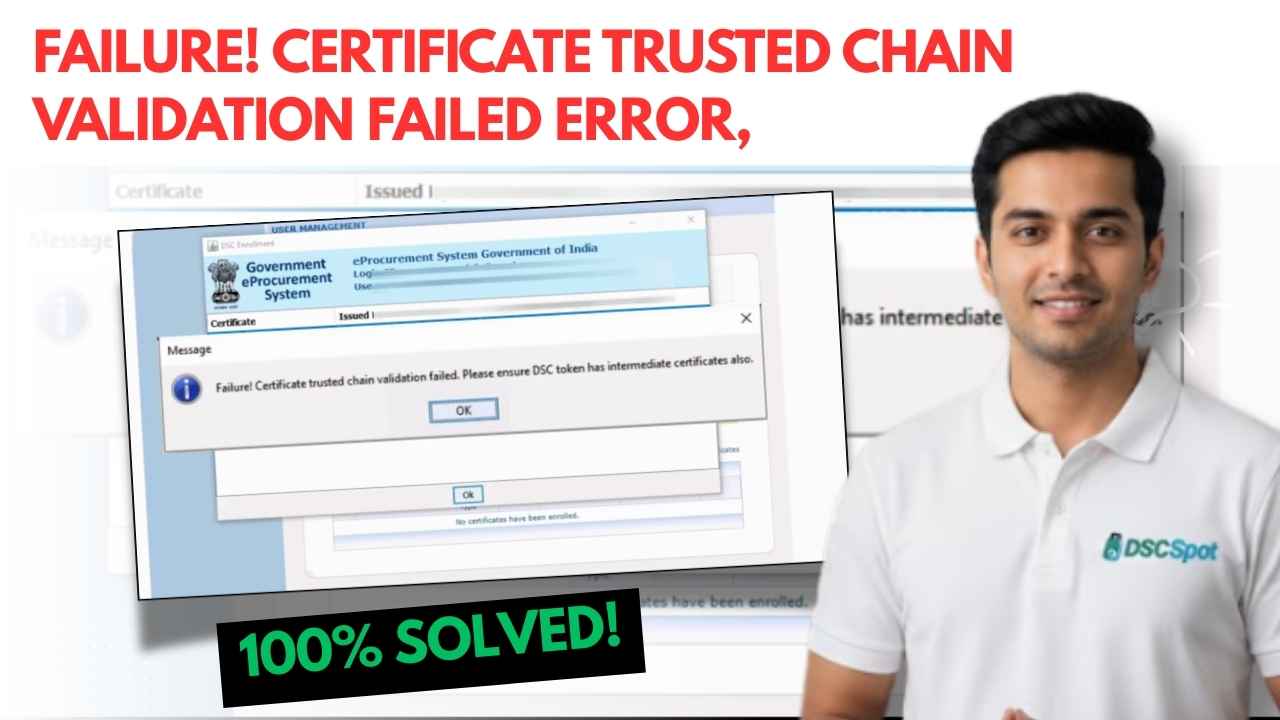
How to Fix DSC Error: “Failure! Certificate Trusted Chain validation failed” in DSC
How to Fix DSC Error: “Failure! Certificate Trusted Chain validation failed” in DSC :If you are using your Digital Signature Certificate (DSC) for signing on portals like Etender, or Any kind of tender website. and suddenly see this error:
“Failure! Certificate Trusted Chain validation failed. Please ensure DSC token has intermediate certificate also.”
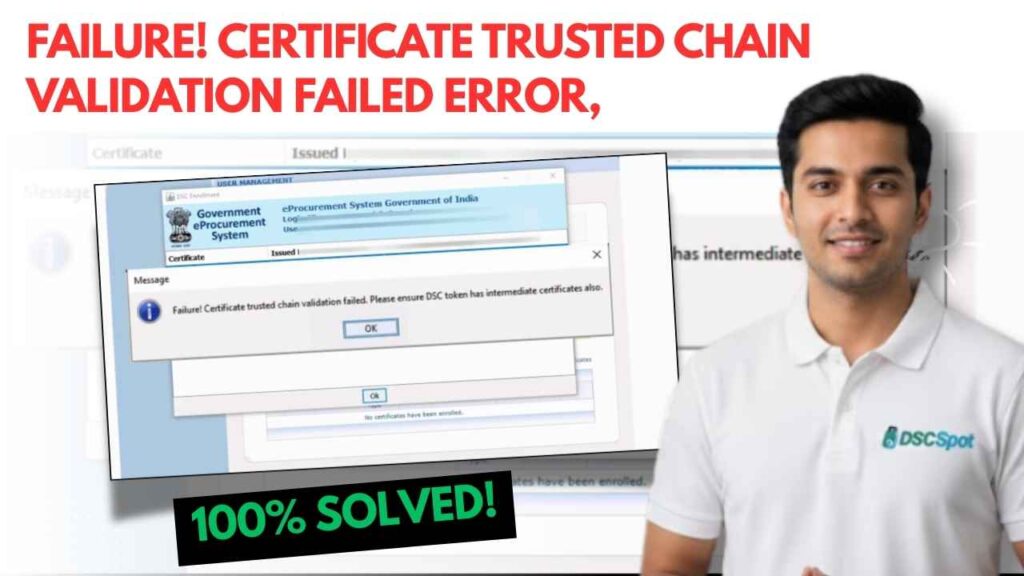
then don’t worry — this is one of the most common DSC problems in India, and it is 100% fixable.
In this guide, I’ll show you:
- 🚫 Why this error happens
- 🛠 How to fix it step-by-step
- 🔍 How to confirm it’s solved
- 🧠 Common mistakes to avoid
- ❓ FAQs (real user questions)
- 📞 Where to get help if stuck
This tutorial is based on real cases handled by our team at Digital Signature Spot.
Video Tutorial: Fix “Certificate Trusted Chain Validation Failed” Error
If you want to fix this error step-by-step by watching a live demonstration, then watch the complete video tutorial given below.
In this video, you will learn how to:
- ✔️ Identify your Certifying Authority (CA)
- ✔️ Download correct Root & Intermediate Certificates
- ✔️ Import certificates into USB Token
- ✔️ Fix Trusted Chain Validation error on GST / MCA / ICEGATE / GeM / Parivahan
- ✔️ Test & confirm the DSC is working correctly
🎥 Watch the Full Tutorial Here
What Does This Error Mean? Failure! Certificate Trusted Chain validation failed
This error appears when your computer or browser is unable to trust your DSC.
This happens because your token is missing important certificate files called:
- Root Certificate
- Intermediate Certificate
- (sometimes) Chain Certificates
These files connect your DSC to the Certifying Authority (CA) that issued it.

💡 In simple words:
Your DSC must prove where it came from.
If that proof (certificate chain) is missing → error appears.
Why Does This Error Happen?
Here are the most common reasons:
| Problem | What it Means |
|---|---|
| ❌ Root Certificate Missing | Computer cannot identify your CA |
| ❌ Intermediate Certificate Missing | Trust chain is broken |
| ❌ Old Token Driver | Validation process fails |
| ❌ Wrong Certificate Installed | CA mismatch causes rejection |
| ⚠ Browser Cache Conflict | Old settings blocking new certificate |
All these issues can be fixed manually — no need to buy a new token.
Solution: Step-by-Step
STEP 1 — Check Which CA Issued Your DSC
- Connect your USB DSC Token
- Open the Token Driver
(eg: HYP2003, ProxKey, mToken, ePass2003, WatchData, TrustKey) - Double-click the certificate inside the token
- Look for the field “Issued By”
You will find a name like:
- VSign
- Capricorn
- Sify / Safescrypt
- SignX
- XtraTrust
- ProDigiSign
- PantaSign
- Care4Sign
- IDSign
- eMudhra (rare now)
👉 Note this name — this is your Certifying Authority (CA).
STEP 2 — Download Your CA’s Root Certificate
Every DSC provider has a unique root certificate.
📌 Download your CA’s certificate from here (full list):
👉 https://digitalsignaturespot.com/how-to-download-root-certificates-for-dsc-vsign-pantasign-signx-prodigisign-xtratrust-sify-safescrypt-and-more/
This page includes:
- Root Certificates
- Intermediate Certificates
- Sub-CA / Chain files
- Official CA repository links
💡 Download all relevant files for your CA.
✔️ Save them in one folder on desktop (easy to locate)
STEP 3 — Import Certificates to Your USB Token
Now we will upload/install the certificates.
- Re-open your token driver
- Login (if required)
- Find Certificate / Key Management
- Click Import
- Select and import these files one by one:
- Root Certificate
- Intermediate Certificate(s)
- Chain Certificate (if available)
⚠️ Important
Some tokens hide the “Import” button until you login.
Especially:
- HYP2003
- mToken
- ProxKey
- ePass2003
So don’t panic if you don’t see it — just login first.
STEP 4 — Refresh Browser & Test
Now perform a quick reset:
- Close & reopen the browser
- Reload the portal tab
- Try signing again
For best results:
- Open a new Incognito/Private Window
- Clear SSL cache (optional)
🎉 In most cases, the error is now gone.
How to Confirm It’s Fixed

Your DSC should now:
✔ Detect properly in browser
✔ Sign files/documents without error
✔ Work on GST, MCA, ICEGATE, GeM, Parivahan, etc.
✔ No chain validation message
If yes → Congratulations! 🎉 your DSC is repaired.
If It’s Still Not Working
Try these optional steps:
| Issue | Fix |
|---|---|
| Import button missing | Reinstall token driver |
| Portal still not loading | Try another browser |
| DSC still not detected | Enable JAVA (for MCA) or plugin (portals specific) |
| Multiple DSCs on system | Remove old saved certificates |
FAQs (Real User Questions)
1️⃣ “Will buying a new token fix this?”
No.
95% of cases are solved by installing certificate chains.
2️⃣ “What if I installed wrong CA files?”
Remove them and re-install the correct ones.
(Use the CA name in “Issued By”)
3️⃣ “Do I need admin rights to install?”
Recommended, but not always required.
4️⃣ “Is this issue permanent?”
No, once installed correctly, chain rarely breaks again.
5️⃣ “Which portals give this error most?”
Most common on:
- GST
- ICEGATE
- MCA
- GeM
- Parivahan
- PF/ESIC
Personal Experience
At Digital Signature Spot, we assist hundreds of DSC users each month.
This issue alone accounts for nearly 40% of DSC complaints we receive.
The good news?
You don’t need technical knowledge.
You just need the right certificates in the right order.
This guide is designed so that you can do it yourself,
without calling a dealer or visiting a cyber café.
🎯 Conclusion
The error happens because:
- Your computer can’t trust your DSC yet.
The solution is to:
1️⃣ Identify the Certifying Authority
2️⃣ Download the correct Root + Intermediate Certificates
3️⃣ Import them into the USB Token
4️⃣ Refresh the browser and retry
And your DSC will start working like normal again. 🚀
🤝 Need Help?
If you’re still stuck or don’t want to do it yourself:
📞 Call/WhatsApp: (Your Number Here)
🌐 Website: https://digitalsignaturespot.com
💬 Comment below — we respond quickly
We can help you with:
- DSC Errors
- Token Support
- New DSC Purchase
- Renewal / Upgrade
- Class 3 for GST/MCA/ICEGATE/GeM
❤️ Support Us
If this blog helped you:
👍 Like & Share this post
📌 Save/Bookmark for later
🔔 Subscribe to our YouTube Channel
💬 Leave a comment
Your support motivates us to keep creating helpful content for you. 🙏
📎 Bonus Resources
Root Certificate Download Directory
👉 https://digitalsignaturespot.com/how-to-download-root-certificates-for-dsc-vsign-pantasign-signx-prodigisign-xtratrust-sify-safescrypt-and-more/


About author













Add comment