

How to Complete DSC Payment in VSign – Step-by-Step Guide (Updated 2026)
How to Complete DSC Payment in VSign – Step-by-Step Guide (Updated 2026): A Digital Signature Certificate (DSC) is now essential for filing GST returns, MCA forms, income tax documents, e-tendering, and many other government and business processes in India.
If you have applied for a DSC through VSign, completing the DSC payment correctly is the most important step before you can download and use your certificate.
In this guide, you’ll learn how to complete DSC payment in VSign step by step, explained in simple, human-friendly language, along with expert tips to avoid common mistakes.
👉 We strongly recommend reading this guide till the end without skipping any step.
How to Complete DSC Payment in VSign (Quick Steps)
- Login to the Applicant KYC page
- Verify OTP and complete eKYC
- Accept terms and submit e-Sign form
- Copy the Application ID
- Verify Application ID under Paid DSC Charges
- Choose a payment method and complete payment
Before You Start (Important Checklist)
Before starting the DSC payment process, make sure you have:
- An active registered mobile number
- Your eKYC PIN
- A stable internet connection
- A desktop or laptop (recommended)
- An updated browser (Chrome / Edge)
This preparation helps avoid errors during payment.
Overview of the VSign DSC Payment Process
VSign follows a secure and structured payment flow:
- Applicant login through KYC portal
- OTP verification and consent
- Application ID generation
- Payment via the “Paid DSC Charges” section
If all steps are followed properly, the payment is completed smoothly without delays.

Step 1: Login to the Applicant KYC Page
First, open the Applicant KYC Login Page (https://dsc.vsign.in/applicant/login).
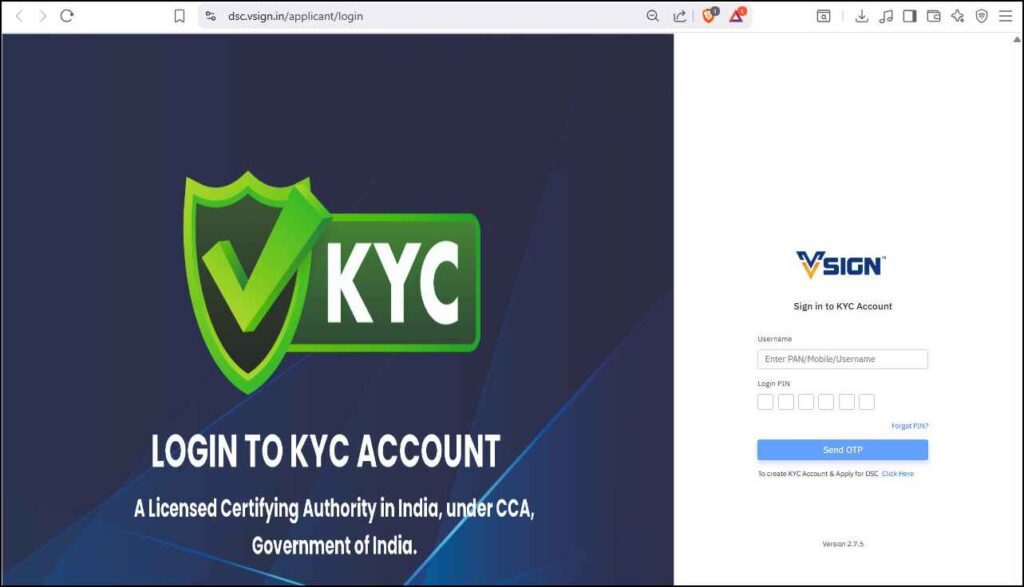
You can log in using:
- PAN number
- Registered mobile number
- Or the option selected during DSC application
✅ In most cases, logging in with the registered mobile number is the easiest.
Enter your mobile number, add your eKYC PIN, and click Send OTP.
Step 2: OTP Verification and Account Login
After clicking Send OTP:
- An OTP is sent to your registered mobile number
- Enter the OTP
- Click Validate OTP
Once verified, you will be successfully logged into your VSign account.
Step 3: Accept Terms and Complete the E-Sign Agreement
After login:
- Click I Agree to accept the Terms of Service
- Tick the checkbox
- Enter your eKYC PIN
- Click E-Sign Subscriber Agreement
This step is mandatory for legal authorization and identity confirmation.
Step 4: Set the Download Passcode (Very Important)
You will now be asked to create a Download Passcode.
🔐 This passcode is required later while downloading your DSC, so save it securely.
- Choose a simple numeric passcode
- Click I Agree
- Submit the E-Sign Application Form
After submission, an Application ID will be generated.
⚠️ Copy and save the Application ID carefully — it is required for payment verification.
Step 5: Verify Application ID Under Paid DSC Charges
After a few seconds:
- Hover over DSC in the top menu
- Click on Paid DSC Charges
- Paste your Application ID
- Click Verify
If you forgot to copy the Application ID:
- Go to My DSC
- Retrieve your Application ID from there
Step 6: Complete the DSC Payment
Once the Application ID is verified, payment details will appear on your screen.
Available payment methods include:
- Credit Card
- UPI
- Internet Banking
Select your preferred option:
- Click Proceed Now
- Enter payment details
- Click Make Payment
After successful payment, your DSC payment is completed.
Common DSC Payment Errors and Solutions
| Issue | Possible Reason | Solution |
|---|---|---|
| Application ID not found | ID not verified | Check under My DSC |
| OTP not received | Network delay | Retry after 2 minutes |
| Payment failed | Bank or gateway issue | Check debit status |
| Page stuck during payment | Page refreshed | Avoid refreshing |
What to Do After DSC Payment Is Completed?
After payment:
- Save your Application ID
- Keep the payment confirmation
- Proceed with DSC download and installation
These details are required for future DSC processes.
Final Expert Advice
The DSC payment process in VSign is simple, but most issues happen when users skip steps or forget to save the Application ID or Download Passcode.
By following this guide step by step, you can complete your DSC payment confidently and without errors.
Frequently Asked Questions (FAQs)
What is DSC payment in VSign?
DSC payment in VSign is the final step that activates your Digital Signature Certificate after KYC and application submission.
Where can I find my Application ID?
Your Application ID appears after submitting the e-Sign form and can also be found under My DSC.
Is the Download Passcode mandatory?
Yes. Without the Download Passcode, you cannot download your DSC later.
Which payment methods are supported?
Credit Card, UPI, and Internet Banking are supported.
How long does payment confirmation take?
In most cases, it reflects instantly. Rarely, it may take a few minutes.
Can I complete DSC payment on mobile?
Desktop or laptop is strongly recommended for a smoother experience.
About the Author
Smarth is a Digital Signature Certificate (DSC) expert with hands-on experience in DSC application, payment processing, download, and troubleshooting.
He has helped thousands of users resolve DSC-related issues through practical, step-by-step guidance based on real support cases.
Need Help?
If you are facing any DSC-related problem, leave a comment below.
We will try to resolve your issue as quickly as possible.


About author














Add comment