

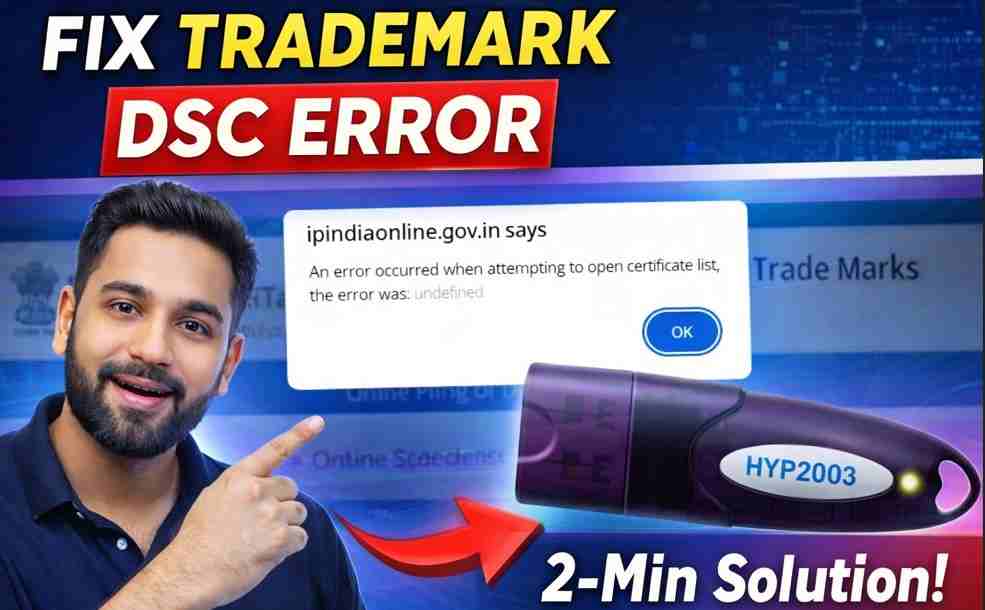
Trademark DSC Error: “Error Occurred When Attempting to Open Certificate List” – Complete 2026 Fix (Expert Guide)
Trademark DSC Error: “Error Occurred When Attempting to Open Certificate List” – If you are trying to log in or register on the Indian Trademark portal under the Controller General of Patents, Designs & Trade Marks and you see this message:
“Error occurred when attempting to open certificate list”

This guide provides a tested, field-proven solution based on real troubleshooting experience — not theory.
I have been working in the Digital Signature Certificate (DSC) industry for 11+ years, handling trademark, MCA, ICEGATE, GST, and Income Tax integrations. In the last few months alone, this specific trademark DSC error has generated the highest number of support calls.
The good news?
In most cases, your DSC is perfectly fine.
Why This Error Happens
This error typically appears due to:
- Browser compatibility issues
- Improper Internet Explorer mode configuration
- Certificate store access conflict
- DSC utility not interacting correctly with the browser
- Windows permission limitations
The Indian Trademark system still relies heavily on Internet Explorer–based compatibility layers. Modern browsers like Chrome do not natively handle this environment correctly — and that is where the conflict starts.
Watch Step-by-Step Video Tutorial (Live Demonstration)
If you prefer a practical walkthrough instead of written instructions, I have explained the complete solution in a detailed video tutorial.
In this video, I demonstrate:
- The exact “Error occurred when attempting to open certificate list” issue
- Real-time browser configuration
- IE Tab installation process
- IE 11 Standard Mode setup
- Live successful login after fixing the error
This is not just a theoretical explanation — you will see the complete troubleshooting process on screen, exactly the way it happens on a real system.
Sometimes technical issues are easier to understand visually. That’s why I recommend watching the video if:
- You are not comfortable with browser settings
- You want to follow along step-by-step
- You want to make sure you don’t miss any configuration detail
👉 Watch the full video below and follow the steps alongside your system.
If the written guide and video tutorial both help you resolve the issue, feel free to share it with other professionals facing the same DSC error.
2-Minute Working Solution (Tested on Multiple Systems)
This is the most reliable method I personally use for clients.
Step 1: Use Google Chrome
Open the Trademark login page in Chrome.
Step 2: Install “IE Tab” Extension
Search for IE Tab in the Chrome Web Store and install it.
This extension allows Chrome to emulate an Internet Explorer environment. you can reach directly from below link:
Chrome Extention IE Tab – https://chromewebstore.google.com/detail/ie-tab/hehijbfgiekmjfkfjpbkbammjbdenadd?pli=1
Step 3: Add Trademark Login URL to Auto URLs
Open IE Tab settings and add the IP India trademark login URL to the Auto URL list.
Step 4: Enable Compatibility Mode
Under compatibility options, select:
👉 IE 11 Standard Mode
Step 5: Refresh the Page
Reload the page.
The portal will now open inside IE mode within Chrome, and the certificate list will load properly.
✔ Error resolved in most cases instantly.
Important Insight (Based on 11+ Years of Experience)
In approximately 80–90% of cases, the problem is NOT:
- The DSC token
- The certificate validity
- The USB device
The actual issue is:
- Browser environment mismatch
- Incorrect compatibility configuration
- Background DSC utility conflict
Unfortunately, many users reinstall drivers, reset Windows, or even purchase a new DSC — which is usually unnecessary.
Real Case Example
Recently, a trademark professional from Ghaziabad contacted me.
- DSC was valid
- Drivers were correctly installed
- Utility was running
- Still, certificate list was not opening
Within 3 minutes, I configured IE Tab with IE 11 Standard Mode — and the login worked immediately.
He had already spent two days reinstalling drivers before that.
Advanced Troubleshooting (If Needed)
If the IE Tab method does not solve it, check the following:
- Reinstall DSC token drivers
- Ensure DSC utility (EmSigner or similar) is running
- Check Java compatibility
- Run browser as Administrator
- Update Windows security patches
However, in real-world practice, IE compatibility configuration alone resolves most cases.
Frequently Asked Questions (Google Snippet Optimized)
What does “Error occurred when attempting to open certificate list” mean?
It means the browser failed to access the digital certificate store due to compatibility or environment issues.
Is my DSC corrupted?
In most cases, no.
Do I need Internet Explorer?
Not directly — but you need an IE-compatible environment, which IE Tab provides.
Should I buy a new DSC?
Only if your certificate is expired or physically damaged. Otherwise, no.
Why You Can Trust This Solution
- 11+ years in Digital Signature processing
- Thousands of DSC integrations handled
- Regular troubleshooting for Trademark, MCA, ICEGATE & GST portals
- Remote support experience across multiple system environments
This solution is based on practical implementation — not copied documentation.
Final Conclusion
If you are facing:
“Error occurred when attempting to open certificate list”
Do not panic.
Do not replace your DSC immediately.
Configure IE compatibility properly using IE Tab with IE 11 Standard Mode, and the issue is very likely to be resolved within minutes.
If the issue still persists, a structured technical diagnosis is recommended rather than random reinstallations.
Your feedback and real-world testing always matter — because practical experience solves problems faster than theoretical guides.
Frequently Asked Questions (FAQ)
1. What does “Error occurred when attempting to open certificate list” actually mean?
This error indicates that the browser is unable to access or display the digital certificate stored in your USB token. In most cases, it is caused by browser compatibility issues rather than a faulty DSC.
2. Is my Digital Signature Certificate corrupted?
Usually, no.
In more than 80% of the cases I’ve handled, the DSC was completely valid. The issue was related to browser configuration or compatibility mode settings.
3. Do I need to install Internet Explorer?
You do not need to install the standalone Internet Explorer browser. However, the Trademark portal under the Controller General of Patents, Designs & Trade Marks requires an Internet Explorer–compatible environment. Using IE compatibility mode (such as via IE Tab in Chrome) typically resolves the issue.
4. Should I buy a new DSC if this error appears?
No — not immediately.
Before purchasing a new DSC, verify:
- Certificate validity (not expired)
- Token driver installation
- Browser compatibility configuration
In most cases, replacing the DSC is unnecessary.
5. Can this error occur even if the DSC utility is running?
Yes. Even if the DSC utility (like EmSigner or similar services) is active, browser incompatibility can still prevent the certificate list from opening.
6. Does Windows version affect this issue?
Yes, sometimes.
Recent Windows updates may restrict certificate access or security permissions. Running the browser as Administrator and ensuring updated drivers can help.
7. Is this issue specific to the Trademark portal?
Primarily yes, because the Indian Trademark system still depends on legacy Internet Explorer–based architecture. However, similar issues can occasionally appear on MCA, ICEGATE, or other government portals if compatibility mode is not configured properly.
8. What is the fastest reliable fix?
Configuring IE compatibility mode (IE 11 Standard Mode) inside Chrome using IE Tab has proven to be the fastest and most reliable solution in real-world cases.
About the Author
Smarth is a Digital Signature Certificate specialist with over 11 years of practical experience in DSC processing, troubleshooting, and government portal integrations.
He has worked extensively with:
- Trademark portal under the Controller General of Patents, Designs & Trade Marks
- MCA filings
- ICEGATE registrations
- GST portal integrations
- Income Tax DSC registrations
With thousands of DSC configurations and remote troubleshooting cases handled across India, his expertise focuses on identifying the root cause of technical issues rather than applying random fixes.
His approach is practical, field-tested, and solution-driven — aimed at saving professionals time, unnecessary expenses, and system reinstallation hassles.
For professional guidance, structured troubleshooting, or DSC-related technical support, readers can connect through official support channels.
Get Your Class 3 DSC with Expert Support
If you are planning to apply for a Class 3 Digital Signature Certificate (DSC) for Trademark, MCA, ICEGATE, GST, or Income Tax filings — make sure you get it issued correctly the first time.
With 11+ years of hands-on experience in DSC processing and troubleshooting, I provide:
✔ Genuine Class 3 DSC (Signing / Encryption / Combo)
✔ FIPS-compliant USB Token
✔ Fast processing & video verification support
✔ Complete driver & system configuration guidance
✔ Trademark & government portal compatibility setup
✔ Remote technical assistance (if required)
Many professionals face issues not because of the DSC — but due to improper configuration. I ensure your certificate works smoothly on the first attempt.
📞 Contact for Class 3 DSC & Technical Support
📱 Call / WhatsApp: 7579984381
📧 Email: Digitalsignaturespot@gmail.com
🌐 Website: digitalsignaturespot.com
Get reliable, expert-backed DSC support and avoid unnecessary errors or delays.
Secure your filings with confidence.

About author











Add comment