

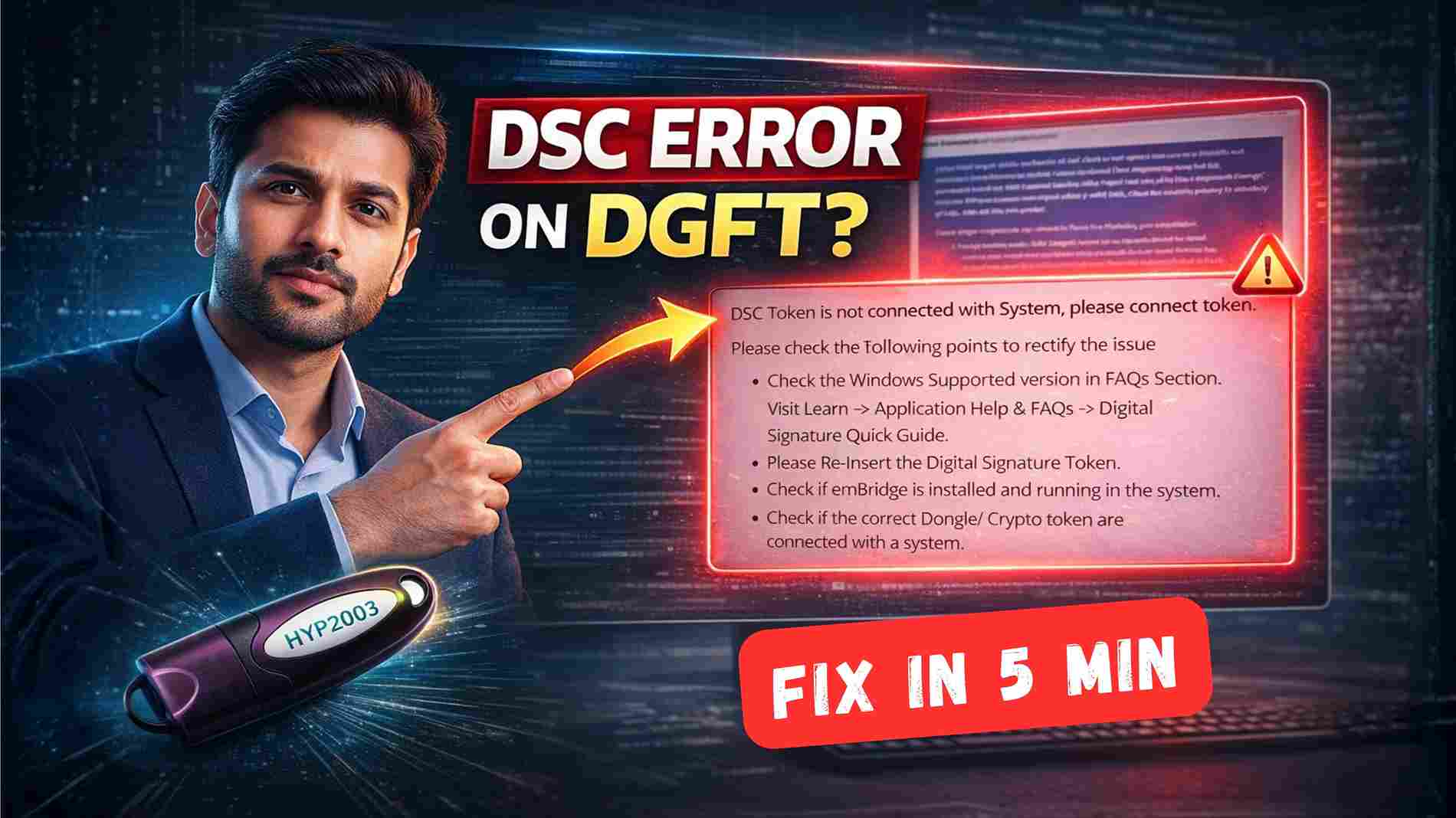
DGFT Website DSC Not Connecting? A Complete Step-by-Step Guide Based on Real Experience
If you are trying to log in, apply, or sign documents on the DGFT website and your Digital Signature Certificate (DSC) is not connecting, this blog is written specially for you.
Over the past few weeks, our support team has received a large number of calls and WhatsApp messages from exporters, importers, consultants, and professionals facing the same issue:
“DSC is installed, but DGFT website is not detecting it.”
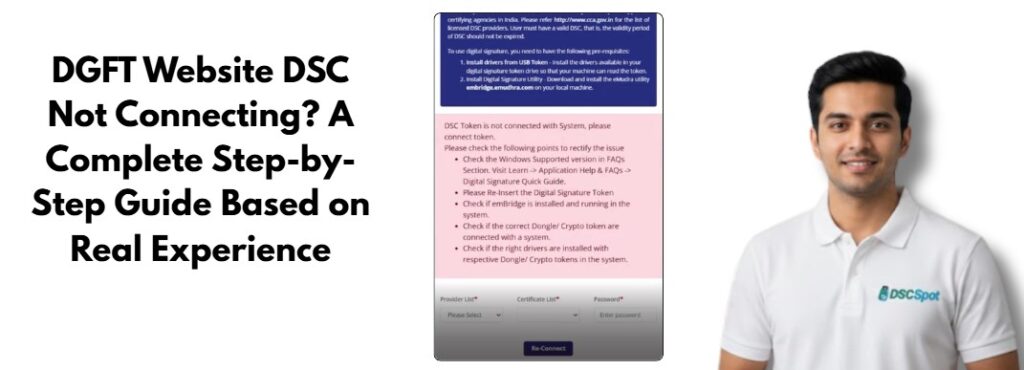
To be very honest, this is not just a user problem.
We have personally faced this issue multiple times while helping DGFT users, and that practical experience is exactly what this guide is based on.
The biggest mistake most users make is missing or changing the sequence of steps.
Even if one step is skipped, the DSC will not work.
This blog explains the complete, tested, and working method to fix DGFT DSC connection issues.
What Is a DSC and Why Is It Mandatory for DGFT?
A Digital Signature Certificate (DSC) is an electronic signature used to verify the identity of the user on government portals.
DGFT requires a Class 3 DSC for:
- DGFT login
- IEC-related services
- Online applications
- Document signing and submission
Without a properly connected DSC, no action can be completed on the DGFT portal.
Common Reasons Why DSC Does Not Connect on DGFT Website
From our daily support experience, these are the most common reasons:
- USB Token driver is outdated or corrupted
- Driver was installed earlier but not properly configured
- Embridge Utility is not installed
- Embridge Service is not running in the background
- System was not restarted after installation
- Multiple token drivers installed on the same system
👉 Important:
Most users think the problem is with DGFT website, but 90% of the time the issue is system-side.
Step-by-Step Solution to Fix DGFT DSC Connection Issue (Tested Method)
Step 1: Install or Reinstall USB Token Driver (Do Not Skip)
This is the most important step.
Many users say:
“My USB token driver is already installed.”
But based on our experience, reinstalling the driver solves the issue in most cases.
🔗 Download USB Token Driver:
👉 https://www.digitalsignaturespot.com/downloads
What you should do:
- Download the correct driver for your USB token
- Install it properly
- Restart your system after installation
We have solved hundreds of DGFT DSC cases just by reinstalling the token driver correctly.
Step 2: Install Embridge Utility (Mandatory for DGFT)
This step is commonly ignored, and that’s why DSC does not connect.
Even if your driver is installed correctly, DGFT will not detect DSC without Embridge Utility.
🔗 Download Embridge Utility:
👉 https://embridge.emudhra.com/
After downloading:
- Install the utility
- Allow all permissions
- Do not skip installation prompts
In our real cases, DSC never connected until Embridge Utility was installed.
Step 3: Restart Embridge Service (Critical Technical Fix)
If DSC still does not connect, follow these steps carefully:
- Press Windows + R
- Type services.msc
- Click OK
- Find Embridge Service
- Click Stop
- Then click Start or Restart
This step refreshes the background service that allows the browser and DGFT website to detect your DSC.
We have personally seen DSC connect immediately after restarting Embridge Service.
Step 4: Recheck DSC on DGFT Website
Now:
- Open DGFT website again
- Try logging in or signing using DSC
✅ In most cases, DSC connects smoothly
✅ No browser change required
✅ No additional tools needed
If all steps are followed in the correct order, the issue gets resolved.
Additional Tips From Our Practical Experience
- Always install drivers before inserting the USB token
- Avoid installing multiple token drivers on one system
- Restart the system after driver installation
- Use updated browsers (Chrome or Edge recommended)
- Avoid third-party or unofficial driver sources
Frequently Asked Questions (FAQ)
Q1. Which DSC is required for DGFT?
A Class 3 Digital Signature Certificate is required for DGFT services.
Q2. Is Embridge Utility compulsory?
Yes. Without Embridge Utility, DSC will not connect on DGFT website.
Q3. Does this solution work for all USB tokens?
Yes. This method works for mToken, ePass, ProxKey, Watchdata, and other major tokens.
Q4. My DSC still doesn’t work after all steps. What should I do?
Your DSC may be:
- Expired
- Revoked
- Technically incompatible
In such cases, buying a new DSC is the best option.
Buy Digital Signature Certificate for DGFT (Fast & Trusted)
If your DSC is expired, not working, or you need a new DSC for DGFT, we can help you.
✅ Genuine Class 3 DSC
✅ Fast issuance
✅ Expert technical support
✅ Affordable pricing
👉 Buy Digital Signature for DGFT with Complete Support
Contact Details – Digital Signature Spot
📞 Phone / WhatsApp: +91-XXXXXXXXXX
📧 Email: support@digitalsignaturespot.com
🌐 Website: www.digitalsignaturespot.com
Our support team works daily on DGFT, DSC, MCA, and government portal issues.
About the Author
Smarth
Digital Compliance Expert & DSC Consultant
Smarth has years of hands-on experience in Digital Signature Certificates, DGFT, MCA, and other government portals.
Instead of theory, his solutions are based on real problems faced by real users, making the guidance practical, reliable, and easy to follow.

About author














Add comment