

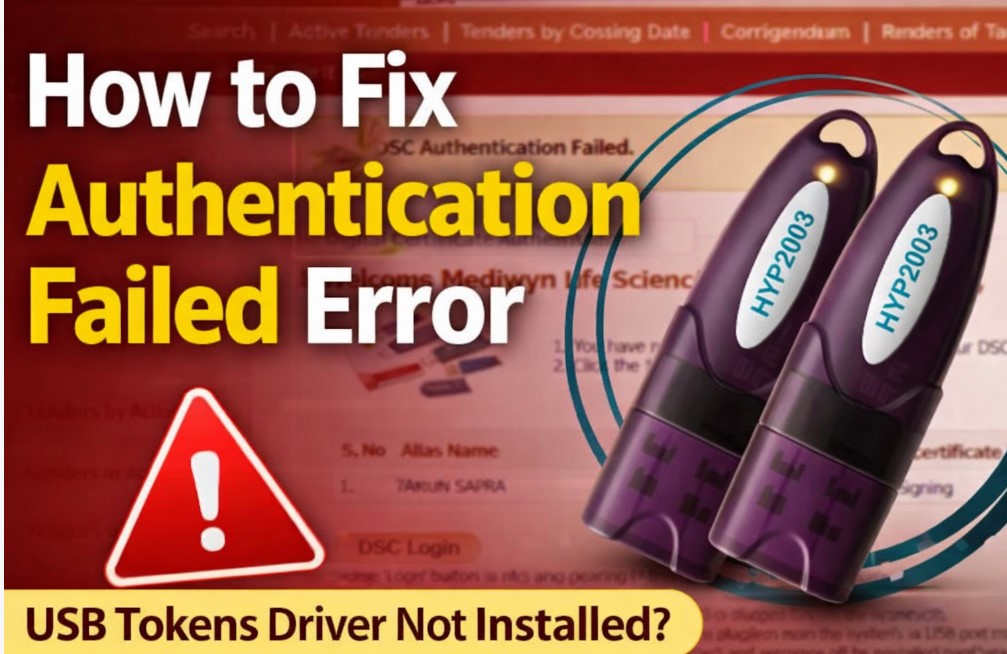
Authentication Failed Error in Tender Portal? Here’s the Real Fix (Step-by-Step Guide)
Authentication Failed Error in Tender Portal? Here’s the Real Fix (Step-by-Step Guide): If you’ve ever tried logging into a government tender portal and encountered the frustrating “Authentication Failed” error, you’re not alone.
This is one of the most common Digital Signature Certificate (DSC) issues faced by bidders during tender logins — especially when deadlines are tight and every second counts.
In this guide, we’ll explain:
- Why the Authentication Failed error occurs
- The real root causes behind it
- How to fix it step-by-step
- When you must deactivate your old DSC
- And how to keep this from happening again
Let’s break it down in simple language.
Why Does the “Authentication Failed Error in Tender Portal” Error Appear on Tender Websites?
When you log in with your USB token, the portal verifies your identity using your Digital Signature Certificate (DSC).
For this to work smoothly, three things must align:
- Your USB token
- The USB token driver
- The portal’s authentication system
If any of these fail to communicate properly, you’ll see the Authentication Failed message.
Based on real user cases, here’s what usually goes wrong.
1️⃣ USB Token Driver Not Installed (Most Common Reason)
The most frequent cause of this error is:
Your USB token driver is not installed — or not properly installed on your computer.
If the system can’t detect the token driver, it can’t read your DSC. And if your DSC isn’t read, authentication fails.
✅ How to Fix It
- Uninstall any old token driver
- Restart your computer
- Install the correct driver from the official page
- Reconnect your USB token
- Try logging into the portal again
👉 Download all official USB Token drivers here:
🔗 https://digitalsignaturespot.com/downloads/
In many cases, this simple step fixes the problem instantly.
2️⃣ You Created a New DSC Before Deactivating the Old One
This is another very common situation.
Let’s look at the scenarios:
🔹 Case A: Old DSC Has Already Expired
If your previous DSC has expired and you have obtained a new one:
✔ You can log in directly using the new DSC
✔ No deactivation needed
✔ Just ensure the driver is installed
In this case, the Authentication Failed error generally does not occur.
🔹 Case B: Old DSC Is Still Valid, But You Created a New One
This is where most bidders get stuck.
If your old DSC is still valid and you generate a new one, the tender portal still considers the old certificate as active — even if you don’t want to use it anymore.
So when you try to login with the new DSC, the portal rejects the request because the old DSC is still registered.
✅ Correct Solution: Deactivate the Old DSC
In this case, you must complete the DSC Deactivation for Bidders process before using the new DSC.
Here’s how:
- Download the DSC Deactivation for Bidders form
- Fill it out completely
- Send it from your registered email address as instructed
👉 DSC Deactivation for Bidders Form:
🔗 https://etender.up.nic.in/nicgep/app?component=%24DirectLink&page=StandardBiddingDocuments&service=direct&session=T&sp=SgmfYUWw1uqbW8%2BV9JQEmthINzf1CIhnnt4LdmN%2BZY2TAVM7EPFaupJog7vGaMB2Z
Once the old DSC is deactivated, the new DSC will work correctly for login.
Troubleshooting Checklist — Quick & Effective
Before you reach out for support, make sure you’ve checked these:
✔ USB token driver installed properly
✔ Token is detected in your browser
✔ Correct certificate is selected during login
✔ Old DSC validity checked
✔ Deactivation form submitted (if required)
In most real-world cases, one of these fixes the issue without further help.
How to Avoid Authentication Errors in the Future
Follow these best practices:
- Track your DSC expiry dates
- Do not renew or generate a new DSC unless necessary
- Always install token drivers from official sources
- Keep Java and browser settings compatible with the tender portal
- Use the correct registered email address
A little preparation can save hours of frustration.
Frequently Asked Questions (FAQ)
Q1. Why does the Authentication Failed error still show even after installing the driver?
Sometimes the driver version is outdated or corrupted. Reinstall the latest official driver from the link above and restart your system before trying again.
Q2. Can I use a new DSC immediately after purchase?
Yes — only if your old DSC has expired. If the old one is still valid, deactivation is required before the new one can work.
Q3. Where can I download the DSC Deactivation for Bidders form?
You can get it directly from the tender portal’s download section using the link above.
Q4. How long does DSC deactivation take?
It varies by authority but typically takes 1–3 working days after submitting the form.
Q5. Will this issue occur on all government tender portals?
Yes, it can occur on most e-tender portals that use DSC authentication.
Get DSC for Tender (Fast & Hassle-Free)
Need a Class 3 Digital Signature Certificate (DSC) for tender submission, renewal, or mapping support?
We offer:
✔ Class 3 DSC for Individuals & Organizations
✔ Token Driver Installation Support
✔ DSC Deactivation Assistance
✔ Tender Login Support & Troubleshooting
✔ Remote Help via Call/WhatsApp
Don’t let a technical error stop your tender submission.
About the Author
Smarth is a Digital Signature expert and founder of Digital Signature Spot, where he helps professionals, exporters, and bidders solve DSC errors and navigate tender portal technicalities.
With hands-on experience guiding users through installation issues, driver problems, certificate renewal, and portal login errors, Smarth simplifies complex procedures into easy-to-follow solutions.
His mission:
“No bidder should lose a tender because of a preventable digital signature error.”


About author













Add comment